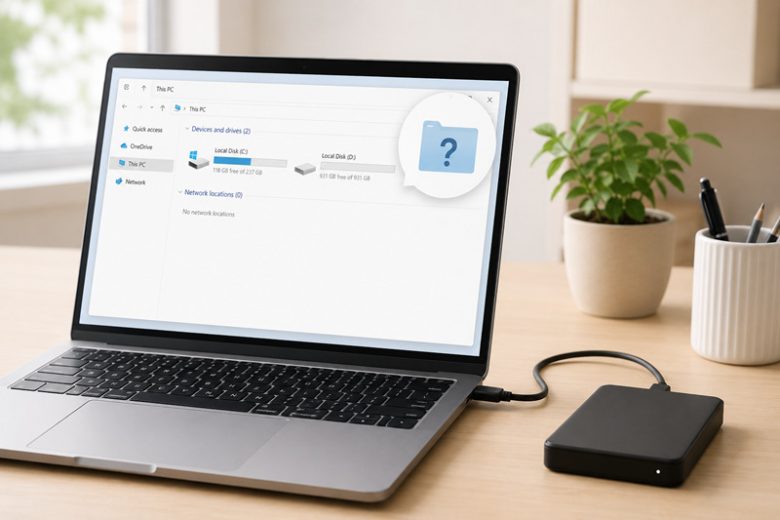
Plugging in an external hard drive, portable SSD, or USB flash drive that holds years of family photos, tax records, or project backups—only to see nothing appear in Windows File Explorer—is an immediate source of panic. Even worse is when Windows plays the familiar USB connection chime and pops up a dialog box saying, “You need to format the disk in drive E: before you can use it.”
When this happens, the most common advice online is to click Format Disk, run aggressive partition-repair utilities, or immediately run command-line disk repair tools. However, clicking “Format” erases the file system index pointing to your files, and running write-heavy repair commands on a drive suffering from a simple power drop or cable fault can permanently corrupt recoverable data.
In the majority of real-world cases, an external drive that disappears from File Explorer is not dead. Often, Windows has simply failed to assign a drive letter, suspended power to the USB controller, encountered a worn USB bridge cable, or hit a minor partition-visibility conflict. Before you format the drive, pay for expensive recovery software, or buy a replacement, work through these safe, non-destructive checks in order from least invasive to more advanced.
Why You Must Avoid Formatting or Running Repair Commands First
When Windows cannot read a drive’s file system immediately, it defaults to treating the partition as unformatted or RAW. That does not mean your files have vanished. It simply means Windows could not complete the handshake between the USB controller, the partition table, and File Explorer.
Taking destructive actions before identifying the root cause carries three major risks:
- Formatting overwrites the file allocation table: Even a “Quick Format” writes a fresh, empty file system header over your existing directory structure, making standard file access impossible without specialized recovery tools.
- Initializing an existing disk wipes the partition table: If Disk Management in Windows prompts you to “Initialize Disk” on a drive that already contains data, clicking OK creates a brand-new Master Boot Record (MBR) or GUID Partition Table (GPT), erasing how Windows locates your existing partitions.
- Running
chkdsk /fon a failing or underpowered drive risks data loss: While the Microsoft Learnchkdskcommand is useful for minor logical errors on healthy drives, forcing it to rebuild file segments while a USB drive is disconnecting due to low power or failing sectors can scramble folders into unusable.chkfragments.
Quick Diagnostic Guide: Match Your Symptom to the Right Check
Before changing any Windows settings, observe how your computer and the drive behave when you plug it in. Use the table below to pinpoint where the connection is breaking down:
| Symptom When Plugging In the Drive | What It Usually Means | Where to Start |
| Drive LED stays off, no spinning sound (HDD), and no Windows USB chime | Power delivery failure, faulty USB cable, or dead motherboard port | Step 1: Physical Port, Cable, and Power Isolation |
| Windows plays the USB chime, and the drive appears in the taskbar “Safely Remove” icon, but not in File Explorer | Missing drive letter conflict or hidden partition in Windows | Step 2: Check Partition Status and Assign a Drive Letter |
| Drive disconnects and reconnects repeatedly, or vanishes after the PC wakes from sleep | Windows USB power-saving settings or outdated USB Root Hub driver | Step 3: Disable USB Selective Suspend and Refresh Drivers |
Drive shows as Offline or Read-Only inside Disk Management |
Windows storage policy lock or sudden disconnection flag | Step 4: Bring an Offline Disk Back Online Safely |
Drive shows as RAW or asks to be formatted upon connection |
Corrupted file system header, damaged cable drop, or unsupported OS format (APFS/ext4) | Step 5: Safe Checks for RAW Drives and File System Errors |
Step 1: Isolate Physical Ports, Cables, and Power Delivery First
More than half of “undetected” external drives are actually starving for power or communicating over a damaged data pin inside the USB cable. Portable mechanical hard drives (HDDs) require significantly more startup current to spin up their internal platters than a mouse or keyboard, and high-speed NVMe portable SSDs draw heavy power during initial detection.
Bypass Front-Panel Ports and Unpowered USB Hubs
- Plug directly into the motherboard: On a desktop PC, unplug the drive from the front or top case ports—which rely on thin internal extension wires—and connect it directly to the USB ports on the back panel (motherboard I/O). On a laptop, test a port on the opposite side of the chassis.
- Remove unpowered USB hubs and dongles: If you connect your drive through a multi-port USB-C dongle or unpowered splitter alongside an external monitor, webcam, or keyboard, the hub may not supply enough wattage. Connect the storage drive directly to the computer.
- Test a second USB cable: External drive cables bend frequently and often fail on the internal data lines while still passing enough power to light up the drive’s LED. Because the LED lights up, users assume the cable is fine—even though no data can reach Windows. Swap in a known-good, data-rated USB cable.
- Check external power adapters (Desktop 3.5-inch Drives): Large desktop backup drives require a wall power adapter. Ensure the wall outlet is active and the barrel plug is seated firmly.
Step 2: Inspect the Drive in Windows Disk Management Without Erasing Data
If the drive receives power and Windows plays a connection sound, your next stop is Disk Management in Windows. This built-in utility shows every physical storage device recognized by the motherboard, even when File Explorer hides it.
- Right-click the Start button on your taskbar (or press
Windows Key + X) and select Disk Management. Alternatively, pressWindows Key + R, typediskmgmt.msc, and press Enter. - Scroll down to the bottom half of the window, which lists physical disks as Disk 0, Disk 1, Disk 2, and Removable drives.
- Look for your external drive by matching its total storage capacity (for example,
931.51 GBfor a 1 TB drive or1863.01 GBfor a 2 TB drive).
Critical Safety Warning: If a popup immediately asks you to Initialize Disk (offering MBR or GPT options) for a drive that already has your personal files on it, click Cancel right away. Initializing a used drive overwrites its partition structure. An initialization prompt on an existing drive usually indicates a loose USB enclosure bridge or insufficient power—go back to Step 1 and test the drive on a different PC first.
Fix a Missing Drive Letter Conflict
Sometimes Windows detects your drive and shows its partition bar as Healthy (Primary Partition) with an NTFS, exFAT, or FAT32 label, but there is no drive letter (such as (E:) or (F:)) next to the volume name. Without a letter, File Explorer cannot display the drive under This PC. This often happens if you previously used a network share, virtual drive, or another thumb drive that claimed the same letter.
To assign a fresh drive letter safely (this will not delete or alter any files):
- In Disk Management in Windows, right-click the healthy partition box of your external drive.
- Select Change Drive Letter and Paths… from the menu.
- If no letter is listed, click Add…; if a conflicting letter appears, click Change….
- Select Assign the following drive letter and pick a letter near the middle or end of the alphabet (such as
M:,R:, orT:) so it never collides with temporary USB sticks. - Click OK. Your drive should immediately open in File Explorer with all folders intact.
Once your drive mounts properly, if you are moving large backups to free up your computer’s internal drive, check out our guide on Windows Storage Almost Full: How to Find What’s Taking Up Space Safely to clean up your main system drive without deleting critical system files.
Step 3: Stop Windows From Cutting Power to Your USB Ports
If your external drive briefly appears and then vanishes, or fails to show up after your laptop wakes from sleep, Windows power-management features or a stalled USB controller driver may be shutting down the port.
Turn Off USB Selective Suspend
Windows includes a battery-saving feature called USB Selective Suspend that puts idle USB ports into a low-power state. Many external hard drives fail to wake up cleanly when Windows cuts and restores port voltage.
- Press
Windows Key + R, typecontrol powercfg.cpl, and press Enter to open Power Options. - Next to your active power plan, click Change plan settings, then click Change advanced power settings.
- Expand USB settings, then expand USB selective suspend setting.
- Change both On battery and Plugged in (or Setting on a desktop PC) to Disabled.
- Click Apply and OK.
Refresh Stalled USB Controllers in Device Manager
When a USB device is unplugged abruptly or experiences a voltage dip, Windows can cache a corrupted device descriptor, causing it to ignore the drive the next time you plug it in.
- Right-click the Start button and select Device Manager.
- Expand the Disk drives section and look for your external drive.
- If you see a downward arrow icon next to the drive, right-click it and select Enable device.
- If you see a yellow exclamation mark, right-click the drive, choose Uninstall device, unplug the drive from the PC, wait 15 seconds, and plug it back in so Windows loads a clean driver.
- Next, expand Universal Serial Bus controllers at the bottom of Device Manager.
- Look for USB Mass Storage Device or Unknown USB Device (Device Descriptor Request Failed). If an error icon is present, right-click that entry, select Uninstall device, restart your PC, and reconnect your external drive after Windows finishes booting.
- Still inside Universal Serial Bus controllers, right-click each USB Root Hub (USB 3.0) entry, select Properties, open the Power Management tab, and uncheck Allow the computer to turn off this device to save power, then click OK.
Step 4: Bring an “Offline” External Drive Back Online
Occasionally, Windows marks an external hard drive as Offline in Disk Management—either because of a sudden power loss or a group-policy storage rule (SAN Policy). When a disk is marked Offline, its partitions remain completely invisible in File Explorer.
- Open Disk Management (
diskmgmt.msc). - Look at the left-hand summary box (where it says Disk 1 or Disk 2).
- If the status beneath the disk number says Offline, right-click directly on that gray Disk label box on the left side.
- Click Online. Within a few seconds, the status will change to Online, and your volume will reappear in File Explorer.
Step 5: What to Do If the Drive Shows as “RAW” or Prompts to Format
If Disk Management shows your external drive as Healthy (Primary Partition), but lists the file system as RAW instead of NTFS or exFAT, pause before running any repair tool.
1. Check Whether the Drive Was Formatted on a Mac or Linux Device
Before assuming the drive is corrupted, ask where the drive was last used:
- Drives formatted with Apple’s APFS or HFS+ (Mac OS Extended) for macOS Time Machine backups will appear as
RAWor unallocated space in Windows because Windows does not natively read Apple file systems. - Similarly, drives formatted as ext4 on Linux machines or certain network-attached storage (NAS) enclosures cannot be opened directly by Windows File Explorer.
- Safe solution: Plug the drive back into the Mac or Linux machine it came from to verify your files, then copy the data over or use a cross-platform format like exFAT on a blank drive in the future.
2. Test on a Second Computer Before Modifying the Drive
Sometimes an antivirus filter driver, third-party backup utility, or pending system update on your primary PC blocks the file system mount. (If your PC is also struggling with stalled updates or background crashes, see our guides on Windows Update Stuck or Failing: What to Check Before Trying Advanced Fixes and Windows Apps Keep Crashing? How to Find the Cause Before Reinstalling.)
Plug the external drive into a second Windows PC or laptop. If it opens normally on the second computer, back up your critical files immediately before troubleshooting your main PC.
3. Prioritize Read-Only Recovery Over In-Place chkdsk When Files Are Irreplaceable
If the drive shows as RAW on multiple Windows PCs and holds irreplaceable photos or documents that aren’t backed up anywhere else:
- Do not run
chkdsk /ffirst if the drive is making clicking noises, grinding, or running unusually hot. Physical drive wear requires immediate read-only cloning or professional data recovery; running repair writes will worsen physical media damage. - If the drive sounds healthy (or is a solid-state drive) and only suffered an accidental unplugging while a file was saving, you can check whether the Microsoft Learn
chkdskcommand can read the Master File Table in read-only mode first by opening Command Prompt as Administrator and running:chkdsk E:(Replace
E:with the actual drive letter shown in Disk Management. Runningchkdskwithout/for/rperforms a safe, read-only scan without modifying the disk.) - Only if the read-only scan confirms a minor NTFS journal or bitmap inconsistency—and the drive is physically healthy—should you run
chkdsk E: /fto repair the volume header.
How to Prevent External Drive Disconnections and Data Loss in the Future
Once you regain access to your external hard drive or USB flash drive, a few simple habits will prevent future mount failures and file system corruption:
- Always use “Safely Remove Hardware and Eject Media”: Even though modern Windows enables “Quick Removal” by default for many drives, background apps (such as cloud sync clients, media players, or antivirus scanners) frequently hold open file handles. Clicking the taskbar eject icon flushes any cached write data before you pull the cable.
- Choose
exFATfor drives shared between Windows and Mac, andNTFSfor Windows-only backups: WhileexFATworks across operating systems,NTFSincludes transaction journaling on Windows, which makes it far more resilient against turningRAWif a power outage occurs. - Follow the 3-2-1 Backup Rule: Never store the only copy of important files on a single external hard drive. Keep 3 copies of your important data, across 2 different local devices (for example, your PC and an external drive), with 1 copy stored securely off-site or in encrypted cloud storage.
- Replace worn micro-B and USB-C enclosure cables early: If touching or slightly moving your external drive cable causes the drive to chime and reconnect, retire that cable immediately before a mid-transfer disconnect corrupts your partition table.