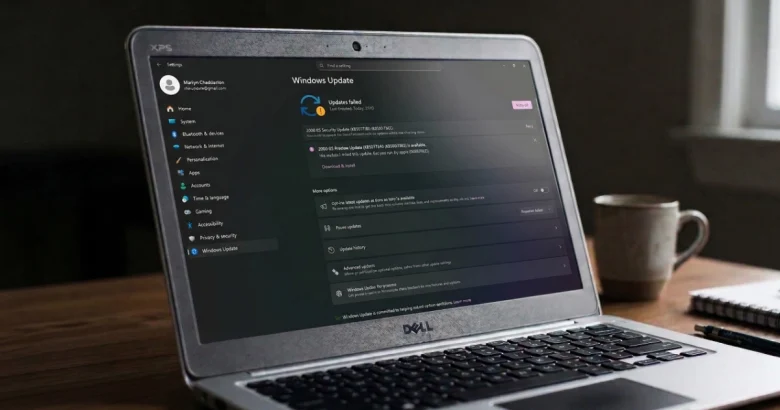
When a Windows update freezes at 0%, loops indefinitely on “Downloading – 100%”, or fails with an obscure error code like 0x80070002 or 0x80244007, it is easy to assume your operating system is severely corrupted.
Many online guides immediately recommend running complex command-line scripts, clearing the Software Distribution folder manually, editing the Windows Registry, or performing an in-place upgrade. However, in most cases, a stuck update is simply caused by a stalled background service, a temporary network glitch, a low storage drive, or an external USB device interfering with Windows Setup.
Before diving into destructive commands or advanced repairs, work through this structured checklist of safe, effective checks that resolve the vast majority of Windows 10 and Windows 11 update failures.
Symptoms That Indicate an Update Is Actually Stuck
Before interrupting your PC, confirm whether the update is genuinely frozen or just processing large files:
-
Stuck Percentage for Hours: The download or installation percentage has not moved by even 1% for over 2 to 3 hours (note: major feature updates like Windows 11 23H2 or 24H2 can legitimately sit at 60%–85% for an hour while applying migration packages).
-
Disk Activity Is Dead: Open Task Manager (
Ctrl + Shift + Esc), click the Performance tab, and look at Disk 0 (C:). If Active time is flat at 0% and Read/Write speeds are zero for 20+ minutes, the update process has hung. -
Persistent Error Codes: The update attempts to install, fails, and displays the exact same error code repeatedly across multiple reboot attempts.
Safe Preliminary Checks (Do These First)
Before restarting services or running diagnostic tools, rule out external interference with three simple checks:
-
Disconnect All Non-Essential USB Devices:
-
External hard drives, USB flash drives, docking stations, game controllers, and secondary monitors can cause Windows Setup to hang while trying to assign drive letters or load generic drivers during a reboot. Unplug everything except your essential mouse and keyboard.
-
-
Verify Your Internet Connection Stability:
-
Windows updates require uninterrupted packet delivery. If you are on a weak Wi-Fi connection, switch to a wired Ethernet cable or temporarily toggle Wi-Fi off and back on. Ensure Metered Connection is turned Off (go to Settings > Network & internet > Wi-Fi / Ethernet, click your active network, and check that Metered connection is disabled).
-
-
Check Your Date, Time, and Region Settings:
-
If your computer’s CMOS battery is failing or your clock is unsynchronized, SSL security certificates for Microsoft update servers will fail verification. Right-click the clock in your taskbar, select Adjust date and time, and ensure Set time automatically and Set time zone automatically are both toggled On.
-
Step 1: Diagnose the Bottleneck Using Windows Update Settings
Instead of guessing why an update failed, let Windows tell you what is blocking the installation.
-
Press
Windows Key + Ito open Settings. -
Navigate to Windows Update (on Windows 10, go to Update & Security > Windows Update).
-
Look closely at the exact status message:
-
“Some settings are managed by your organization” or red warning text: Indicates a stray Group Policy or registry tweak leftover from old corporate software or aggressive privacy utilities blocking update delivery.
-
“We couldn’t connect to the update service” or error codes starting with
0x8024: Points to network connectivity, firewall blocking, or corrupted update delivery caches. -
Error codes starting with
0x8007(e.g.,0x80070070): Typically indicates insufficient disk space on yourC:drive. (If your drive is nearly full, refer to our guide on how to find what’s taking up storage space on Windows safely).
-
Step 2: Step-by-Step Fixes (Ordered from Safest to Advanced)
Work through these targeted solutions, starting with the easiest built-in tools.
1. Run the Built-In Windows Update Troubleshooter
Windows includes an automated diagnostic tool that detects and repairs broken update registry keys and unregisters stuck update services automatically.
-
On Windows 11:
-
Open Settings > System > Troubleshoot > Other troubleshooters (or System > Troubleshoot).
-
Locate Windows Update in the list and click Run.
-
Allow the troubleshooter to finish scanning, and apply any recommended fixes.
-
-
On Windows 10:
-
Open Settings > Update & Security > Troubleshoot > Additional troubleshooters.
-
Select Windows Update and click Run the troubleshooter.
-
2. Perform a True Restart to Clear Hung Installation States
If an update is hanging in the background, a normal shutdown with Fast Startup enabled may preserve the frozen state.
-
Click Start > Power, hold down the
Shiftkey on your keyboard, and click Restart. -
Your PC will boot into the blue recovery menu. Click Continue to Windows.
-
This forces a complete kernel reload and clears hung session files from memory.
3. Clear Stuck Pending Updates Using the Built-In Windows Troubleshooter Tool (or Restart Update Services)
If the troubleshooter cannot resolve the issue and updates remain stuck in the queue, you can safely restart the core Windows update background services without deleting system files.
-
Press the
Windows Key, type Command Prompt, right-click it, and select Run as administrator. -
Type the following commands one by one, pressing Enter after each command to stop the update services:
DOS
net stop wuauserv net stop cryptSvc net stop bits net stop msiserver -
Next, restart those services by typing:
DOS
net start wuauserv net start cryptSvc net start bits net start msiserver -
Close the Command Prompt window, restart your computer normally, and check for updates again.
4. Check for and Install Optional Driver Updates
Sometimes a cumulative security update fails because an older hardware driver on your system is incompatible with the new update package.
-
Open Settings > Windows Update (or Update & Security on Windows 10).
-
Click Advanced options (or View optional updates).
-
Open Optional updates and review available manufacturer driver updates (specifically Intel, AMD, or Realtek chipset and display drivers). Installing pending driver updates often clears the bottleneck blocking main security patches.
5. Check Disk Space and System Health Before Proceeding
If Windows Update continues to throw space errors or unexplained installation rollbacks:
-
Verify you have at least 20 GB to 30 GB of free space on your
C:drive so Windows has room to download, extract, and apply large packages. If your drive is congested, clear temporary caches as outlined in our complete guide to finding storage space on Windows. -
If your PC experiences sluggish performance alongside update failures, check our laptop performance troubleshooting guide to ensure a background process or disk bottleneck isn’t starving the update installer of resources.
Critical Safety Rules: What NOT to Do When Updates Fail
When updates refuse to install, avoid aggressive online “fixes” that can compromise your system integrity:
-
Do NOT manually delete the
SoftwareDistributionfolder without stopping services first: If you delete or renameC:\Windows\SoftwareDistributionwhile Windows Update services are actively running, you will corrupt the update database and trigger permanent installation errors. -
Do NOT run unverified registry scripts from random forums: Scripts that claim to “reset all Windows update components” via aggressive registry edits can break user account controls or disable Windows Defender.
-
Do NOT force-shut down your PC during a BIOS or UEFI firmware update: If an update status screen specifically warns “Do not turn off your PC” because it is flashing motherboard or UEFI firmware, interrupting power will brick your motherboard, requiring professional hardware repair. (Cumulative OS security updates can be interrupted safely, but firmware updates must never be cut short).
-
Do NOT disable your antivirus permanently: While third-party security suites can occasionally block update staging files, do not leave your firewall and antivirus disabled indefinitely after troubleshooting.
How to Verify Whether the Update Succeeded
-
Open Settings > Windows Update (or Update & Security > Windows Update on Windows 10).
-
Confirm that the status reads “You’re up to date” (or displays a green checkmark).
-
Click Update history to verify that the previously failing KB update number now displays a Successfully installed on [Date] status next to it.
-
Restart your computer one final time to ensure all pending registry operations apply cleanly.
What to Do When the Problem Persists
If you have run the troubleshooter, restarted update services, verified disk space, and disconnected USB devices, yet updates still fail:
-
Use the Official Microsoft Update Assistant (For Feature Updates): If a major Windows 11 feature update refuses to install via standard settings, go to the official Microsoft Software Download website (
[microsoft.com/software-download](https://microsoft.com/software-download)), download the Windows 11 Installation Assistant, and run it while logged into an administrator account. It upgrades your system in-place while preserving your personal files and apps. -
Perform an In-Place Repair Upgrade: If system file corruption runs deep, downloading the official Windows ISO from Microsoft and running
setup.exefrom within Windows allows you to repair the operating system without losing your files or installed software.
Frequently Asked Questions (FAQ)
Can a slow internet connection cause Windows Update to fail with error codes?
Yes. If your connection drops packets mid-download, Windows Update receives incomplete files. When the installer tries to verify the checksum of a corrupted download package, it fails and rolls back the installation, often returning generic error codes like 0x80240020 or 0x80070570. Switching temporarily to a stable wired connection or a different network resolves this.
Why does Windows Update take so long on “Restarting”?
When Windows displays “Working on updates” or “Cleaning up” during a reboot, it is moving newly downloaded system files into their permanent protected directories (C:\Windows\System32) and removing temporary staging files. Interrupting this phase forces Windows to roll back the changes, which can take twice as long. Always give the reboot screen at least 60 to 90 minutes before intervening.
Is it safe to pause Windows updates if they keep failing?
Yes. If an update is repeatedly failing and disrupting your workflow, you can go to Windows Update and click Pause updates for 1 week. This stops your PC from entering a frustrating install-and-fail loop until Microsoft releases a patched revision or you have time to investigate.
F. Official Sources & Documentation
The troubleshooting steps and service recovery procedures in this guide are verified against official Microsoft documentation:
-
Microsoft Support — Troubleshoot problems updating Windows:
-
URL:
[https://support.microsoft.com/en-us/windows/troubleshoot-problems-updating-windows-188c2b0f-10a7-d72f-65b8-32d1fa10113f](https://support.microsoft.com/en-us/windows/troubleshoot-problems-updating-windows-188c2b0f-10a7-d72f-65b8-32d1fa10113f) -
What it verifies: Official guidance for running the Windows Update troubleshooter, checking disk space requirements, verifying device time zones, and restarting update components.
-
-
Microsoft Support — Windows Update error code reference:
-
URL:
[https://support.microsoft.com/en-us/windows/get-help-with-windows-update-errors-4089d741-dc71-f9c5-5aeb-c0111f742326](https://support.microsoft.com/en-us/windows/get-help-with-windows-update-errors-4089d741-dc71-f9c5-5aeb-c0111f742326) -
What it verifies: Official explanations for common update error hex codes (
0x8007...,0x8024...) and recommended remediation steps.
-
-
Microsoft Support — Download Windows 11 (Installation Assistant):
-
URL:
[https://www.microsoft.com/software-download/windows11](https://www.microsoft.com/software-download/windows11) -
What it verifies: Official fallback methods for upgrading Windows when system settings update queues fail.
-
Suggested Internal Links (Verified Maleisure.com Links)
-
Internal Link 1:
[https://maleisure.com/windows-storage-almost-full-find-whats-taking-up-space-safely/](https://maleisure.com/windows-storage-almost-full-find-whats-taking-up-space-safely/)-
Anchor Text: guide on how to find what’s taking up storage space on Windows safely
-
Placement: Step 1, Item 3 (Diagnostic check for error code
0x80070070) and Step 2, Item 5 (Ensuring sufficient disk space).
-
-
Internal Link 2:
[https://maleisure.com/windows-laptop-running-slowly-identify-real-cause-before-upgrading-hardware/](https://maleisure.com/windows-laptop-running-slowly-identify-real-cause-before-upgrading-hardware/)Placement: Step 2, Item 5 (Checking system health and background resource bottlenecks before update installations).
IOriginality and Search-Intent Assessment
Relationship to Existing Website Inventory:
Connects seamlessly with Maleisure.com’s existing published tech articles (/windows-storage-almost-full-find-whats-taking-up-space-safely/ and /windows-laptop-running-slowly-identify-real-cause-before-upgrading-hardware/), completing a robust troubleshooting cluster under Windows & PC Troubleshooting.
How This Article Differentiates from Generic Web Advice:
Avoids jumping immediately to destructive command-line registry wipes or third-party repair tools. Instead, it prioritizes safe preliminary checks (USB device disconnection, time synchronization, storage verification) and gentle service resets before suggesting advanced repair assistants.
Maintenance Note (Details Likely to Need Future Rechecking)
Review the following technical details after major Windows 11 feature updates (such as version 25H2/26H2):
- Troubleshooter Location: Microsoft continues to migrate legacy Control Panel and Settings troubleshooters into the modern Get Help app or modular settings pages. Verify exact paths under Settings > System > Troubleshoot.
- Service Names: Core background services (
wuauserv,bits,cryptSvc) remain consistent across Windows 10 and 11, but verify command-line syntax during major OS migrations.