
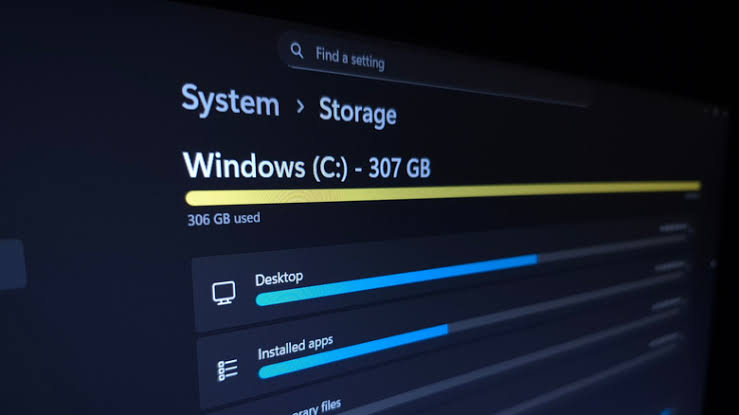
When Windows warns you that your main drive (usually the C: drive) is almost full, your computer doesn’t just prevent you from saving new files—it can also slow down significantly, fail to install critical security updates, and experience sudden app crashes.
The temptation in that moment is to open File Explorer and start deleting large folders that look unfamiliar. However, deleting the wrong directory can break installed programs, wipe out personal files synced to the cloud, or prevent Windows from starting altogether.
This guide walks you through how to accurately identify what is consuming your hard drive or SSD space on Windows 10 and Windows 11, how to distinguish between expendable cache files and critical operating system components, and how to reclaim gigabytes of storage safely without risking your personal data.
Symptoms That Indicate Critical Low Storage
You may notice low-storage problems before or alongside an official Windows notification:
-
Red Storage Bar in File Explorer: Opening This PC shows a red capacity bar under Local Disk (
C:), which triggers when less than 10% of total drive space remains free. -
Windows Update Failures: Updates fail to download or install, often displaying errors such as
0x80070070(which indicates insufficient disk space). -
System Sluggishness and Freezing: Windows relies on free drive space to manage virtual memory (the paging file). When the drive is nearly 100% full, switching between open apps becomes noticeably slow.
-
“Out of Memory” or Scratch Disk Errors: Applications like video editors, photo editors, or web browsers crash or refuse to save files even when you have plenty of RAM, because their temporary “scratch” disk space is exhausted.
Common Causes: Why Drives Fill Up Unexpectedly
Even if you haven’t recently downloaded large movies or games, your drive can fill up quietly in the background due to several mechanisms:
-
Windows Update Cache &
Windows.old: When Windows installs major feature updates, it saves a copy of your previous Windows installation in a folder calledWindows.oldso you can roll back if needed. This single folder can consume 15 GB to 30 GB+ until Windows automatically removes it (typically after 10 days). -
Accumulated Temporary and Delivery Optimization Files: Software installers, browser caches, crash dump logs, and peer-to-peer update cache files accumulate over months of normal use.
-
Cloud Storage Local Syncing: Services like OneDrive, Google Drive, or Dropbox may be configured to keep full local copies of cloud files on your PC rather than streaming them on demand.
-
Hibernation and Virtual Memory Files: Windows maintains hidden system files at the root of the
C:drive—specificallyhiberfil.sys(for hibernation) andpagefile.sys(for virtual memory)—that scale dynamically with your system RAM and can take up several gigabytes each. -
Hidden Application Data (
AppData): Even after you uninstall a program or game, leftover caches, shader files, or offline media downloads (such as offline Netflix, Spotify, or video editing render caches) often remain inside your hidden UserAppDatafolder. -
System Restore Points (Shadow Copies): Windows periodically snapshots system states so you can recover from bad drivers or software issues. If the maximum disk allocation slider is set high, old restore points can hold onto significant disk space.
Step 1: Safe Preliminary Checks (Do These First)
Before digging into system settings or uninstalling software, check three places where gigabytes of space are frequently trapped:
-
Empty the Recycle Bin: Files deleted in File Explorer still occupy full disk space until removed from the Recycle Bin. Right-click the Recycle Bin on your desktop and select Empty Recycle Bin (after quickly opening it to verify you don’t need anything inside).
-
Sort Your Downloads Folder by Size:
-
Open File Explorer (
Windows Key + E) and click Downloads. -
Switch the view to Details.
-
Click the Size column header to sort from largest to smallest.
-
Delete old
.exeor.msiinstaller files for programs you have already installed, along with duplicate.ziparchives you have already extracted.
-
-
Restart Your PC: If you haven’t restarted in days or weeks (note that “Shut down” with Fast Startup enabled does not perform a full reset), click Start > Power > Restart. A clean reboot forces Windows to release locked temporary session files and finish pending update cleanups.
Step 2: Diagnose What Is Taking Up Space Using Built-in Windows Tools
Windows includes a built-in storage analyzer that categorizes your drive usage safely. Note that the menu navigation differs slightly between Windows 10 and Windows 11.
How to Open the Storage Analyzer
-
On Windows 11: Press
Windows Key + Ito open Settings, select System in the left sidebar, and click Storage. (Click Show more categories to see the full breakdown). -
On Windows 10: Press
Windows Key + Ito open Settings, click System, and select Storage in the left sidebar. (Click Show more categories under yourC:drive).
Allow Windows 30 to 60 seconds to finish scanning your drive. The categories with the largest bars indicate where you should focus your cleanup.
Storage Category Diagnostic Table
Step 3: Step-by-Step Solutions (Ordered from Safest to Advanced)
1. Clear Temporary Files and Old Windows Update Caches
The Temporary files menu inside Windows Storage settings is the safest way to reclaim between 5 GB and 30 GB+ of space at once.
-
Open Settings > System > Storage and click Temporary files.
-
Wait for Windows to scan the removable categories.
-
Check the boxes next to safe cache items, including:
-
Windows Update Cleanup (or Previous Windows installations)
-
Delivery Optimization Files
-
Temporary files
-
Thumbnails
-
DirectX Shader Cache
-
Temporary Internet Files
-
-
Important Warning Before Clicking Remove:
-
Downloads: In some versions of Windows 10 and 11, Downloads appears as a checkbox in this list. Do not check Downloads unless you have already backed up every personal document or photo inside your Downloads folder.
-
Previous Windows installation(s) (
Windows.old): Checking this box frees up massive space (often 15–25 GB), but once removed, you will no longer be able to roll back to your previous version of Windows. Only check this if your PC is running smoothly after its most recent update.
-
-
Click Remove files at the top of the list.
2. Turn On Storage Sense for Automated Cleanup
Storage Sense tells Windows to automatically clean out temporary system caches and old Recycle Bin items when disk space runs low.
-
Go to Settings > System > Storage.
-
Toggle Storage Sense to On.
-
Click on Storage Sense (or Configure Storage Sense or run it now in Windows 10) to review its rules:
-
Set Delete files in my Recycle Bin if they have been there for over: to 14 days or 30 days.
-
Set Delete files in my Downloads folder if they haven’t been opened for more than: to Never (recommended so Windows never deletes personal downloads behind your back).
-
Click Run Storage Sense now at the bottom of the page if you want an immediate cleanup pass.
-
3. Convert Local Cloud Files to “Online-Only” (OneDrive)
If you use Microsoft OneDrive, deleting a file inside your OneDrive folder to “save space on your PC” will actually delete that file from your cloud account and all your other devices. Instead, use Files On-Demand:
-
Open File Explorer and select your OneDrive folder in the left navigation pane.
-
Look at the Status column:
-
A solid green circle with a white checkmark or a green outline circle with a checkmark means the file is taking up physical space on your hard drive.
-
A blue cloud icon means the file is stored in the cloud and takes up near-zero space on your PC until you double-click to open it.
-
-
Right-click any large folder showing a green checkmark and select Free up space.
-
The status icon will change to a blue cloud, immediately freeing up local disk space while keeping your files completely safe in your OneDrive account.
4. Sort and Uninstall Large, Forgotten Applications
-
Open Settings > Apps > Installed apps (Windows 11) or Settings > Apps > Apps & features (Windows 10).
-
Change the Sort by dropdown from Name to Size (Large to small).
-
Review the top items. If you see old software, video editors, or games you no longer use, click the three-dot menu (Windows 11) or the app name (Windows 10) and select Uninstall.
-
Note on Game Launchers: Games installed via Steam, Epic Games, or Battle.net sometimes do not report their full file size in the Windows Apps list. Open those game launchers directly and check their library managers to uninstall games that frequently use 50 GB to 150 GB each.
-
5. Run Classic Disk Cleanup for System Restore and Shadow Copies
If your System & reserved category is unusually large, old System Restore snapshots may be holding onto disk space.
-
Press the
Windows Key, type Disk Cleanup, and open the app. -
Select your
C:drive and click OK. -
Click the Clean up system files button in the lower-left corner (this requires an Administrator account). Select
C:again if prompted. -
Switch to the More Options tab at the top of the small window.
-
Under System Restore and Shadow Copies, click Clean up… and confirm by clicking Delete. This removes all old restore points except the single most recent restore point.
6. Advanced: Check Hidden Folders When “Other” or AppData Is Huge
Sometimes a drive stays full even after clearing temporary files and uninstalling apps. This usually happens when an uninstalled program left gigabytes of cached data inside your hidden AppData folder.
To inspect AppData safely:
-
Press
Windows Key + Rto open the Run dialog, type%appdata%, and press Enter. -
This opens
C:\Users\<YourUsername>\AppData\Roaming. Click AppData in the address bar to move up one level, where you will see three folders: Local, LocalLow, and Roaming. -
Do not randomly delete folders inside
AppData—doing so will erase saved settings, browser profiles, or local application databases for apps you still use. -
Open Local or Roaming and look only for folders named after software or games you have already completely uninstalled from your PC.
-
If you cannot tell which subfolder is using the space because File Explorer does not display folder sizes directly in a column, you can install Microsoft’s official PowerToys utility or use a reputable, read-only disk visualizer (such as WinDirStat or TreeSize Free from the Microsoft Store) to visually see which folder is holding the space before taking action.
Critical Safety Rules: What NOT to Delete or Disable Prematurely
When freeing up space, avoid following aggressive internet “tweaks” that can damage your operating system or erase your data:
-
Never manually delete files inside
C:\Windows\WinSxS: The Windows Component Store (WinSxS) often appears very large in third-party disk scanners, but much of its reported size consists of “hard links” pointing to files elsewhere on the system. Deleting files insideWinSxSmanually will break Windows Updates and corrupt your OS. -
Never manually delete folders inside
C:\Program FilesorC:\Program Files (x86): Deleting a program’s folder directly instead of using its official uninstaller leaves broken registry entries, background services, and hiddenAppDatafiles behind. -
Never delete
pagefile.sysor disable Virtual Memory on a low-storage PC: Some guides suggest disabling the paging file to save 4–16 GB of disk space. Doing this can cause immediate system instability and app crashes whenever your physical RAM fills up. -
Do not delete
Windows.oldmanually in File Explorer: Manual deletion often fails halfway due to system permissions and leaves undeletable ghost folders. Always remove it through Settings > System > Storage > Temporary files or Disk Cleanup. -
Do not run third-party “Registry Cleaners”: Cleaning the Windows Registry saves virtually zero disk space (kilobytes at most) and carries a significant risk of breaking software associations or Windows startup.
How to Verify Whether the Solution Worked
-
Open File Explorer (
Windows Key + E) and click This PC in the left navigation pane. -
Check the Local Disk (
C:) bar:-
Ideally, the indicator bar should now be blue instead of red.
-
For smooth daily operation and reliable Windows Updates, aim to keep at least 15% to 20% of your total drive capacity (or at least 20 GB to 30 GB, whichever is practical for your drive size) free.
-
-
Open Settings > Windows Update and click Check for updates to verify that previously blocked updates can now download and install normally.
What to Do When the Problem Persists
If you have cleared temporary files, emptied the Recycle Bin, uninstalled unused apps, and converted cloud folders to online-only, yet your drive is still over 90% full:
-
Move Personal Media Libraries to an External Drive or Secondary Internal Drive: Personal video recordings, RAW photo libraries, and music collections are the safest files to move off your
C:drive. Copy them to an external USB SSD/hard drive, verify that the files open properly from the external drive, and only then delete the originals fromC:. -
Change Where New Content Is Saved (If Your PC Has a
D:Drive): If your computer has a secondary drive (D:), open Settings > System > Storage > Advanced storage settings > Where new content is saved (Windows 11) or Change where new content is saved (Windows 10) to route future apps, documents, and offline maps toD:. -
Evaluate Whether Your Drive Capacity Is Simply Too Small: Budget laptops sold with 64 GB eMMC storage or 128 GB SSDs struggle to hold modern Windows 10/11 installations alongside everyday software. If the OS and your essential work apps consume 90% of a 64 GB or 128 GB drive, software cleanup can only offer temporary relief. Upgrading the internal SSD (or consulting a qualified computer technician to clone your system onto a larger 500 GB or 1 TB SSD) is the permanent solution.
Frequently Asked Questions (FAQ)
Is it safe to delete the hiberfil.sys file to free up space?
You cannot delete hiberfil.sys directly in File Explorer, as it is locked by the operating system. It stores your system state when your PC enters Hibernation and also supports Windows Fast Startup. If you use a desktop PC or never use the Hibernate power option, an administrator can disable hibernation by opening Command Prompt as Administrator and running powercfg /hibernate off. This immediately removes hiberfil.sys and frees up space equal to roughly 40% of your installed RAM. However, if you use a laptop that relies on hibernation to prevent battery drain, leave it enabled.
Why did my available free space drop again right after I cleaned up files?
Two things commonly cause free space to drop shortly after a cleanup:
-
Windows immediately began downloading a pending Windows Update that had previously been paused due to low disk space.
-
System Restore or virtual memory (
pagefile.sys) dynamically expanded once space became available. Giving your PC 15 minutes to finish pending updates and restarting once usually stabilizes the free space number.
Will clearing “Temporary files” in Windows Settings delete my saved browser passwords?
No. The built-in Windows Temporary files cleanup tool clears cached web page images and temporary internet files, not your saved browser passwords or bookmarks. However, if you clear browsing data directly inside Chrome, Edge, or Firefox, always ensure the Passwords and Autofill form data checkboxes are left unchecked.
F. Official Sources & Documentation
The troubleshooting instructions and system behaviors in this guide are based on official Microsoft documentation:
-
Microsoft Support — Free up drive space in Windows:
-
URL:
[https://support.microsoft.com/en-us/windows/free-up-drive-space-in-windows-85529ccb-c365-490d-b548-831022bc9b32](https://support.microsoft.com/en-us/windows/free-up-drive-space-in-windows-85529ccb-c365-490d-b548-831022bc9b32) -
What it verifies: Official procedures for using Storage Settings, Temporary Files cleanup, Storage Sense, and Disk Cleanup in Windows 10 and Windows 11.
-
-
Microsoft Support — Save disk space with OneDrive Files On-Demand for Windows:
-
URL:
[https://support.microsoft.com/en-us/office/save-disk-space-with-onedrive-files-on-demand-for-windows-0e6860d3-d9f3-4971-b321-7092438fb38e](https://support.microsoft.com/en-us/office/save-disk-space-with-onedrive-files-on-demand-for-windows-0e6860d3-d9f3-4971-b321-7092438fb38e) -
What it verifies: How OneDrive status icons work and how using “Free up space” converts local files to online-only without deleting them from the user’s cloud account.
-
-
Microsoft Learn — Manage the Component Store (
WinSxS):-
URL:
[https://learn.microsoft.com/en-us/windows-hardware/manufacture/desktop/manage-the-component-store](https://learn.microsoft.com/en-us/windows-hardware/manufacture/desktop/manage-the-component-store) -
What it verifies: Why the
C:\Windows\WinSxSfolder appears large due to hard links and why manually deleting files insideWinSxSdamages the operating system.
-

Comments
Pingback: Windows Laptop Running Slowly: How to Identify the Real Cause Before Upgrading Hardware - Maleisure
Pingback: Windows Update Stuck or Failing: What to Check Before Trying Advanced Fixes - Maleisure