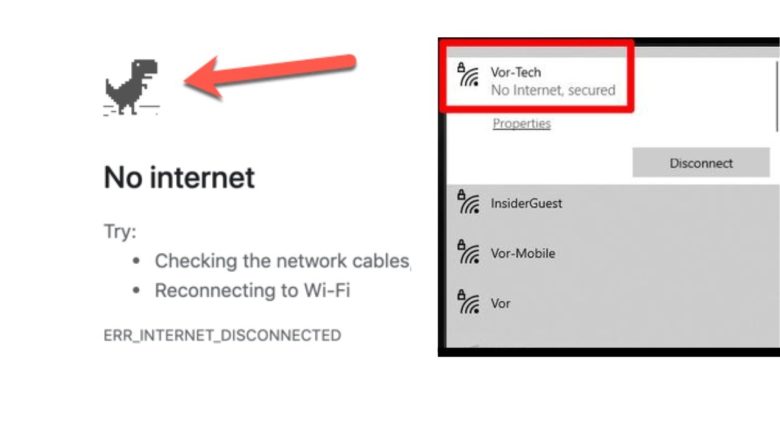
Few status messages are more frustrating than clicking the Windows taskbar network icon and seeing No Internet, secured (alongside the globe icon) while sitting right next to your wireless router. When that happens, many people immediately unplug the router—interrupting everyone else in the house or office—or worse, hold down the recessed Reset pinhole button on the back of the router, wiping out their Wi-Fi name, password, and Internet Service Provider (ISP) login settings.
Before you touch your router, you need to know a crucial distinction: “Wi-Fi connected” means the wireless radio link between your PC and your router is working, while “No Internet” means Windows could not reach a test server outside your home or office network. Frequently, the router and internet connection are working fine on every other device, and the real culprit is a stuck IP address lease, a broken DNS setting, a leftover VPN or proxy configuration, or a Windows network stack glitch on your computer.
This guide walks you through a fast, logical check to isolate whether the problem is on your Windows 11 or Windows 10 PC or with your internet provider, followed by safe, step-by-step fixes ordered from lowest to highest risk.
Symptoms: What This Problem Looks Like
You may experience “Connected, no internet” in one of three distinct ways, and noticing which pattern matches your screen will save you troubleshooting time:
- Total internet loss on your PC only: Your taskbar shows the globe icon (
No Internet access), web browsers fail to load any site, and email or messaging apps stay offline—yet your smartphone or another laptop on the exact same Wi-Fi network browses the web normally. - Websites fail by name, but active calls or games stay connected: Browser tabs show
DNS_PROBE_FINISHED_NXDOMAINorHmm... can't reach this pagewhen you type a website address, meaning your connection is live but Domain Name System (DNS) name lookup is failing. - Browsers work normally, but Windows still says “No Internet, secured”: You can open websites in Chrome, Edge, or Firefox without issue, but Windows displays the globe icon and apps that rely on Windows network detection—such as Microsoft Outlook, Microsoft Teams, OneDrive, Spotify, or Windows Update—refuse to connect because they believe you are offline.
Why Windows Shows “No Internet, Secured”
According to Microsoft Support’s Wi-Fi troubleshooting documentation and Microsoft Learn’s Network Connectivity Status Indicator (NCSI) overview, Windows does not guess whether you have internet access. Whenever you connect to Wi-Fi, a built-in Windows feature called NCSI automatically runs two checks:
- Active DNS and HTTP probing: Windows attempts to resolve
dns.msftncsi.comand sends a tiny HTTP request tohttp://www.msftconnecttest.com/connecttest.txt. If your PC receives the expected plain-text reply (Microsoft Connect Test), Windows displays the standard Wi-Fi Connected icon. - Failure or redirect detection: If that small test request is blocked by a misconfigured DNS server, a stuck VPN kill switch, a proxy server, a hotel/cafe login page (captive portal), an invalid local IP address, or a real ISP outage, Windows switches the taskbar icon to No Internet.
Safe Preliminary Checks (Takes Under 2 Minutes)
Run through these three non-destructive checks before opening system settings or running commands:
- Run the Second-Device Test (The most important check): Pick up a smartphone or tablet, turn off cellular/mobile data so it is forced to use your Wi-Fi network, and open a new webpage.
- If the second device loads websites normally: Your router and ISP are working. Do not restart or reset your router. Continue to the Windows diagnostic and fix steps below.
- If every device on your Wi-Fi says “No Internet”: The problem is between your router, modem, and ISP—not your Windows settings. Skip directly to What to Do When the Problem Is Your Router or ISP near the end of this guide.
- Toggle Wi-Fi and verify Airplane Mode: Select the Network, Sound, or Battery icons on the right side of the taskbar. Confirm Airplane mode is turned Off (Microsoft Support), then toggle Wi-Fi off, wait 10 seconds, and turn it back on.
- Check for a hidden Wi-Fi sign-in page (Captive Portal): If you are on a hotel, airport, university, hospital, or guest network, open your web browser and type
http://www.msftconnecttest.com/redirectin the address bar. Usinghttp://(nothttps://) allows public networks to display their terms-of-service or login screen (Microsoft Learn NCSI Overview).
How to Diagnose the Exact Cause on Windows in 60 Seconds
Instead of blindly resetting network settings, run three read-only checks in Command Prompt to see exactly where your connection is stopping.
- Select Search on the taskbar, type
cmd, and open Command Prompt. - Type the following command and press Enter (Microsoft Learn ipconfig Reference):
ipconfig - Scroll to the section titled Wireless LAN adapter Wi-Fi and look at two lines:
- IPv4 Address: A healthy local address typically looks like
192.168.x.x,10.x.x.x, or172.16.x.x. If it starts with169.254.x.x, Windows could not obtain an IP address from your router’s DHCP server (Microsoft Support). - Default Gateway: This is your router’s local IP address (for example,
192.168.1.1or192.168.0.1).
- IPv4 Address: A healthy local address typically looks like
- Next, run these three test commands one by one (replacing
192.168.1.1with the Default Gateway address shown on your screen):ping 192.168.1.1 ping 8.8.8.8 nslookup www.microsoft.com
Diagnostic Decision Table: What Your Test Results Mean
Match your output from the three commands above to jump straight to the right solution:
| What Your ipconfig & ping Tests Show | What Is Actually Happening | Where to Start |
IPv4 Address starts with 169.254.x.x and Default Gateway is blank |
Your PC connected to the Wi-Fi radio, but the DHCP handshake failed to assign a valid local IP address. | Go to Fix 2: Release and Renew IP Configuration and Fix 4: Forget and Reconnect. |
ping <DefaultGateway> fails (Request timed out or General failure) |
Your PC cannot communicate with the router despite showing connected—often caused by a stuck VPN kill switch, firewall block, or hung Wi-Fi driver. | Go to Fix 1 (VPN/Proxy Check), Fix 4 (Switch 2.4/5 GHz Band), and Fix 6 (Wi-Fi Driver). |
ping <DefaultGateway> succeeds AND ping 8.8.8.8 succeeds, but nslookup fails or browsers cannot load sites |
Your PC has full raw internet access, but your configured DNS server is unreachable or returning bad records. | Go to Fix 2 (Flush DNS) and Fix 3 (Fix DNS Server Settings). |
All three tests (ping gateway, ping 8.8.8.8, and nslookup) succeed, AND browsers load websites, but Windows still shows No Internet |
False-negative NCSI status: a proxy, firewall rule, or DNS blocker is preventing Windows from reaching www.msftconnecttest.com (Microsoft Learn NCSI Troubleshooting). |
Go to Fix 1 (Check Proxy Settings) and Fix 5 (Reset Winsock & TCP/IP). |
ping <DefaultGateway> succeeds, ping 8.8.8.8 fails, and other devices on Wi-Fi work fine |
Your PC has a conflicting static IP, wrong gateway metric, or corrupted Windows TCP/IP routing table. | Go to Fix 3 (Verify Automatic DHCP) and Fix 5 (Reset Winsock & TCP/IP). |
ping <DefaultGateway> succeeds, ping 8.8.8.8 fails, and all other devices on Wi-Fi also have no internet |
Your PC-to-router Wi-Fi link is healthy, but your modem or ISP line is down. | Skip to What to Do When the Problem Is Your Router or ISP. |
Step-by-Step Solutions for Windows 11 and Windows 10
Start with the fix matched by the table above, or work through these steps from lowest risk (Fix 1) to deepest system reset (Fix 7).
Fix 1: Disable Leftover Proxy Settings and Stuck VPN Kill Switches
Virtual Private Network (VPN) apps, web-debugging tools, and corporate security clients frequently route traffic through a local proxy or virtual adapter. If a VPN app closes unexpectedly or wakes from sleep, its “Kill Switch” or manual proxy setting can block all outbound internet traffic while leaving Wi-Fi connected.
(Note: If your VPN client or browser keeps closing unexpectedly while you try to change its settings, diagnose the crash first using our guide on Windows Apps Keep Crashing: How to Find the Cause Before Reinstalling.)
- Check your VPN client: If you have a third-party VPN installed, open the app, connect and disconnect cleanly once, and temporarily turn off its Kill Switch or Block internet without VPN feature to test your connection.
- Check Windows Proxy settings (Microsoft Support Proxy Guide):
- Select Start > Settings > Network & internet > Proxy.
- Under Automatic proxy setup, ensure Automatically detect settings is turned On, and Use setup script is turned Off (unless required by your employer or school IT department).
- Under Manual proxy setup, verify that Use a proxy server is set to Off. If it was turned on without your knowledge, switch it Off and click Save.
Fix 2: Flush the DNS Cache and Renew Your DHCP IP Lease
If your PC has a stale 169.254.x.x address, an IP conflict with another device on your home network, or corrupted negative DNS cache entries, refreshing DHCP and DNS resolves the issue without deleting any saved Wi-Fi passwords (Microsoft Support).
- Select Search on the taskbar, type
command prompt, and select Run as administrator > Yes. - Run the following three commands one at a time, pressing Enter after each (Microsoft Learn ipconfig):
ipconfig /flushdns
ipconfig /release
ipconfig /renew
(Note: Running
ipconfig /releasebriefly disconnects your current local IP address beforeipconfig /renewrequests a fresh lease from your router. Wait 5–10 seconds for the command to finish and display your new IPv4 address.) - Check the taskbar icon to see if No Internet changes to Wi-Fi Connected.
Fix 3: Verify Automatic DHCP and Test Your DNS Server Settings
According to Microsoft Support, if your PC has a valid IP address and can ping the router (192.168.1.1) or raw external IPs (8.8.8.8), an unreachable DNS server or an old manual static IP configuration is often blocking internet access.
Step A — Test whether your current DNS server is responding:
- In an elevated Command Prompt, run:
ipconfig /all | findstr /c:"DNS Servers" - Note the IP address displayed and test it with
ping <DNS_Server_Address>.
Step B — Switch IP and DNS settings to Automatic (or a verified public DNS) in Windows Settings (Microsoft Support TCP/IP Guide):
- Open Start > Settings > Network & internet > Wi-Fi.
- Select Manage known networks, then select the Wi-Fi network you are connected to (or click your active Wi-Fi network’s Properties directly).
- Next to IP assignment, click Edit:
- If it is set to Manual (and you do not intentionally maintain a static IP for a home server), change it to Automatic (DHCP) and click Save.
- Next to DNS server assignment, click Edit:
- If a custom DNS server was configured that is no longer responding, select Automatic (DHCP) and click Save.
- Conversely, if your ISP’s default DNS server is experiencing an outage (meaning
ping 8.8.8.8works, butAutomatic (DHCP)DNS fails to resolve website names), select Manual, turn on IPv4, and enter a well-known public DNS provider (such as Cloudflare1.1.1.1/1.0.0.1or Google Public DNS8.8.8.8/8.8.4.4), then click Save. - Version limitation note: As documented by Microsoft Support, the encrypted DNS over HTTPS (DoH) dropdown option in this menu is available in Windows 11, but is not available in Windows 10. On Windows 11, if you enable DNS over HTTPS (On – automatic template), keep Fallback to plaintext turned On while troubleshooting so strict networks do not block your DNS lookups.
Fix 4: Forget the Wi-Fi Network or Switch Frequency Bands (2.4 GHz vs. 5 GHz)
If your router recently changed its security encryption (such as switching between WPA2 and WPA3) or wireless channel width, Windows may hold onto mismatched profile parameters in its saved network list.
Precaution Before Clicking “Forget”: Forgetting a Wi-Fi network deletes the saved Wi-Fi password for that network on your PC. Confirm that you know the exact Wi-Fi password before proceeding so you are not locked out.
- Open Start > Settings > Network & internet > Wi-Fi > Manage known networks (Microsoft Support).
- Select your Wi-Fi network name and click Forget.
- Click the taskbar network icon, select your Wi-Fi network from the list of available networks, enter the password, and reconnect.
- Test the other frequency band: Many dual-band routers broadcast two separate network names—one for 2.4 GHz (longer range through walls) and one for 5 GHz (faster speed at close range). If one band shows
No Internetdue to channel congestion or adapter band filtering, connect to the other band to test (Microsoft Support).
Fix 5: Reset the Winsock Catalog and TCP/IP Stack (netsh)
When third-party firewall modules, VPN virtual adapters, or interrupted updates corrupt the Windows Sockets (Winsock) catalog or TCP/IP registry parameters, Windows recommends resetting both components via NetShell (netsh).
Prerequisites & Precautions:
- You must sign in as an administrator.
- As documented in Microsoft Learn’s NetShell TCP/IP Reset guidance, running
netsh int ip resetoverwrites two core registry keys (SYSTEM\CurrentControlSet\Services\Tcpip\ParametersandSYSTEM\CurrentControlSet\Services\DHCP\Parameters). This has the same effect as removing and reinstalling TCP/IP—meaning any custom static IP addresses or manual subnet masks configured on your adapters will be reset to automatic DHCP defaults.
- Select Search on the taskbar, type
command prompt, and select Run as administrator > Yes. - Run the following commands in the exact order listed by Microsoft Support:
netsh winsock reset
netsh int ip reset
ipconfig /release
ipconfig /renew
ipconfig /flushdns
(Tip: If an older Windows build asks for a log file path on the second command, run
netsh int ip reset c:\resetlog.txtas noted in Microsoft Learn). - Close Command Prompt and select Start > Power > Restart to complete the reset.
Fix 6: Disable Wi-Fi Power-Saving Drops and Check Your Wireless Adapter Driver
If your Wi-Fi loses internet access every time your laptop wakes from sleep or runs on battery power, Windows power-saving settings or an outdated wireless driver may be putting the adapter into a low-power state where it stops processing traffic.
Step A — Turn off adapter power-saving sleep (Microsoft Support):
- Right-click Start and select Device Manager (or search for
device manageron the taskbar). - Expand Network adapters and right-click your wireless adapter (commonly named Intel(R) Wi-Fi, Realtek RTL…, Qualcomm Atheros, or MediaTek Wi-Fi).
- Select Properties and click the Power Management tab.
- Uncheck Allow the computer to turn off this device to save power and click OK.
- Hardware limitation note: On laptops that use Modern Standby (S0 Low Power Idle), Windows manages wireless power states automatically through firmware, and the Power Management tab may not appear in Device Manager.
Step B — Roll back or update a faulty wireless driver:
- If the problem started right after a driver update, open your Wi-Fi adapter’s Properties in Device Manager, select the Driver tab, and click Roll Back Driver (if available).
- To install a newer driver when you have no internet on the PC, download the official wireless adapter driver from your PC manufacturer’s support website using another working computer or phone, copy the installer to a USB flash drive, and run it on your PC (Microsoft Support, Microsoft Driver Updates Guide).
Fix 7: Use Windows Network Reset (Last-Resort PC Option)
According to Microsoft Support, Network reset should be the last step you try on your PC if none of the targeted fixes above worked—for example, when network connectivity breaks after upgrading from Windows 10 to Windows 11.
Important Warning Before Running Network Reset:
- Network reset removes all installed network adapters and resets their settings to factory defaults.
- You will need to re-enter your Wi-Fi passwords after the PC restarts.
- You may need to reinstall or reconfigure VPN client software or virtual switches (such as Hyper-V or virtual machine networking).
- Windows may set your known networks to the Public network profile (which hides your PC from local file and printer sharing until you switch it back to Private in Settings > Network & internet > Wi-Fi > Properties).
- Select Start > Settings > Network & internet.
- Navigate to the reset screen for your Windows version:
- On Windows 11: Select Advanced network settings > Network reset.
- On Windows 10: Select Status > Network reset. (Note: Standard free support and security updates for Windows 10 ended on October 14, 2025.)
- Select Reset now > Yes to confirm, and allow your PC to restart automatically.
What NOT to Reset, Delete, or Change Prematurely
Avoid these four common troubleshooting mistakes that frequently make connectivity problems worse:
- Do NOT press the recessed physical
Resetpinhole on your router: Holding down the pinholeResetbutton wipes your router back to factory defaults, erasing your Wi-Fi network names, passwords, port rules, and ISP login credentials (such as PPPoE usernames/passwords or fiber VLAN tags). If you ever need to refresh your router, power-cycle (restart) it by unplugging the power cord—never press the factory reset pinhole unless instructed by your ISP. - Do NOT disable NCSI Active Probing in the Windows Registry: Many forum posts advise setting
EnableActiveProbingto0underHKLM\SYSTEM\CurrentControlSet\Services\NlaSvc\Parameters\Internetto hide the “No Internet” message. Microsoft Learn explicitly warns against disabling active probing, because passive polling alone cannot detect all network states and disabling active probes can cause Microsoft 365, Outlook, Teams, and Windows Update to fail. - Do NOT uninstall your Wi-Fi adapter driver in Device Manager without a backup installer: In Microsoft Support’s Step 8 guidance, checking Attempt to remove the driver for this device deletes the driver package from your PC. If Windows lacks a built-in fallback driver for your specific Wi-Fi card, your PC will reboot with no Wi-Fi capability at all and no way to download a replacement without a second PC and a USB drive.
- Do NOT turn off Windows Defender Firewall completely: A “No Internet” taskbar status on public or home Wi-Fi is rarely caused by the default Windows Firewall configuration, and disabling your firewall leaves your device exposed on shared wireless networks.
How to Verify Whether the Solution Worked
Once your taskbar icon changes back to Wi-Fi Connected, verify that both raw routing and DNS resolution are stable:
- Check the Windows Connection Profile state: Open PowerShell or Command Prompt and run the PowerShell cmdlet recommended in Microsoft Learn’s NCSI Troubleshooting Guide:
powershell -Command "Get-NetConnectionProfile"Confirm that
IPv4Connectivity(orIPv6Connectivity) displaysInternetrather thanLocalNetworkorNoTraffic. - Test the NCSI probe endpoint in a browser: Visit
http://www.msftconnecttest.com/connecttest.txtin your browser and confirm it returns the plain textMicrosoft Connect Test(Microsoft Learn). - Verify both browser and app connectivity: Open a new website in your browser and check a desktop application (such as your email client or cloud sync tool) to confirm normal online operation.
What to Do When the Problem Is Your Router or ISP
If your Second-Device Test showed that every device in your home or office says “Connected, no internet,” or if ping <DefaultGateway> succeeded while ping 8.8.8.8 failed across all devices, use this safe router/modem sequence from Microsoft Support:
- Power-cycle (restart) your modem and router in the correct order (without factory-resetting):
- Notify anyone else using the local network that Wi-Fi will be offline for a few minutes.
- Unplug the power cable from your wireless router, and unplug the power cable from your modem. (Note: If your ISP modem has a backup battery and its lights remain on after unplugging, remove the battery briefly as noted by Microsoft Support.)
- Wait at least 30 to 60 seconds.
- Plug the modem back into power first and wait 1–2 minutes until its upstream/online status lights stop blinking and turn solid.
- Plug your wireless router back into power and wait another 2–3 minutes for Wi-Fi to broadcast, then reconnect on your PC.
- Test with an Ethernet cable if
ping <DefaultGateway>failed: If your PC cannot ping the router over Wi-Fi, temporarily connect your PC directly to the router or modem with an Ethernet cable (Microsoft Support). If Ethernet works while Wi-Fi fails, check your router’s admin page for a firmware update or wireless channel issue. - When to contact your ISP or IT administrator:
- If the
WAN,Internet,PON, orLOS(Loss of Signal) light on your fiber/cable modem is flashing red or stays off after a power-cycle, there is a line outage or account provisioning issue on your ISP’s network—contact your ISP support team. - If you are on a corporate or campus network where a Proxy Auto-Config (PAC) script or Web Proxy Auto-Discovery (WPAD) rule blocks NCSI probes, contact your IT administrator rather than overriding network policy settings (Microsoft Learn NCSI Guidance).
- If the
Prevention Tips for Reliable Windows Wi-Fi
- Avoid using third-party “network booster” or “registry optimizer” utilities: Tools that alter Windows TCP auto-tuning or NCSI registry keys frequently break connectivity after Windows Updates.
- Disconnect VPNs cleanly before shutting down or sleeping your laptop: Closing a VPN session properly prevents virtual adapters and kill-switch firewall rules from locking out your physical Wi-Fi adapter on the next boot.
- Keep a local copy of your Wi-Fi adapter driver in your Downloads folder: Having the official manufacturer
.exeinstaller saved on your drive ensures you can recover quickly if a driver ever becomes corrupted while offline.
Frequently Asked Questions (FAQs)
Why does my phone have Wi-Fi internet while my Windows laptop says “No Internet, secured” on the same router?
When other devices work on the same Wi-Fi network, your router and ISP connection are healthy. Your Windows laptop is either holding an invalid local IP address (such as 169.254.x.x), pointing to an unresponsive custom DNS server, or being blocked by a local VPN kill switch or proxy setting. Running ipconfig /flushdns, ipconfig /release, and ipconfig /renew in an Administrator Command Prompt resolves most single-device IP/DNS stalls.
Why does Windows say “No Internet access” even though Chrome and Edge can load websites fine?
Windows uses the Network Connectivity Status Indicator (NCSI) to test internet access by probing www.msftconnecttest.com and dns.msftncsi.com. If a DNS ad-blocker, firewall rule, or proxy blocks those specific Microsoft test domains, Windows displays No Internet even though general web browsing works. Ensure www.msftconnecttest.com and dns.msftncsi.com are not blocked in your DNS filter or proxy settings.
What does an IPv4 address starting with 169.254.x.x mean in ipconfig?
An address in the 169.254.x.x range is an Automatic Private IP Addressing (APIPA) address (Microsoft Learn ipconfig). Windows assigns this fallback address when your Wi-Fi adapter connects to the wireless signal but fails to receive a valid IP address from your router’s DHCP server (Microsoft Support).
Will running netsh winsock reset or ipconfig /flushdns delete my saved Wi-Fi passwords?
No. Running ipconfig /flushdns, ipconfig /release, ipconfig /renew, netsh winsock reset, and netsh int ip reset does not delete your saved Wi-Fi networks or passwords (netsh int ip reset only resets manual static IP/DNS assignments back to automatic DHCP). By contrast, clicking Forget on a Wi-Fi network or running Network reset in Windows Settings will remove saved Wi-Fi passwords.
F. Relevant Official Sources
- Microsoft Support — Fix Wi-Fi connection issues in Windows: https://support.microsoft.com/en-us/windows/experience/connectivity-networking/fix-wi-fi-connection-issues-in-windows
- What this verifies: Official Windows 11 and Windows 10 Wi-Fi troubleshooting workflow, taskbar icon meanings, the “connected to Wi-Fi, but no Internet connection is detected” checklist (
169.254.x.xAPIPA check,ipconfig /all | findstr /c:"DNS Servers",ping <DefaultGateway>), orderednetsh/ipconfigcommands, Device Manager power-management and driver backup warnings, modem/router restart sequence, and Network reset menu paths and caveats.
- What this verifies: Official Windows 11 and Windows 10 Wi-Fi troubleshooting workflow, taskbar icon meanings, the “connected to Wi-Fi, but no Internet connection is detected” checklist (
- Microsoft Learn — Network Connectivity Status Indicator (NCSI) overview for Windows: https://learn.microsoft.com/en-us/windows-server/networking/ncsi/ncsi-overview
- What this verifies: How NCSI determines
Connected (Wireless)vs.Connected (No internet)using active HTTP/DNS probes and passive polling, captive portal detection (Microsoft Connect Test), proxy interaction, the architectural shift in Windows 11 (Network List Manager/netprofmvs. Windows 10Network Location Awareness/NlaSvc), and Microsoft’s explicit warning not to disable active probing.
- What this verifies: How NCSI determines
- Microsoft Learn — Network Connection Status Indicator (NCSI) troubleshooting guidance: https://learn.microsoft.com/en-us/troubleshoot/windows-server/networking/troubleshoot-ncsi-guidance
- What this verifies: Exact active probe hosts (
www.msftconnecttest.com/connecttest.txt,dns.msftncsi.com->131.107.255.255), theGet-NetConnectionProfilePowerShell verification cmdlet, NCSI event log path (Applications and Services Logs\Microsoft\Windows\NCSI\Operational), and how apps like Outlook, Teams, and Windows Update rely on NCSI status.
- What this verifies: Exact active probe hosts (
- Microsoft Support — Essential Network Settings and Tasks in Windows (Change TCP/IP settings): https://support.microsoft.com/en-us/windows/experience/connectivity-networking/essential-network-settings-and-tasks-in-windows
- What this verifies: Exact menu paths for viewing IP addresses, switching between Public and Private network profiles, changing IP assignment and DNS server assignment (
Automatic (DHCP)vs.Manual), and the version limitation that DNS over HTTPS (DoH) settings in Windows Settings are supported in Windows 11 but not available in Windows 10.
- What this verifies: Exact menu paths for viewing IP addresses, switching between Public and Private network profiles, changing IP assignment and DNS server assignment (
- Microsoft Support — Use a proxy server in Windows: https://support.microsoft.com/en-us/windows/experience/connectivity-networking/use-a-proxy-server-in-windows
- What this verifies: Navigating Settings > Network & internet > Proxy to inspect or disable Use a proxy server (Manual proxy setup) and Use setup script (Automatic proxy setup).
- Microsoft Learn — Reset TCP/IP by Using the NetShell Utility: https://learn.microsoft.com/en-us/troubleshoot/windows-server/networking/reset-tcp-ip-net-shell
- What this verifies: How
netsh int ip resetworks under the hood (overwritingSYSTEM\CurrentControlSet\Services\Tcpip\ParametersandSYSTEM\CurrentControlSet\Services\DHCP\Parameters), administrator privilege requirements, and log file syntax (netsh int ip reset c:\resetlog.txt).
- What this verifies: How
- Microsoft Learn —
ipconfigandnetshWindows Commands Reference:- https://learn.microsoft.com/en-us/windows-server/administration/windows-commands/ipconfig
- https://learn.microsoft.com/en-us/windows-server/administration/windows-commands/netsh
- What these verify: Official parameter definitions for
/all,/release,/renew,/flushdns, andnetshcommand contexts on Windows 10 and Windows 11.
- Microsoft Support — Automatically get recommended and updated hardware drivers: https://support.microsoft.com/en-us/windows/hardware/drivers/automatically-get-recommended-and-updated-hardware-drivers