When a Windows laptop begins taking minutes to boot, freezing when you switch between browser tabs, or stuttering during video calls, the most common advice is to buy more RAM, upgrade the SSD, or replace the laptop entirely.
However, hardware rarely “wears out” in a way that gradually slows down processing speed. In most cases, a sudden or gradual slowdown on a Windows 10 or Windows 11 laptop is caused by a specific software bottleneck, a restrictive power profile, an almost-full storage drive, or blocked cooling vents forcing the processor to throttle its own speed. Spending money on new hardware will not fix a laptop whose processor is locked at 0.79 GHz due to thermal throttling or a misconfigured power setting.
This guide shows you how to diagnose the exact bottleneck using tools already built into Windows, how to fix software and thermal slowdowns safely, and how to read your hardware metrics so you only pay for a RAM or storage upgrade when the data proves you actually need one.
Symptoms That Point to Specific Bottlenecks
How and when your laptop slows down offers an immediate clue about the underlying cause:
-
Slow for the first 5–10 minutes after turning on, then normal: Typically caused by too many Startup apps launching simultaneously, a mechanical hard drive (HDD) struggling with boot tasks, or background Windows Update/antivirus scans.
-
Fast when plugged into the wall, sluggish on battery power: Points to Windows Energy Saver / Battery Saver or a manufacturer power profile throttling CPU speed to conserve battery.
-
Runs fine for 15–30 minutes, then fans get loud and everything stutters: Indicates thermal throttling—dust buildup or blocked vents are causing the CPU or GPU to overheat and intentionally drop its clock speed to prevent physical damage.
-
Freezes when opening more than a few browser tabs or switching between apps: Points to Memory (RAM) exhaustion, forcing Windows to constantly swap active data onto your storage drive (paging).
-
Every click, file save, or menu takes several seconds to respond, even with only one app open: Points to 100% Disk Active Time or a critically full
C:drive.
Safe Preliminary Checks (Do These Before Deep Diagnostics)
Before opening diagnostic utilities or changing system settings, perform three zero-risk checks that resolve temporary slowdowns:
-
Perform a True Restart (Not “Shut Down”):
-
On Windows 10 and Windows 11, clicking Shut down uses a feature called Fast Startup by default, which saves the Windows kernel session to your drive rather than closing it completely. Over weeks, memory leaks and stuck background processes accumulate.
-
Click Start > Power > Restart to force a complete reset of your system memory and uptime counter.
-
-
Verify You Are Plugged Into the Original Charger:
-
Many modern laptops plugged into underpowered USB-C phone chargers (e.g., a 20W charger instead of the laptop’s required 65W adapter) will automatically throttle CPU speed down to a fraction of normal performance to avoid draining the battery faster than it charges.
-
-
Check Physical Airflow:
-
If the laptop is resting on a blanket, pillow, or soft couch cushion, the bottom intake vents are blocked. Move the laptop to a hard, flat desk surface and listen for whether fan noise and responsiveness improve within a few minutes.
-
Step 1: Diagnose the Exact Bottleneck Using Task Manager
Instead of guessing which component is struggling, use Windows Task Manager while your laptop is actively experiencing the slowdown.
-
Press
Ctrl + Shift + Escon your keyboard to open Task Manager directly. -
If Task Manager opens in a small compact window showing only app names, click More details at the bottom.
-
Click the Performance tab in the left sidebar (in Windows 11, this icon looks like a small heartbeat monitor graph; in Windows 10, it is a top tab labeled Performance).
Keep this window open while performing a normal task (such as opening your web browser and a document) and compare your readings against the diagnostic table below.
Hardware vs. Software Bottleneck Diagnostic Table
| Performance Tab Metric | What You See During a Slowdown | What It Actually Means | Do You Need a Hardware Upgrade? |
| CPU | Utilization at 90%–100% continuously | A runaway background process, malware scan, or Windows Update is consuming all processing power. | No — Switch to the Processes tab, click the CPU column header to sort high-to-low, and identify the offending app. |
| CPU | Utilization is low (10%–30%), but “Speed” is stuck below 1.00 GHz (e.g., 0.40 GHz or 0.79 GHz) |
The laptop is throttling due to overheating, Battery/Energy Saver mode, or a faulty power adapter. | No — Clean cooling vents, check Windows Power Mode, or reconnect the original AC adapter. |
| Memory (RAM) | In Use stays at 85%–95%+ during everyday tasks with minimal apps open | Windows has run out of physical RAM and is using slow virtual memory on your drive. | Maybe — First close heavy background apps and startup tools. If you have 4 GB or 8 GB total RAM and regularly hit 90%+, upgrading to 16 GB RAM will help (if your laptop has upgradeable slots). |
| Disk 0 (C:) | Active time stuck at 100%, while Read/Write transfer speeds are very low (under 5–10 MB/s) | Check the top-right corner of the Disk graph: if it says HDD (Hard Disk Drive), the mechanical drive cannot keep up with modern Windows 10/11. If it says SSD, your drive may be over 90% full or running a heavy update. | Yes, if it says HDD — Replacing an old mechanical HDD with an SSD is the single most impactful upgrade for an older laptop. No, if it says SSD (unless the SSD is physically failing or too small). |
| Disk 0 (C:) | Capacity shows less than 10% free space | SSDs lose write speed dramatically when nearly full, and Windows lacks space for its paging file and update cache. | No — Freeing up 20–30 GB of storage space usually restores normal SSD speed immediately. |
Step 2: Fix Software, Power, and Thermal Slowdowns First
Work through these targeted fixes based on what you observed in Task Manager, starting with the safest adjustments.
1. Check Your Windows Power Mode and Energy Saver Settings
A laptop stuck in a battery-saving profile will feel sluggish even if it has a fast processor.
-
On Windows 11:
-
Press
Windows Key + Ito open Settings, then click System > Power & battery. -
Check Energy saver (or Battery saver on older Windows 11 builds) and turn it Off while troubleshooting.
-
Look at the Power mode dropdown: if it is set to Best power efficiency, change it to Balanced (recommended for daily use) or Best performance when plugged in.
-
-
On Windows 10:
-
Click the Battery icon in the bottom-right taskbar corner.
-
Move the performance slider from Best battery life toward Better performance or Best performance.
-
2. Disable High-Impact Startup Applications
Every chat app, game launcher, printer utility, and cloud updater that starts alongside Windows stays in your RAM and competes for CPU and disk activity.
-
Open Task Manager (
Ctrl + Shift + Esc) and select Startup apps in the left sidebar (or the Startup tab in Windows 10). -
Click the Startup impact column header so High impact apps appear at the top.
-
Right-click any non-essential third-party app (such as Spotify, Steam, Discord, Adobe updaters, or web conferencing tools you only use occasionally) and select Disable.
-
Note: Disabling an app here does not uninstall it—it simply prevents the app from launching automatically in the background every time you turn on your laptop.
-
3. Stop Unnecessary Background App Permissions
Even if an app does not launch at startup, Windows Store apps and browsers can continue running background tasks after you close their windows.
-
For Microsoft Edge and Google Chrome (Major RAM Savers):
-
Many browsers stay open in the background to deliver notifications or launch faster.
-
In Microsoft Edge, go to Settings > System and performance and toggle Off Continue running background extensions and apps when Microsoft Edge is closed. Also ensure Efficiency mode and Put inactive tabs to sleep are turned On.
-
-
For Installed Windows Apps:
-
Windows 11: Go to Settings > Apps > Installed apps. Find any heavy app you rarely use, click the three-dot menu (
...), select Advanced options, and under Background apps permissions, change Let this app run in the background to Never. -
Windows 10: Go to Settings > Privacy > Background apps and toggle off non-essential apps.
-
4. Clear Pending Windows Updates and Driver Backlogs
Sometimes a laptop runs slowly for days because a large Windows feature update is downloading, extracting, or retrying in the background, pinning CPU or Disk usage near 100%.
-
Open Settings > Windows Update (or Settings > Update & Security > Windows Update in Windows 10).
-
Look at the status message. If an update is listed as Pending install or Pending restart, let it finish and restart your PC immediately.
-
Click Advanced options > Optional updates (or View optional updates in Windows 10) and check whether your laptop manufacturer has released critical firmware, chipset, or display driver updates that address power or thermal management.
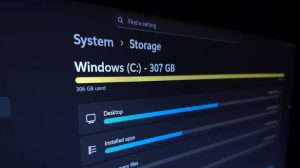
5. Ensure At Least 15%–20% Free Space on Your C: Drive
Solid-state drives (SSDs) require empty blocks to manage wear-leveling and fast write caches, and Windows needs free disk space to expand pagefile.sys when RAM fills up.
-
Open Settings > System > Storage.
-
If your
C:drive has less than 15–20 GB of free space, clear your temporary files by following our guide on how to find what’s taking up storage space on Windows safely and empty the Recycle Bin.
6. Run a Built-In Malware and Potentially Unwanted App (PUA) Scan
Adware, browser hijackers, and hidden cryptocurrency miners silently consume CPU and RAM. Moreover, running two different third-party antivirus programs at the same time causes severe system slowdowns as both scanners fight to inspect the same files simultaneously.
-
Verify in Settings > Apps > Installed apps that you do not have two conflicting third-party antivirus suites installed side-by-side (e.g., McAfee and Norton together).
-
Press the
Windows Key, type Windows Security, and open the app. -
Click Virus & threat protection > Quick scan (or click Scan options and run a Full scan if you suspect hidden adware).
7. Address Overheating and Thermal Throttling Safely
If the bottom of your laptop feels unusually hot to the touch, the internal fans run loudly even when idle, and Task Manager shows your CPU speed dropping well below its Base speed:
-
Shut down the laptop completely and unplug the power cable.
-
Inspect the intake vents on the underside and the exhaust vents along the hinge or sides for visible dust mats.
-
Use short bursts of compressed air aimed across (not directly deep into, which can overspin delicate fan bearings) the vents to dislodge surface dust.
-
When to use a technician: If the laptop is several years old and has never been cleaned internally, dried thermal paste or thick dust inside the heatsink fins can only be cleared by removing the bottom panel. If your laptop is under warranty or you are not comfortable working around exposed motherboard batteries, have a qualified technician perform an internal cleaning.
-
Critical Safety Rules: What NOT to Disable or Change
Many online “speed up Windows” checklists recommend aggressive changes that either provide no benefit or damage your installation:
-
Do NOT disable essential Windows Startup items: In the Task Manager Startup tab, never disable entries published by Microsoft Corporation, Windows Security notification icon, Realtek / Intel / AMD Audio or Graphics managers, or your laptop’s touchpad driver (such as Synaptics or ELAN). Disabling these can mute your audio, disable two-finger touchpad scrolling, or hide security alerts.
-
Do NOT use
msconfig(System Configuration) to blindly disable Windows Services: Checking “Hide all Microsoft services” helps avoid breaking the OS, but turning off unfamiliar services inmsconfigfrequently breaks Wi-Fi auto-connect, printing, or Windows Update. Stick to the Startup apps tab in Task Manager. -
Do NOT change Registry values or “Number of Processors” in Boot Advanced Options: A widespread internet myth claims that checking “Number of processors” inside
msconfig > Boot > Advanced optionsunlocks all CPU cores for faster booting. Windows already uses all CPU cores by default; that debugging setting is solely designed to restrict cores for developers testing low-end systems, and misconfiguring it can cause a Blue Screen of Death (BAD_SYSTEM_CONFIG_INFO) on reboot. -
Do NOT manually “Defragment” an SSD: Windows automatically runs
TRIM(Retrim) on solid-state drives via its built-in Optimize Drives tool. Never use third-party defragmentation tools to force traditional block defragmentation on an SSD—it does not speed up an SSD and prematurely wears out its flash memory cells. -
Do NOT download “PC Speed Booster” or “RAM Cleaner” utilities: Programs that advertise “1-click RAM optimization” work by forcibly flushing working application data out of your RAM and onto your slower storage drive, which actually makes your apps slower the next time you click on them.
Decision Guide: When Hardware Actually Needs an Upgrade
If you have completed the steps above—your Startup list is clean, your C: drive has plenty of free space, temperatures are normal, and no runaway process is hogging the CPU—return to Task Manager > Performance to make an informed hardware decision:
Scenario 1: Disk 0 (C:) Says “HDD” and Stays at 100% Active Time
-
The Verdict: Your laptop is running Windows on a mechanical spinning hard drive. Modern Windows 10 and 11 updates perform thousands of small random read/write operations per second that overwhelm mechanical drives.
-
The Solution: Upgrading the internal 2.5-inch HDD to a SATA SSD (or an M.2 NVMe SSD if your motherboard supports it) typically cuts boot times from minutes to under 20 seconds.
-
Important Check First: Verify your laptop’s exact model service manual to confirm the drive is removable and not soldered to the motherboard. Always back up all personal files before cloning or replacing a drive (refer to our complete guide to backing up your Windows files before hardware repairs).
Scenario 2: Total Installed RAM Is 4 GB (or 8 GB) and Memory Stays Above 85%
-
The Verdict: Windows 11 and modern web browsers regularly use 4 GB to 6 GB of RAM just for the operating system and a handful of open tabs. If your laptop only has 4 GB of RAM—or 8 GB when you multitask with heavy spreadsheets, large PDFs, or photo editors—you have a physical memory bottleneck.
-
The Solution: Upgrading to 16 GB of RAM eliminates constant disk paging.
-
Crucial Laptop Limitation (“Soldered RAM”): Before buying RAM sticks, check the Memory section in Task Manager > Performance and look at Slots used (e.g.,
1 of 2or2 of 2), AND verify your exact laptop model specifications on the manufacturer’s support website. Many modern thin-and-light laptops use LPDDR4x or LPDDR5 memory (“Row of chips” / Onboard memory) that is permanently soldered to the motherboard and cannot be upgraded.
Scenario 3: Budget CPU (e.g., Intel Celeron / Pentium Silver / Older Dual-Core) + Soldered 4 GB RAM + 64 GB eMMC Storage
-
The Verdict: Entry-level laptops built with soldered eMMC flash storage and non-upgradeable 4 GB RAM have neither upgradeable slots nor the processing headroom for heavy multitasking.
-
The Solution: Do not spend money on repair shops or external hardware trying to speed up this configuration. Keep background apps to an absolute minimum, use lightweight web apps instead of heavy desktop software, and plan for a replacement laptop with at least 16 GB of RAM and a 256 GB/512 GB NVMe SSD when your budget allows.
How to Verify Whether Your Fixes Worked
After applying the software and power fixes above and restarting your laptop:
-
Wait 3 minutes after signing into Windows so normal boot background tasks settle.
-
Open Task Manager (
Ctrl + Shift + Esc) > Performance:-
Idle CPU usage (with no apps open) should drop to between 1% and 10%.
-
Idle Disk 0 (C:) active time should drop to 0%–5%.
-
CPU Speed should dynamically rise above its listed Base speed when you open a browser or launch an application.
-
-
Check the Up time counter at the bottom of the CPU graph: following a proper Restart, it should read
0:00:xx:xx(zero days), confirming Fast Startup did not carry over an old stuck session.
Frequently Asked Questions (FAQ)
Does adjusting Visual Effects to “Adjust for best performance” really speed up a laptop?
Turning off window animations and transparency effects (via Settings > Accessibility > Visual effects > Animation effects / Transparency effects in Windows 11, or View advanced system settings > Performance Settings in Windows 10) makes windows snap open instantaneously without a fade animation. It helps older integrated graphics chips feel slightly snappier and reduces minor GPU/RAM overhead, though it will not fix a 100% Disk bottleneck or an overheating CPU.
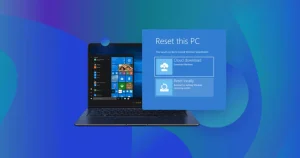
Will resetting Windows (“Reset this PC”) fix a slow laptop?
If your laptop has years of accumulated software bloat, broken third-party drivers, or damaged system files, using Settings > System > Recovery > Reset this PC (choosing Keep my files) reinstalls a fresh copy of Windows while removing installed third-party apps. However, even the “Keep my files” option removes all your desktop programs and browser setups, so you should always back up important personal documents and product keys to an external drive or cloud storage before running a reset.
Can a worn-out laptop battery make my computer run slowly even when plugged in?
In some cases, yes. Certain laptop models rely on the internal battery to provide supplemental peak power when the processor briefly boosts under heavy load, or they throttle the CPU to its lowest clock speed if the battery’s internal health sensor reports a communication error or a failed cell. If your battery no longer holds a charge and your CPU speed is permanently locked below 1.00 GHz even on AC power, a failing battery or charging circuit may be triggering a hardware safety throttle.
Official Sources & Documentation
The diagnostic steps and settings paths in this article are verified against official Microsoft documentation:
-
Microsoft Support — Tips to improve PC performance in Windows:
-
URL:
[https://support.microsoft.com/en-us/windows/experience/performance-optimization/tips-to-improve-pc-performance-in-windows](https://support.microsoft.com/en-us/windows/experience/performance-optimization/tips-to-improve-pc-performance-in-windows) -
What it verifies: Official Windows 10 and Windows 11 instructions for monitoring resource usage in Task Manager, disabling Startup apps, turning off background app permissions, checking for Windows and optional updates, and freeing up disk space.
-
-
Microsoft Support — Change the power mode for your Windows PC:
-
URL:
[https://support.microsoft.com/en-gb/windows/change-the-power-mode-for-your-windows-pc-c2aff038-22c9-f46d-5ca0-78696fdf2de8](https://support.microsoft.com/en-gb/windows/change-the-power-mode-for-your-windows-pc-c2aff038-22c9-f46d-5ca0-78696fdf2de8) -
What it verifies: How Windows Power modes (Best power efficiency, Balanced, and Best performance) regulate CPU performance versus battery consumption.
-
-
Microsoft Support — Battery saving tips for Windows:
-
URL:
[https://support.microsoft.com/en-us/windows/experience/power-battery/battery-saving-tips-for-windows](https://support.microsoft.com/en-us/windows/experience/power-battery/battery-saving-tips-for-windows) -
What it verifies: How Windows Energy Saver / Battery Saver throttles background activity and system processes when enabled.
-