When a Windows program closes without warning or freezes mid-task, reinstalling the application is often the first piece of advice you will hear. However, uninstalling and reinstalling an app rarely fixes crashes caused by corrupted user-profile caches, conflicting background services, outdated graphics drivers, or damaged shared Windows runtime libraries. Worse, a hasty reinstall or reset can wipe out local settings, custom templates, extensions, or unsaved project files.
This guide shows you how to identify why an application is crashing on Windows 11 or Windows 10 before you remove anything. You will learn how to recognize crash patterns, read Windows diagnostic logs in plain English, and apply targeted, non-destructive fixes starting with the safest options.
How to Recognize the Crash Pattern
Not all application failures behave the same way. Observing how and when the program fails helps narrow down the root cause before you open any diagnostic tools:
- Instant closure on launch (Crash to Desktop): The app window flashes briefly or never appears at all. This usually points to a corrupted configuration file in your user profile, a missing shared library (such as a Microsoft Visual C++ Redistributable), or an incompatible startup plugin.
- Freeze or “Not Responding” hang: The window turns translucent white when clicked, and the title bar displays
(Not Responding). Rather than terminating immediately, the program is waiting on a blocked process—often a slow storage drive, a stalled network request, a print spooler delay, or a third-party security or overlay hook. - Crash during a specific action: The app opens normally but closes whenever you open a file dialog, export media, print, or switch tabs. This pattern frequently indicates a graphics driver failure (hardware acceleration), a broken shell extension in File Explorer, or a single corrupted document.
- Multiple unrelated apps crashing: If web browsers, office tools, and games all fail unpredictably, reinstalling individual apps will not solve the problem. System-wide instability points to a faulty driver update, corrupted Windows system files, background software interference, or failing system memory (RAM).
Common Causes Behind Windows Application Crashes
Because Windows applications rely on shared operating-system components, the program that crashes is not always the component at fault. The most common causes include:
- Corrupted local app cache or preferences: Temporary files stored in your user account’s
AppDatadirectory can become unreadable after an unexpected power loss or forced shutdown. - Background service and overlay conflicts: Screen recorders, gaming overlays (such as Discord, GeForce Experience, or RGB lighting controllers), and third-party antivirus tools inject code into running applications and can trigger memory access violations.
- Outdated or unstable hardware drivers: Graphics processing unit (GPU) and audio drivers interact directly with modern desktop apps and browsers. A driver timeout often forces the foreground app to close while Windows recovers the display.
- Damaged shared runtime packages: Many desktop programs depend on shared Microsoft Visual C++ Runtime libraries or .NET components. If an installer overwrites or corrupts a shared package, multiple apps built on that version may fail to launch.
- Corrupted Windows system files: Damaged operating-system files in the Windows component store can cause crashes when an app calls standard system functions.
Safe Preliminary Checks
Before diving into system logs or configuration utilities, run through four low-risk checks that resolve transient glitches without altering your setup:
- Perform a full Restart (not Shut Down): On Windows 10 and Windows 11, the Fast Startup feature saves kernel and driver states to a hibernation file when you select Shut down, which can carry a hung driver state into your next session. Select Start > Power > Restart to force a complete reload of the operating system.
- Check for stuck background instances: Press
Ctrl + Shift + Escto open Task Manager. On the Processes tab, look for the crashing app’s name. If a hidden instance is still running from a previous crash, right-click it and select End task before launching the app again. - Verify free storage space and memory pressure: In Task Manager, select the Performance tab. If your primary system drive (
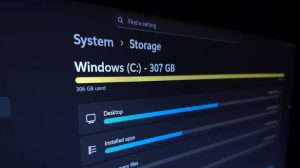
C:) has less than 5–10 GB of free space, or if Memory usage is near 100%, Windows may fail to write temporary swap files required by the application. - Test with a different file: If the program crashes only when opening a specific document, project, or media file, create a blank new file in the same app. If the blank file works normally, the original file—not the application—is likely damaged.
How to Diagnose the Exact Cause Before Making Changes
Windows includes two built-in diagnostic tools that record what was happening at the exact second an application crashed. Checking these records takes less than five minutes and tells you which fix to use.
Step 1: Check the Timeline in Reliability Monitor
Reliability Monitor provides a visual day-by-day calendar of application failures alongside Windows Updates and driver installations.
- Press
Windows key + Rto open the Run dialog. - Type
perfmon /reland press Enter (or search for View reliability history in the Start menu). - Look at the column for the day the crash occurred. Red circles with a white X mark Critical events (such as application crashes), while blue i icons at the bottom mark Informational events (such as silent driver updates or Windows Updates).
- Correlation check: If your app started crashing on the exact date a graphics driver or Windows Update was installed, you have identified a recent system change rather than a broken app installation.
- Under the chart, locate the crashing app under Application Failures and double-click View technical details to inspect the crash summary.
Step 2: Inspect the Faulting Module in Event Viewer
If you want to see the exact file or component that triggered the crash, check the Windows Application Log in Event Viewer (Microsoft Learn Crash Troubleshooting Guidance):
- Select Start, type
Event Viewer(or pressWindows key + Rand runeventvwr.msc), and open the Event Viewer desktop app. - In the left console tree, expand Windows Logs and select Application.
- Look for Error entries recorded at the time of the crash with one of two Event IDs:
- Event ID 1000 (Source: Application Error): Logged when an application crashes outright.
- Event ID 1002 (Source: Application Hang): Logged when a program stops responding to Windows and is closed.
- Select the event and read the General tab at the bottom. Pay close attention to three lines:
- Faulting application name: The
.exefile of the program that closed. - Faulting module name: The specific
.dllor component where the crash occurred. - Exception code: The error code explaining why Windows terminated the process.
- Faulting application name: The
Diagnostic Decision Table: Matching Log Clues to the Right Fix
Use the details from Reliability Monitor and Event Viewer to jump directly to the appropriate troubleshooting step:
| What You See in Event Viewer / Reliability Monitor | What It Means in Plain English | Best Next Step |
Faulting module is a graphics driver file (e.g., nvlddmkm.sys, nvwgf2umx.dll, amdxn64.dll, igdumdim64.dll) |
Your graphics driver crashed or timed out while rendering the app window. | Go to Fix 3: Update or Roll Back Graphics Drivers (or turn off Hardware Acceleration inside the app). |
Faulting module is vcruntime140.dll, msvcp140.dll, or ucrtbase.dll |
A shared Microsoft Visual C++ Runtime library is damaged or mismatched. | Go to Fix 4: Repair Shared Runtime Libraries. |
| Faulting module is a third-party hook or overlay DLL (e.g., screen recorder, audio enhancer, or antivirus module) | Another background program injected itself into your app and caused a conflict. | Go to Fix 2: Isolate Background Conflicts with a Clean Boot. |
Faulting module is ntdll.dll, kernelbase.dll, or kernel32.dll |
As documented by Microsoft Learn, these core Windows files are usually “caught as victims” of memory corruption caused by a third-party plugin, driver, or damaged system file. | Run Fix 1 (App Repair) first, then Fix 2 (Clean Boot) and Fix 5 (DISM & SFC). |
Exception code is 0xc0000005 (STATUS_ACCESS_VIOLATION) or 0xc0000374 (STATUS_HEAP_CORRUPTION) |
The app or an injected background tool tried to read or write protected system memory. | Test Fix 2 (Clean Boot) and Fix 3 (Graphics Drivers). |
Exception code is 0xc0000022 (STATUS_ACCESS_DENIED) |
The app was blocked from accessing a required file, folder, or registry key by permissions or security software. | Check folder permissions, run the app normally under your standard profile, or review security software exclusions. |
Event ID 1002 (Application Hang) with no faulting third-party DLL |
The app froze waiting for local cache files, network storage, or a printer connection. | Run Fix 1 (Non-Destructive Repair) and verify network/storage availability. |
Step-by-Step Solutions (Ordered from Lowest to Highest Risk)
Work through the following fixes in order, or start with the specific fix indicated by the diagnostic table above.
Fix 1: Use Built-In Non-Destructive App Repair (Before Resetting)
Windows allows you to repair many Microsoft Store apps and traditional desktop programs without deleting your personal data or preferences. According to Microsoft Support, you should always try Repair before selecting Reset.
For packaged apps in Windows Settings:
- On Windows 11: Select Start > Settings > Apps > Installed apps. Click the More icon (
...) next to the crashing app and select Advanced options. - On Windows 10: Select Start > Settings > Apps > Apps & features. Select the crashing app and click Advanced options under its name.
- Scroll down to the Reset section and select Repair (if available). Windows will verify and restore the application’s core files while keeping your app data intact.
Warning — Repair vs. Reset: Right below the Repair button is a Reset button. Selecting Reset permanently deletes the app’s local data on your device, including sign-in sessions, saved preferences, and local workspaces not synced to the cloud. Do not click Reset until you have backed up any local work.
For classic desktop programs in Control Panel: Some traditional desktop installers (such as Microsoft 365, CAD software, or developer tools) do not show Advanced options in the modern Settings app.
- Type
control panelin the taskbar search box and select Control Panel. - Select Programs > Programs and Features.
- Right-click the crashing program and select Repair (or select Change and choose the Repair option in the installer wizard that opens).
For Microsoft Store apps: If an app downloaded from the Microsoft Store keeps closing, open Microsoft Store, select Library (in Windows 11) or See more (...) > Downloads and updates (in Windows 10), and select Get updates to ensure both the Store and the app are running compatible versions (Microsoft Store App Troubleshooting).
Fix 2: Isolate Background Conflicts with a Clean Boot
If an application crashes because a background utility, peripheral manager, or overlay is interfering with it, a Clean Boot starts Windows with only essential Microsoft drivers and services. Unlike Safe Mode, a Clean Boot lets you run your app with full graphics and network support while isolating third-party background software.
Prerequisites: You must sign in with an administrator account. If your computer is managed by an employer or school, network policy settings may restrict changes to System Configuration.
- Select Search on the taskbar, type
msconfig, and select System Configuration. - Select the Services tab.
- Critical safety step: Check the box labeled Hide all Microsoft services at the bottom-left corner first. Leaving Microsoft services visible and disabling them can cause your PC to lose essential functions or fail to sign in.
- With Microsoft services hidden, select Disable all, and then select Apply.
- Select the Startup tab and click Open Task Manager.
- In Task Manager (under the Startup apps tab in Windows 11 or the Startup tab in Windows 10), select each Enabled item and click Disable. (Tip: Write down or take a screenshot of which items were originally enabled so you can restore them easily later.)
- Close Task Manager, return to the System Configuration window, select OK, and restart your PC.
How to interpret the Clean Boot test:
- If the app no longer crashes: One of the disabled non-Microsoft services or startup apps is the cause. Follow Microsoft’s half-splitting method: reopen
msconfig, check Hide all Microsoft services, re-enable the top half of the non-Microsoft services, and restart. Narrow down the culprit by halves until you find the exact conflicting service, then update or uninstall that utility. - How to return your PC to normal startup afterward: Open
msconfig, select Normal Startup on the General tab, go to the Services tab, clear Hide all Microsoft services, click Enable all > Apply, re-enable your desired startup apps in Task Manager, and restart.
Fix 3: Update or Roll Back Graphics and Hardware Drivers
Modern browsers, productivity suites, creative apps, and games use your graphics card (GPU) to accelerate window rendering. If a driver update introduced a bug—or if your current driver is outdated—apps may crash with display-related faulting modules in Event Viewer.
- Check for tested driver updates via Windows Update:
- Windows 11: Go to Start > Settings > Windows Update > Advanced options > Optional updates (Microsoft Hardware Driver Updates Guide).
- Windows 10: Go to Start > Settings > Update & Security > Windows Update > View optional updates. (Note: Standard free support and updates for Windows 10 ended on October 14, 2025; if Windows Update does not offer a newer driver, check your PC or GPU manufacturer’s official support page directly.)
- Roll back a newly installed driver if crashes just started:
- If Reliability Monitor showed that crashes began right after a display driver update, right-click Start and select Device Manager.
- Expand Display adapters, right-click your graphics card, and select Properties.
- On the Driver tab, select Roll Back Driver (if available) to restore the previously stable version, then restart your PC.
- Test disabling Hardware Acceleration inside the app: If the app allows you to open its settings menu before crashing (common in web browsers, Discord, Slack, and office suites), turn off Use hardware acceleration when available and restart the app.
Fix 4: Repair Shared Microsoft Visual C++ Runtime Libraries
If Event Viewer identifies vcruntime140.dll, msvcp140.dll, or ucrtbase.dll as the faulting module, the program is failing because a shared C++ runtime library is corrupted.
- Open Settings > Apps > Installed apps (Windows 11) or Apps & features (Windows 10).
- Type
Microsoft Visual C++in the app search bar. - Locate the Microsoft Visual C++ 2015–2022 Redistributable (or 2015–2026 Redistributable) entries—on 64-bit PCs, you will typically see both
(x64)and(x86)versions installed side by side. - Click the More icon (
...) or select the entry, choose Modify, and click Repair in the setup window that appears. - If repairing does not resolve the error, download the official latest supported Visual C++ v14 Redistributable installer directly from Microsoft Learn’s Visual C++ Redistributable Downloads page, matching your system and app architecture (
X64,X86, orARM64), and restart your computer.
Fix 5: Repair Corrupted Windows System Files with DISM and SFC
When multiple apps crash or Event Viewer points to system DLLs without a third-party conflict, use Microsoft’s built-in Deployment Image Servicing and Management (DISM) and System File Checker (SFC) tools to verify and repair protected Windows files.
Prerequisites: Requires an administrator account and an active internet connection (so DISM can fetch healthy replacement components from Windows Update).
- Type
cmdin the Windows search box, right-click Command Prompt, and select Run as administrator. - Run DISM first to ensure the local Windows component store is healthy. Type the following command and press Enter:
DISM.exe /Online /Cleanup-image /Restorehealth(Wait for the progress bar to reach
100.0%and displayThe restore operation completed successfully.This can take several minutes.) - Next, scan and repair protected system files by running System File Checker:
sfc /scannow - Wait until verification reaches 100% before closing the window:
- If SFC reports
Windows Resource Protection found corrupt files and successfully repaired them, restart your PC and test the crashing app. - If SFC reports
Windows Resource Protection could not perform the requested operation, boot into Safe Mode and runsfc /scannowagain.
- If SFC reports
Fix 6: Test with Safe Mode or a Secondary Local User Profile
If a single app still crashes after the steps above, you need to determine whether the corruption lives inside your personal Windows user profile (C:\Users\<YourName>\AppData) or within the core installation of the app.
- Test in Safe Mode: Boot into Safe Mode via Settings > System > Recovery > Advanced startup > Restart now, then choose Troubleshoot > Advanced options > Startup Settings > Restart and press
4(Enable Safe Mode) or5(Safe Mode with Networking).
BitLocker Precaution: If device encryption or BitLocker is enabled on your PC, Windows Recovery Environment may prompt you for your BitLocker recovery key. Verify that you have your recovery key accessible before entering Advanced Startup.
- Test in a temporary local user account: Create a secondary test user account in Settings > Accounts > Other users (or Family & other users in Windows 10) and open the app there. If the app works normally in the secondary account, the application installation itself is fine—only its local folder inside your main account’s
%LocalAppData%or%AppData%directory is corrupted.
What NOT to Delete, Reset, or Change Prematurely
When troubleshooting app crashes, avoid common shortcuts that cause data loss or introduce security risks:
- Do not download individual
.dllfiles from third-party “DLL fixer” websites: If an error message says a.dllfile is missing, never download loose DLL files from unofficial sites. They are frequently outdated, mismatched to your system architecture, or bundled with malware. Always repair the official runtime package or app installer instead. - Do not delete your entire
AppDatafolder: Deleting%AppData%or%LocalAppData%indiscriminately will wipe out saved data, browser profiles, email caches, and licenses across dozens of working programs on your PC. - Do not run third-party “Registry Cleaners”: Registry cleaning utilities rarely fix application crashes and can remove valid COM/shell associations needed by installed software.
- Do not disable Windows Security / Microsoft Defender permanently: If you suspect an antivirus false positive is blocking a trusted business or creative tool (
Exception code: 0xc0000022), check Windows Security > Virus & threat protection > Protection history to see if a specific action was blocked rather than turning off real-time protection altogether. - Do not run
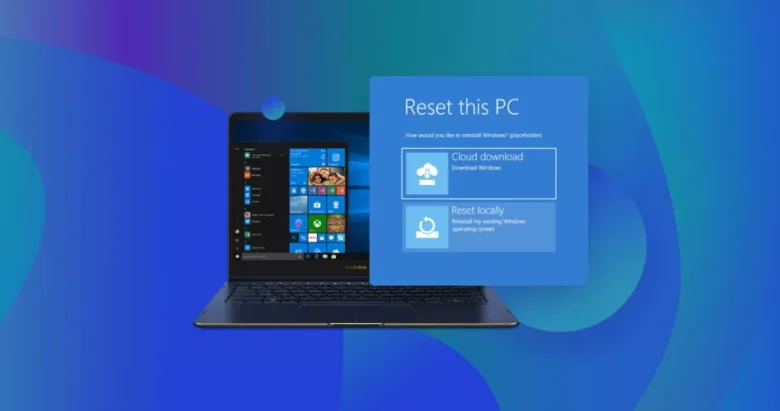
Reset this PCfor a single crashing app: Reinstalling or resetting all of Windows removes installed programs and settings across your entire machine and should be reserved for severe, system-wide operating-system failure (Recovery Options in Windows).
How to Verify Whether the Solution Worked
Do not assume an app is fixed simply because its home screen opens once. Verify stability using a structured check:
- Repeat the exact trigger workflow: Perform the specific action that previously caused the crash (such as opening a large file, exporting a document, or running for 15–20 minutes).
- Confirm zero new error logs: Open Event Viewer (
eventvwr.msc> Windows Logs > Application) or Reliability Monitor (perfmon /rel) and refresh the view. Confirm that no new Event ID 1000 or Event ID 1002 errors have been logged for that executable. - Verify normal startup state: If you used a Clean Boot during testing, confirm in
msconfigthat your PC is back on Normal Startup (leaving only the specific conflicting third-party startup item disabled).
What to Do When the Problem Persists
If you have isolated the issue to the application itself and non-destructive repairs did not resolve the crash, move to these controlled recovery steps:
- Back up local app data and perform a clean reinstall of that specific app: Copy any custom templates, local databases, or save files out of the app’s folder, uninstall the app via Settings > Apps, restart Windows, and install the latest version directly from the software publisher’s official website or Microsoft Store.
- Use System Restore to undo a recent system change: If crashes started after a recent driver or software installation, press
Windows key + R, typerstrui.exe, and press Enter to launch System Restore. Selecting a restore point rolls back system files, registry settings, and drivers to an earlier date without deleting your personal documents. - Use in-place Windows Update repair (Windows 11 22H2 and later): If multiple built-in Windows apps crash and
DISM/SFCcannot repair the component store, go to Settings > System > Recovery and select Reinstall now next to Fix problems using Windows Update (Fix Issues by Reinstalling the Current Version of Windows). This repairs the operating system while preserving your files, apps, and settings. - When to contact the vendor, an administrator, or a hardware technician:
- If a third-party app crashes consistently on a clean system with an internal
0xc0000005access violation inside the app’s own.exeor.dll, it is likely a software bug requiring a patch from the app developer. - If you are using a work or school PC, contact your IT administrator before modifying system services or drivers.
- If multiple unrelated programs crash alongside Blue Screen / Black Screen stop code restarts, consult a qualified hardware technician to test for failing RAM modules or storage drive hardware errors.
- If a third-party app crashes consistently on a clean system with an internal
Prevention Checklist: Keeping Windows Apps Stable
- Install graphics and chipset drivers from official sources only: Use Windows Update Optional Updates or your hardware manufacturer’s official support page rather than third-party “driver updater” tools.
- Minimize unnecessary background overlays: Keep screen-recording overlays, FPS counters, and RGB hooks disabled for productivity or creative apps that do not need them.
- Maintain at least 10–15% free space on your primary drive: Sufficient free SSD/HDD space prevents virtual memory (pagefile) exhaustion and local cache corruption.
- Keep System Protection (System Restore) enabled on Drive
C:: Having automatic restore points available gives you a safe rollback option whenever a software update introduces instability.
Frequently Asked Questions (FAQs)
Why does Event Viewer say ntdll.dll or kernelbase.dll caused my app to crash?
ntdll.dll and kernelbase.dll are core Windows system libraries that almost every program uses to communicate with the operating system. As Microsoft Learn notes, these files are rarely broken themselves; instead, they crash when a third-party plugin, outdated driver, or buggy app passes invalid memory data to them. Do not try to delete or manually replace ntdll.dll—instead, test a Clean Boot and run DISM and sfc /scannow.
What is the difference between Repair and Reset in Windows App Settings?
According to Microsoft Support, Repair checks and restores the application’s installation files while preserving your local settings, sign-in state, and user data. Reset wipes the app’s local cache and settings, returning it to a freshly installed state. Always try Repair first.
Why don’t I see the “Advanced options” or “Repair” button for my crashing program?
The Advanced options menu in Settings > Apps is primarily available for packaged apps (such as Microsoft Store apps and modern Windows 11/10 applications). Traditional desktop (Win32) programs often manage repairs through their own installer in Control Panel > Programs > Programs and Features instead.
Can low RAM cause Windows apps to crash without an error message?
Yes. If both your physical RAM and your Windows pagefile (virtual memory on your storage drive) run out of space—especially if you have manually disabled the pagefile or your C: drive is nearly full—Windows will abruptly terminate memory-intensive applications to keep the operating system running.
F. Relevant Official Sources
- Microsoft Support — Repair apps and programs in Windows: https://support.microsoft.com/en-us/windows/apps/repair-apps-and-programs-in-windows
- What this verifies: Exact menu paths for non-destructive Repair vs. Reset in Windows 11 (
Settings > Apps > Installed apps) and Windows 10 (Settings > Apps > Apps & features), Control Panel repair steps (Programs > Programs and Features), and Windows 10 end-of-support date (October 14, 2025).
- What this verifies: Exact menu paths for non-destructive Repair vs. Reset in Windows 11 (
- Microsoft Learn — The application or service crashing behavior troubleshooting guidance: https://learn.microsoft.com/en-us/troubleshoot/windows-server/performance/troubleshoot-application-service-crashing-behavior
- What this verifies: Event ID 1000 (
Application Error) structure, exception codes (0xc0000005STATUS_ACCESS_VIOLATION,0xc0000374STATUS_HEAP_CORRUPTION,0xc0000022STATUS_ACCESS_DENIED), and why core Microsoft modules (ntdll.dll,kernel32.dll,kernelbase.dll) appear as faulting modules when caught as victims of corruption from other modules.
- What this verifies: Event ID 1000 (
- Microsoft Learn — perfmon (Reliability Monitor command syntax): https://learn.microsoft.com/en-us/windows-server/administration/windows-commands/perfmon
- What this verifies: Official
perfmon /relcommand parameter for launching Windows Reliability Monitor directly on Windows 10 and Windows 11.
- What this verifies: Official
- Microsoft Learn — View the Windows Application Log (Event Viewer): https://learn.microsoft.com/en-us/sql/relational-databases/performance/view-the-windows-application-log-windows-10?view=sql-server-ver17
- What this verifies: Navigating Event Viewer > Windows Logs > Application on Windows 10 and later.
- Microsoft Support — How to perform a clean boot in Windows: https://support.microsoft.com/en-us/windows/experience/startup-boot/how-to-perform-a-clean-boot-in-windows
- What this verifies: Administrator requirement,
msconfigworkflow, the mandatory Hide all Microsoft services precaution, binary (half-at-a-time) conflict isolation, and steps to reset the PC to Normal Startup.
- What this verifies: Administrator requirement,
- Microsoft Support — Use the System File Checker tool to repair missing or corrupted system files: https://support.microsoft.com/en-us/windows/experience/backup-recovery/use-the-system-file-checker-tool-to-repair-missing-or-corrupted-system-files
- What this verifies: Running
DISM.exe /Online /Cleanup-image /Restorehealthprior tosfc /scannow, elevated Command Prompt requirement, and official SFC result messages.
- What this verifies: Running
- Microsoft Support — Automatically get recommended and updated hardware drivers: https://support.microsoft.com/en-us/windows/hardware/drivers/automatically-get-recommended-and-updated-hardware-drivers
- What this verifies: Optional driver update menu paths for Windows 11 (
Settings > Windows Update > Advanced options > Optional updates) and Windows 10 (Settings > Update & Security > Windows Update > View optional updates).
- What this verifies: Optional driver update menu paths for Windows 11 (
- Microsoft Learn — Microsoft Visual C++ Redistributable latest supported downloads: https://learn.microsoft.com/en-us/cpp/windows/latest-supported-vc-redist?view=msvc-170
- What this verifies: Architecture matching rules (
ARM64,X86,X64) and shared v14 runtime compatibility across Visual Studio 2017–2026 builds on Windows 10 and Windows 11.
- What this verifies: Architecture matching rules (
- Microsoft Support — Fix problems with apps from Microsoft Store: https://support.microsoft.com/en-us/accounts-billing/fix-problems-with-apps-from-microsoft-store
- What this verifies: Updating Microsoft Store apps via Library > Get updates (Windows 11) and Downloads and updates > Get updates (Windows 10).
- Microsoft Support — Windows startup settings (Safe Mode) & Recovery options in Windows:
- https://support.microsoft.com/en-us/windows/experience/startup-boot/windows-startup-settings
- https://support.microsoft.com/en-us/windows/experience/backup-recovery/recovery-options-in-windows
- https://support.microsoft.com/en-us/windows/experience/backup-recovery/system-restore
- https://support.microsoft.com/en-us/windows/deployment/install-upgrade/fix-issues-by-reinstalling-the-current-version-of-windows