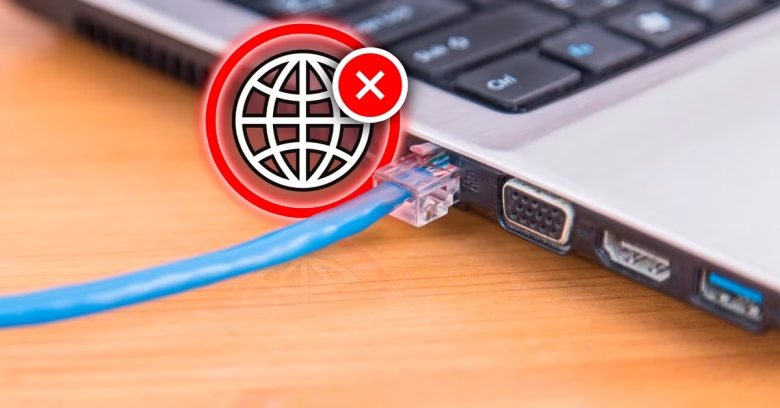
Connecting an Ethernet cable directly to your PC should provide the most stable, reliable internet connection possible. However, seeing an “Ethernet Connected, No Internet” status or the dreaded globe icon can halt your work completely.
This status indicates that your computer has established a physical local link with your router or switch, but it cannot communicate with the wider internet or translate website addresses into usable IP addresses.
Before making unnecessary changes to your Windows settings, use this guide to identify whether the breakdown is on your local PC, inside your router, or with your Internet Service Provider (ISP), followed by safe, practical steps to resolve it.
What Causes “Ethernet Connected, No Internet”?
Because the local link is functioning, the problem almost always boils down to one of four issues:
-
Stale IP Configuration: Your computer’s Dynamic Host Configuration Protocol (DHCP) lease expired or encountered an IP address conflict with another device on the network.
-
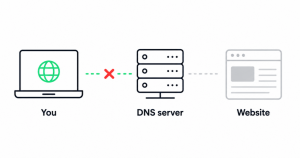
DNS Resolution Failure: Your connection is active, but your Domain Name System (DNS) server cannot translate readable domain names (like
maleisure.com) into numeric IP addresses. -
Corrupted Network Stack: Faulty registry keys, outdated network drivers, or interrupted virtual private network (VPN) software have broken the Windows Sockets (Winsock) or TCP/IP configuration.
-
Upstream ISP Outage: The local link between your PC and router is healthy, but the router has lost its wide area network (WAN) connection to your modem or ISP.
Phase 1: Safe Preliminary Checks (Isolate the Source)
Do not start running commands or resetting adapters until you confirm that the wider network is operational.
1. Check Port Indicator LEDs
Look at the physical RJ-45 Ethernet port on the back of your computer and the corresponding LAN port on your router:
-
Green or Amber light (steady or blinking): A physical link is established. The hardware and wiring are intact.
-
No light at all: There is no physical connection. Unplug both ends of the Ethernet cable and plug them back in until you hear a distinct click. If the lights remain off, swap out the cable (use a Cat 5e, Cat 6, or higher rated cable) or test a different LAN port on your router.
2. Verify Upstream Connectivity on a Second Device
Check a smartphone, tablet, or another laptop connected to the same router via Wi-Fi or Ethernet:
-
If other devices also cannot load websites: The problem is upstream. Your router has lost its link to the modem, or your ISP is experiencing an outage in your area. Contact your provider or check their status page.
-
If other devices work normally: The internet connection coming into your home is fine. The issue is isolated to your specific PC or the specific LAN port it is using.
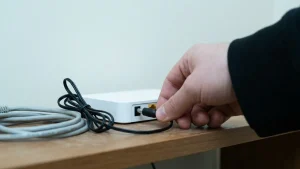
3. Safely Power Cycle the Modem and Router
Clearing the volatile memory (RAM) of your networking equipment forces both the modem and router to establish a fresh sync with your ISP.
-
Unplug the power cords from both your modem and your router.
-
Wait a full 30 seconds to allow the internal capacitors to discharge.
-
Plug the modem back in first. Wait 2 to 3 minutes until its front status lights (Power, Downstream, Upstream, Online) become solid.
-
Plug the router back in and wait 2 minutes for it to distribute local addresses.
-
Check your computer to see if the connection restores automatically.
Phase 2: Resolving PC-Side Network Errors
If other devices have working internet, proceed with these Windows-focused troubleshooting steps, starting with the least invasive.
1. Flush DNS and Renew the DHCP Lease
This clears out outdated domain records and requests a completely new IP address assignment from your router’s DHCP server.
-
Press the Windows Key, type
cmd, right-click Command Prompt, and select Run as administrator. -
Type the following command and press Enter:
DOSipconfig /flushdns -
Release your current local IP configuration:
DOSipconfig /release(Your internet status will briefly disconnect entirely; this is expected.)
-
Request a fresh IP lease:
DOSipconfig /renew -
Look at the output under Ethernet adapter.
-
Healthy Result: An
IPv4 Addressmatching your local subnet (typically starting with192.168.x.xor10.0.x.x). -
Problem Sign: If the address begins with
169.254.x.x, your computer has assigned itself an Automatic Private IP Address (APIPA) because it cannot reach the router’s DHCP server. If this occurs, proceed directly to Step 3.
-
2. Switch to a Reliable Public DNS Provider
Often, your ISP’s default DNS server stops responding, preventing web browsers from loading pages even though your underlying connection is active. Switching to a secure public DNS resolver often fixes the problem immediately.
-
Press Windows Key + R, type
ncpa.cpl, and click OK to open the Network Connections window. -
Right-click your Ethernet adapter and select Properties.
-
Select Internet Protocol Version 4 (TCP/IPv4) from the list and click Properties.
-
Leave Obtain an IP address automatically selected.
-
Click the radio button for Use the following DNS server addresses, and input:
-
Preferred DNS server:
1.1.1.1(Cloudflare) or8.8.8.8(Google) -
Alternate DNS server:
1.0.0.1(Cloudflare) or8.8.4.4(Google)
-
-
Check the box for Validate settings upon exit, then click OK to save.
3. Disable Third-Party Antivirus, VPNs, and Proxies
Third-party security suites and VPN clients install network filtering drivers (often called “WFP drivers”) directly into your Windows network stack. If a VPN crashes or an antivirus firewall encounters an error, it can silently block all outbound internet traffic.
-
VPNs: Open your VPN client and ensure the “Kill Switch” feature is temporarily turned off, or disconnect the VPN entirely.
-
Antivirus: Temporarily disable third-party firewall protection (e.g., Norton, Bitdefender, AVG) for 10 minutes to test if traffic resumes. Windows Defender will maintain basic security in the background.
-
Proxy Settings: Go to Settings > Network & internet > Proxy. Ensure that Automatically detect settings is turned On, and that Use a proxy server is turned Off.
4. Reset Winsock and the TCP/IP Stack
If system files or protocol drivers have become corrupted, resetting the Windows Sockets catalog returns the underlying networking stack to its clean, out-of-the-box state.
-
Open Command Prompt as administrator.
-
Run the following command to reset Winsock:
DOSnetsh winsock reset -
Run the following command to rewrite the core TCP/IP registry parameters:
DOSnetsh int ip reset -
Restart your computer immediately to finalize the reset.
5. Reinstall the Ethernet Network Adapter Driver
If your Ethernet network controller driver crashed or became unstable following a Windows Update, reinstalling the default driver forces the operating system to re-bind the physical hardware.
-
Press Windows Key + X and select Device Manager.
-
Expand the Network adapters section.
-
Locate your physical Ethernet controller (common names include Realtek PCIe GbE Family Controller, Intel Ethernet Connection, or Killer E2xxx).
-
Right-click the controller and select Uninstall device.
-
Important: Leave the checkbox marked “Attempt to remove the driver for this device” unchecked. Click Uninstall.
-
At the top of Device Manager, click Action > Scan for hardware changes. Windows will automatically detect the Ethernet port and reinstall the operational driver.
What Not to Do
-
Do not use third-party “Driver Booster” or “PC Cleaner” tools: These utilities often install generic or mismatched network drivers that can permanently disable the network interface.
-
Do not reset your router to factory settings prematurely: Pressing the physical pinhole reset button on your router wipes your custom Wi-Fi passwords, port forwarding rules, and ISP authentication details (such as PPPoE credentials). Only do this as an absolute last resort if you have your ISP documentation ready.
-
Do not manually assign static IP addresses unless instructed: Forcing a static IP without checking your router’s assigned DHCP pool can cause an IP conflict that knocks other home devices offline.
How to Verify the Fix
To confirm that your connection is fully restored and operating at peak performance:
-
Verify Gateway Routing: Open Command Prompt and type
ping 1.1.1.1. If you receive four replies with 0% packet loss, your computer is successfully routing traffic across the internet. -
Verify DNS Resolution: In Command Prompt, type
ping google.com. If it successfully translates to an IP address and returns replies, your DNS resolution is healthy. -
Check Connection Status: The network icon in your Windows system tray should show a solid desktop monitor icon without any warning badges or globe symbols.
Frequently Asked Questions
Why does Wi-Fi work, but Ethernet says “No Internet”?
This indicates your router’s internet connection is active, but the specific Ethernet path is failing. The most common causes are a damaged Ethernet cable, a faulty router LAN port, a misconfigured static IP on the PC, or an outdated Ethernet driver.
What does an IP address starting with 169.254 mean?
An address starting with 169.254.x.x is an APIPA (Automatic Private IP Addressing) address. It means Windows gave up waiting for your router’s DHCP server to assign it an address. This usually points to a bad Ethernet cable, a disabled DHCP server on the router, or security software blocking network handshakes.
Can a damaged Ethernet cable cause a “No Internet” status?
Yes. An Ethernet cable has eight individual copper strands. If the strands responsible for transmitting data are severed or crimped while the link-detection pins remain intact, your PC will recognize that a cable is plugged in, but no actual data packets can pass through.
Official Sources & Documentation
-
Microsoft Support: Fix Ethernet connection problems in Windows – Official instructions for TCP/IP resets and adapter troubleshooting.
-
Microsoft Learn: TCP/IP troubleshooting guidance – Technical details on IP lease renewal, APIPA addresses, and network reset parameters.
E. Practical Troubleshooting Summary Table
| Symptom | Probable Cause | First Recommended Action |
| All devices offline | ISP outage or modem desync | Power cycle modem/router; check ISP service status. |
| Only Ethernet PC offline; Wi-Fi works | Local PC network stack or cable fault | Test another LAN port/cable; run ipconfig /flushdns and /renew. |
| IP address is 169.254.x.x | DHCP assignment failure | Power cycle router; reinstall Ethernet network adapter in Device Manager. |
| Can ping 1.1.1.1, but websites won’t load | DNS resolution failure | Change IPv4 DNS servers to Cloudflare (1.1.1.1) or Google (8.8.8.8). |
| No LED lights on Ethernet port | Physical connection severed | Reseat or replace the RJ-45 cable; test a different port. |
F. Relevant Official Sources
-
Microsoft Support: Fix Ethernet connection problems in Windows – Authoritative documentation for Windows 10/11 network configuration.
-
Microsoft Learn: TCP/IP troubleshooting guidance – Verification for
netshandipconfigcommand usage.