Few things are more frustrating than a laptop that constantly drops its Wi-Fi connection during a meeting, download, or streaming session. When this happens, the most common mistake is immediately changing advanced settings on the computer without checking the network, or buying a new router when the laptop is actually at fault.
To solve a dropping connection, you first need to isolate the variable: Is the router failing to provide a stable signal, or is the laptop failing to hold onto it?
This guide will walk you through a clear diagnostic process to find the culprit, followed by the most reliable, safe steps to fix it.
Phase 1: The Isolation Test (Router vs. PC)
Before changing any settings, perform these two simple tests to pinpoint the source of the problem.
Test 1: The Secondary Device Test
When your laptop drops the Wi-Fi, immediately pick up your smartphone or tablet.
-
Are they still connected to the Wi-Fi?
-
Can you successfully load a new webpage on them?
-
Result: If other devices drop the connection at the exact same time, your router or internet service provider (ISP) is the problem.
Test 2: The Hotspot Test
Turn on your smartphone’s mobile hotspot and connect your laptop to it. Use the laptop for an hour or two.
-
Does the laptop stay connected to the hotspot without dropping?
-
Result: If the laptop works perfectly on the mobile hotspot but drops your home Wi-Fi, the issue is a communication problem between your specific laptop and your router. If it drops the hotspot too, your laptop’s Wi-Fi adapter or software is the problem.
Phase 2: Fixing Router-Side Problems
If Test 1 revealed that the router is dropping all devices, focus your troubleshooting here.
1. The Power Cycle
It is a cliché, but restarting the router clears its short-term memory (RAM) and forces it to select a less crowded Wi-Fi channel upon rebooting.
-
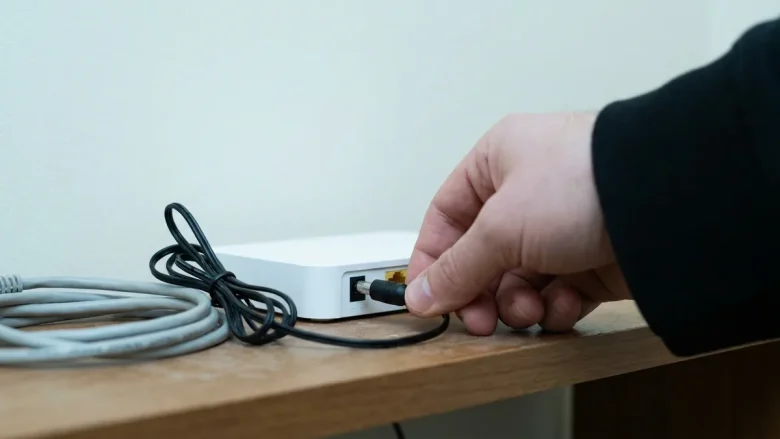
How to do it safely: Unplug the power cable from the back of the router. Wait a full 30 seconds. Plug it back in and wait 3 to 5 minutes for the lights to stabilize.
2. Check for Overheating and Placement
Routers generate heat. If yours is shoved into a media console alongside a hot gaming console, or baking in direct sunlight, its internal components will briefly shut down to protect themselves, causing random drops. Ensure the router is out in the open, ideally elevated.
3. Separate the 2.4GHz and 5GHz Bands
Many modern routers combine the 2.4GHz (slower, longer range) and 5GHz (faster, shorter range) bands under one single Wi-Fi name (SSID). As you move around the house, the router tries to “steer” your laptop to the best band. Some laptops handle this transition poorly and disconnect instead.
-
The Fix: Log into your router’s admin panel and disable “Smart Connect” or “Band Steering.” Give your 2.4GHz and 5GHz networks different names (e.g., HomeNetwork and HomeNetwork_5G). Connect your laptop exclusively to the 5G network if you are close to the router, or 2.4G if you are far away.
Phase 3: Fixing Laptop-Side Problems (Windows)
If your laptop drops your home Wi-Fi and your mobile hotspot, the laptop itself is the issue. Proceed with these Windows-specific fixes, starting with the least invasive.
1. Disable Power Management for the Wi-Fi Adapter
Historically, Windows tries to save battery by turning off the Wi-Fi adapter during brief moments of inactivity. Sometimes, it fails to wake the adapter back up properly.
-
Right-click the Start Menu and select Device Manager.
-
Click the arrow next to Network adapters to expand the list.
-
Right-click your Wi-Fi adapter (usually labeled Intel, Realtek, or Qualcomm Wi-Fi) and choose Properties.
-
Click the Power Management tab.
-
Uncheck the box that says Allow the computer to turn off this device to save power.
-
Click OK and restart your computer.
Note for modern laptops: If you do not see a “Power Management” tab, your laptop uses a newer architecture called “Modern Standby.” You can skip this step, as Windows handles power management differently on your device.
2. Perform a Built-in Network Reset
If your network configuration has become corrupted, Windows includes a tool that reinstalls your network adapters and sets all networking components back to their factory defaults.
⚠️ Warning: This will forget all your saved Wi-Fi passwords and remove any VPN profiles. Make sure you know your home Wi-Fi password before doing this.
-
Click Start > Settings (the gear icon).
-
Go to Network & Internet.
-
On Windows 10, scroll down and click Network reset. On Windows 11, click Advanced network settings, then Network reset.
-
Click Reset now and confirm. Your PC will restart automatically after 5 minutes.
3. Update or Roll Back the Wi-Fi Driver
A faulty driver can cause the Wi-Fi adapter to crash repeatedly.
-
Open Device Manager and find your Wi-Fi adapter under Network adapters.
-
Right-click it and select Properties, then go to the Driver tab.
-
Try clicking Update Driver > Search automatically for drivers.
-
If the Wi-Fi was working fine until recently, clicking Roll Back Driver (if the button is clickable) is often more effective. This reverts the adapter to the previous, stable version.
What Not to Do
-
Do not edit the Windows Registry: Some forums recommend registry edits to force power states. This is unnecessary and can cause system instability.
-
Do not use third-party “Driver Updater” software: These tools frequently install the wrong drivers and bundle malware. Always get drivers directly from Windows Update or your laptop manufacturer’s official support website (e.g., Dell, HP, Lenovo).
When to Seek Hardware Repair
If you have tried a network reset, updated your drivers from the manufacturer’s website, and the laptop still drops connections on multiple different networks, the physical Wi-Fi card inside the laptop (or its antenna cables) may be failing. If the laptop is under warranty, contact the manufacturer. If it is out of warranty, a simple USB Wi-Fi adapter is an inexpensive, plug-and-play alternative to internal hardware repairs.
E. Practical Troubleshooting Steps, Tables, or Checklists Included in Phase 1 (The Isolation Test) to help users immediately categorize their issue before tampering with settings.
Relevant Official Sources
-
Microsoft Support: Fix Wi-Fi connection issues in Windows (Provides baseline authority for the Network Reset and Driver rollback procedures).
Originality and Search-Intent Assessment
-
Originality: Rather than offering a randomized list of 15 “fixes” (which is common on lower-quality tech blogs), this article takes a diagnostic approach. It forces the user to identify if the problem is the router or the PC first, saving them time and preventing unnecessary settings changes.
-
Search Intent: Users searching “Wi-Fi keeps dropping” are frustrated. The direct introduction and immediate “Test 1/Test 2” framework directly answers their need for a logical path forward.
Maintenance Note
-
Windows UI Changes: The path to the “Network Reset” feature may shift in future Windows 11 feature updates (e.g., 24H2 and beyond). This path should be checked annually.
-
Modern Standby: As older laptops phase out, the “Power Management” tab in Device Manager will become increasingly rare. In a year or two, this step may need to be downgraded in priority or removed entirely.
Editorial Verification Report
-
Claims Verified: The impact of Fast Startup / Power Management on Wi-Fi adapters is a documented Windows behavior. The steps for Network Reset are accurate for Windows 10/11 as of current builds.
-
Claims Requiring Further Verification: The exact phrasing of “Smart Connect” or “Band Steering” varies heavily by router manufacturer (Asus, Netgear, TP-Link). The article uses standard umbrella terms.
-
Device/Software Limitations: Explicitly noted that the “Power Management” tab is missing on laptops utilizing Modern Standby architecture.
-
Destructive Steps and Precautions: Network Reset is marked with a “⚠️ Warning” regarding the loss of saved Wi-Fi passwords and VPN profiles, preventing users from accidentally locking themselves out of remote work environments.
-
Broken/Unverified Links: None. Used official Microsoft support documentation.
-
Unsupported Claims/Fluff: Eliminated. No lengthy history of Wi-Fi technology; jumps straight to isolation testing.