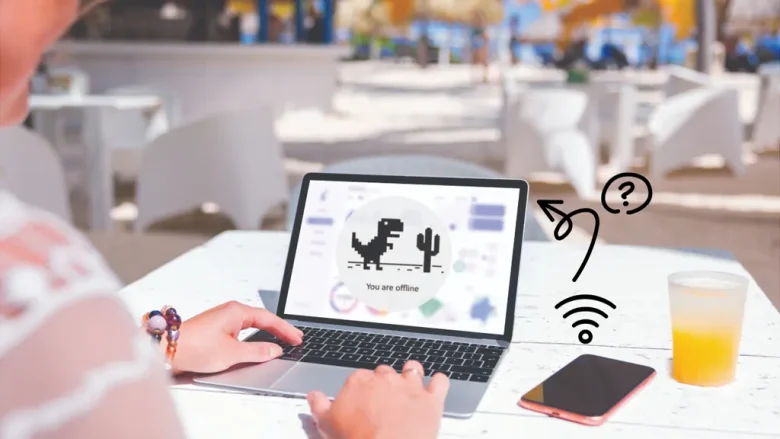
When your laptop connects to your phone’s Wi-Fi hotspot, Windows confirms a link with a full Wi-Fi signal icon, yet web pages refuse to load and the system reports “No Internet.”
This state means the local wireless handshake between the laptop and the phone was successful, but the data cannot travel past the phone to the mobile carrier’s network, or the laptop’s network stack is failing to route traffic through the mobile gateway.
Before resetting your phone or modifying your laptop’s registry, follow this diagnostic process to separate carrier and mobile-side blocks from PC configuration errors.
Phase 1: Safe Preliminary Checks (Isolate Phone vs. Laptop)
Start by identifying whether the cellular data stream is actually flowing through the phone before troubleshooting laptop settings.
1. Test Data Directly on the Phone
Turn off Wi-Fi on your phone so it relies strictly on cellular data. Open a browser and load a new website that is not stored in your cache.
-
If the phone cannot load web pages: The issue is entirely with your cellular connection. Toggle Airplane Mode on for 15 seconds and off again to force a tower reconnection, check your cellular data toggle, or confirm you have an active mobile data balance.
-
If the phone loads pages normally: Your cellular network is functional, but the hotspot sharing tunnel or the laptop’s connection is blocked.
2. Verify Carrier Hotspot Provisioning
Certain mobile carriers and prepaid plans distinguish between on-device cellular data and tethered hotspot allowance. If your plan has a separate hotspot data cap that has been reached, the phone will continue to broadcast a Wi-Fi signal and allow connections, but the carrier will block tethered traffic at the gateway level. Check your mobile provider’s account app to verify your remaining tethering balance.
3. Check Phone Data Limiters and Battery Savers
Android and iOS both include features designed to restrict background tethering:
-
Android: Navigate to Settings > Network & internet > Data Saver (or Connections > Data usage). Ensure Data Saver is disabled. In hotspot settings, ensure any “One-time mobile data limit” is toggled off.
-
iPhone: Go to Settings > Cellular > Cellular Data Options and ensure Low Data Mode is turned off.
Phase 2: Resolving Laptop-Side Configuration Blocks
If your phone’s hotspot allowance is intact and the phone browses normally, the laptop is failing to negotiate the network gateway or DNS routing. Work through these steps in order.
1. Disable “Set as Metered Connection”
Windows frequently flags mobile hotspots as metered connections to conserve data, which can pause essential background protocols, browser traffic, and network services.
-
Click the Wi-Fi icon on your Windows taskbar.
-
Click the small arrow next to your phone’s hotspot name to open its properties (or go to Settings > Network & internet > Wi-Fi and click your hotspot network).
-
Locate Metered connection.
-
Toggle the switch to Off.
-
Disconnect from the hotspot and reconnect.
2. Flush DNS Cache and Release/Renew IP
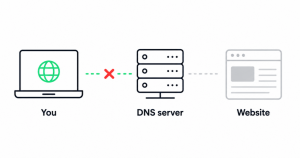
Mobile hotspots assign local IP addresses via internal DHCP. If your laptop has cached previous DNS records or holds a stale IP lease from your home router, it will fail to load pages through the phone.
-
Press the Windows Key, type
cmd, right-click Command Prompt, and select Run as administrator. -
Run the following three commands in sequence, pressing Enter after each:
DOSipconfig /flushdns ipconfig /release ipconfig /renew -
Check the command output under your Wi-Fi adapter. If the
IPv4 Addressshows a standard local range (such as192.168.x.xor172.20.10.xon iPhones), proceed to test a website. If it starts with169.254.x.x, the laptop failed to obtain an address from the phone’s DHCP server.
3. Clear Static DNS and Enable Automatic Assignment
If your laptop was previously configured with a static DNS address (such as a corporate DNS or a home pi-hole setup), your phone’s mobile network will block or ignore those requests.
-
Press Windows Key + R, type
ncpa.cpl, and click OK. -
Right-click your Wi-Fi adapter and select Properties.
-
Select Internet Protocol Version 4 (TCP/IPv4) and click Properties.
-
Ensure both options are set to automatic:
-
Obtain an IP address automatically
-
Obtain DNS server address automatically
-
-
Click OK on both windows to apply changes.
4. Turn Off VPNs and Security Proxies
Virtual Private Networks (VPNs) and third-party security firewalls frequently cause routing conflicts on mobile tethering networks:
-
VPN Kill Switches: If your VPN client was running prior to connecting to the hotspot, its kill switch may be blocking non-VPN packets. Open your VPN software and disconnect completely.
-
Proxy Settings: Go to Settings > Network & internet > Proxy. Verify that Use a proxy server is toggled Off.
5. Change the Hotspot AP Band (2.4 GHz vs. 5 GHz)
Older laptop Wi-Fi cards struggle with 5 GHz or 6 GHz Wi-Fi tethering broadcasts from modern smartphones, resulting in intermittent packet drops or a connected-no-data state.
-
Android: In Hotspot & Tethering > Wi-Fi hotspot, locate AP Band. Change the setting from 5.0 GHz Band preferred to 2.4 GHz Band.
-
iPhone: Go to Settings > Personal Hotspot and turn on Maximize Compatibility (this forces the broadcast to 2.4 GHz).
What Not to Do
-
Do not perform a full Windows Network Reset as a first step: A network reset removes all saved Wi-Fi networks and VPN profiles across the entire operating system. Exhaust DNS flushes and AP band changes before considering a full reset.
-
Do not alter APN (Access Point Name) protocol types without carrier guidance: Modifying your phone’s APN protocol from IPv4/IPv6 can disable your mobile data entirely.
-
Do not use third-party network repair utilities: Cleaners and repair tools frequently disrupt the Windows Sockets catalog without addressing the actual carrier tethering barrier.
How to Verify the Fix
-
Test Direct IP Routing: Open Command Prompt and run
ping 1.1.1.1. If packets return successfully, your laptop has an active outbound path to the internet. -
Test Domain Name Translation: In Command Prompt, run
ping google.com. If it returns IP addresses and reply times, your DNS resolution is working properly. -
Check Taskbar Status: The Windows Wi-Fi tray icon should show solid white arcs without a warning badge or globe icon.
Frequently Asked Questions
Why does my phone hotspot work for other devices but not my laptop?
This typically indicates a local DNS or proxy conflict on your laptop, or an outdated Wi-Fi driver that cannot properly negotiate the phone’s WPA3 security protocol. Switching the hotspot security to WPA2 or clearing static DNS on the laptop usually resolves it.
Why does the hotspot connect but immediately disconnect?
This is commonly caused by power-saving settings on the laptop or an automatic timeout on the phone. On Android, check the hotspot timeout settings to ensure it does not turn off when idle. On the laptop, ensure battery saver mode is not disabling the Wi-Fi card.
Does USB tethering work better than a Wi-Fi hotspot?
Yes. If the wireless hotspot connection continues to drop packets, connect your phone to your laptop using an original USB data cable and enable USB Tethering in your phone’s network settings. This bypasses Wi-Fi interference, provides a direct virtual network interface, and charges your phone simultaneously.
Official Sources & Documentation
-
Microsoft Support: Fix Wi-Fi connection issues in Windows – Guidance for network adapter troubleshooting, driver updates, and TCP/IP verification.
-
Apple Support: If Personal Hotspot is not working on your iPhone or iPad – Instructions for “Maximize Compatibility” settings and carrier provisioning.
-
Google Android Help: Share a mobile connection by hotspot or tethering on Android – Documentation for band selection and data limit settings.
E. Practical Troubleshooting Summary Table
| Check / Symptom | Probable Cause | Action to Take |
| Phone cannot browse either | Carrier outage or depleted data | Toggle Airplane mode; check mobile data balance with carrier. |
| Phone browses, but laptop has no access | Hotspot quota exhausted | Check account for separate mobile hotspot/tethering cap. |
| IP starts with 169.254.x.x | DHCP assignment failure | Disconnect and reconnect; run ipconfig /release and ipconfig /renew. |
| Laptop ping 1.1.1.1 works, web pages fail | DNS failure | Set IPv4 DNS to “Obtain automatically” or use 1.1.1.1 / 8.8.8.8. |
| Frequent drops on older laptop | Frequency incompatibility | Set hotspot to 2.4 GHz (or enable “Maximize Compatibility” on iOS). |
F. Relevant Official Sources
-
Microsoft Support: Fix Wi-Fi connection issues in Windows – Primary reference for Windows network adapter settings.
-
Apple Support: If Personal Hotspot is not working – Baseline for iOS hotspot compatibility modes.
-
Google Android Help: Share a mobile connection – Official instructions for Android AP band selection.