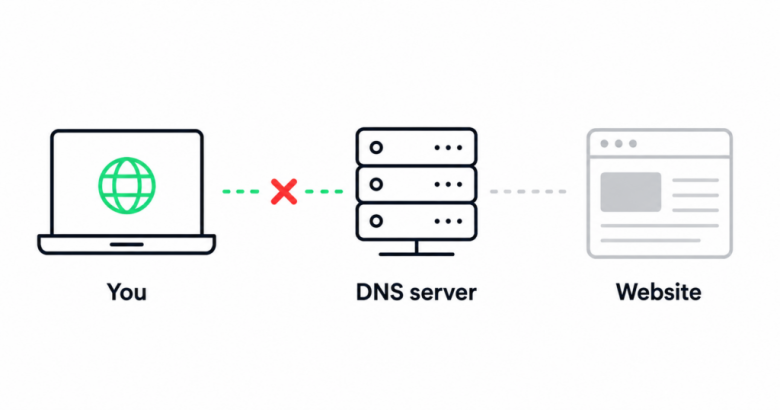
It is a baffling scenario: your smartphone, smart TV, and laptop connect to the Wi-Fi without issue, but a single computer or phone refuses to load any websites. When internet access works on everyone else’s equipment except your specific device, the problem is localized. It points to a software glitch, a corrupted DNS cache, or a network adapter misconfiguration on that exact machine rather than a failure of your home router or internet service provider.
This guide walks you through a systematic troubleshooting process to isolate the root cause and get your device back online.
Symptoms of a Single-Device Connection Failure
You are experiencing a localized device failure if you notice:
-
Selective device failure: Every other device in your household surfs the web normally, while one specific Windows PC, Mac, or phone displays “Server DNS Address Could Not Be Found” or “No Internet” errors.
-
Apps work, browsers don’t: Messaging apps or streaming services function, but web browsers (Chrome, Edge, Safari) fail to open any web pages.
-
Intermittent timeouts: Pages load extremely slowly or time out completely with errors like
ERR_CONNECTION_TIMED_OUTorDNS_PROBE_FINISHED_NXDOMAIN.
Possible Causes
Why would only one device lose web access? The most common culprits include:
-
Corrupted DNS Cache: Stored domain name translations have become corrupt, preventing the device from finding website IP addresses.
-
Browser Extension or Cache Conflicts: A misbehaving ad-blocker, VPN extension, or corrupted browser profile is blocking traffic.
-
Misconfigured Network Adapter IP/DNS Settings: Static IP addresses or manual DNS server configurations left over from a previous work or public network.
-
Outdated or Corrupted Network Drivers: The operating system’s Wi-Fi or Ethernet card driver has crashed or become outdated.
-
Third-Party Antivirus or Firewall Interference: Overzealous security software blocking web socket traffic.
Safe Preliminary Checks
Before tinkering with network commands or resetting settings, perform these quick verifications:
-
Test Another Browser: If Google Chrome is failing to load pages, try opening Mozilla Firefox, Microsoft Edge, or Safari. If other browsers work, the issue is isolated to a specific browser’s settings or cache.
-
Check Date and Time Settings: If your device’s system clock or time zone is incorrect, security certificates for HTTPS websites will fail to validate, preventing pages from loading entirely. Ensure Set time automatically is enabled.
Step-by-Step Diagnostic & Troubleshooting Process
Step 1: Flush the DNS Cache (Windows & Mac)
If your device cannot resolve website names into IP addresses, clearing out the old DNS cache forces it to request fresh routing data.
-
On Windows:
-
Press the Windows Key, type
cmd, right-click Command Prompt, and select Run as administrator. -
Type
ipconfig /flushdnsand press Enter. You should see a confirmation message stating the DNS Resolver Cache was successfully flushed.
-
-
On Mac:
-
Open Terminal (via Spotlight or Applications > Utilities).
-
Type
sudo dscacheutil -flushcache; sudo killall -HUP mDNSResponderand press Enter (enter your Mac login password when prompted).
-
Step 2: Switch to a Public DNS Server
Sometimes your local network’s default DNS provider fails to resolve web addresses properly. Switching temporarily to a reliable public DNS server can instantly restore connectivity.
-
On Windows: Go to Settings > Network & internet > Wi-Fi (or Ethernet) > Hardware properties. Look for DNS server assignment, click Edit, and change it from Automatic to Manual. Set Preferred DNS to
8.8.8.8(Google) or1.1.1.1(Cloudflare), and Alternate DNS to8.8.4.4or1.0.0.1. -
On Mac: Go to System Settings > Wi-Fi > Details (next to your network) > DNS. Click the
+button and add8.8.8.8and1.1.1.1.
Step 3: Reset Network Adapters (IP Stack Reset)
If your device’s network configuration is tangled, resetting the TCP/IP stack restores clean communication.
-
On Windows (Command Prompt as Administrator):
-
Type
netsh winsock resetand press Enter. -
Type
netsh int ip resetand press Enter. -
Restart your computer immediately afterward.
-
Step 4: Clear Browser Cache and Disable Extensions
If only your web browser is failing to load pages:
-
Open your browser settings and navigate to Privacy and security > Clear browsing data. Select Cached images and files, then click Clear data.
-
Test the connection in an Incognito / Private Browsing window. If pages load successfully in Incognito mode, a browser extension (such as an aggressive ad-blocker or VPN plugin) is blocking your traffic. Disable your extensions one by one to find the culprit.
What Not to Do Prematurely
-
Do not factory reset your home router: Remember, your other devices are working fine. Resetting your Wi-Fi router will not fix a corrupted DNS cache or network adapter on a single client machine.
-
Do not delete system files manually: Avoid downloading unverified “network repair” registry scripts from random forums.
-
Do not disable your firewall permanently: While third-party antiviruses can occasionally block web traffic, never leave your system firewall permanently disabled as a workaround.
How to Verify Whether the Fix Worked
-
Open your primary web browser and attempt to load neutral, high-uptime sites like
google.comorwikipedia.org. -
Open a command prompt or terminal and type
ping 8.8.8.8to verify that your device has active bidirectional packet communication with the internet.
What Do Do When the Problem Persists
If you have flushed your DNS, reset your network stack, and cleared your browser cache, but websites still fail to load:
-
Check for VPN or Proxy Software: Ensure you do not have a stale VPN client running in the background or an active proxy server configured in your system settings blocking traffic.
-
Reinstall Network Drivers (Windows): Open Device Manager, expand Network adapters, right-click your Wi-Fi or Ethernet adapter, select Uninstall device, and restart your computer to force a clean driver reinstallation.
Prevention Advice
-
Keep Browsers Updated: Regularly update your web browser to prevent compatibility conflicts with modern website security protocols (TLS/SSL).
-
Avoid Unverified Public Proxies: Refrain from configuring custom proxy servers unless required for work or school, as dead proxies will instantly block web traffic.
Frequently Asked Questions
Why do some apps work on my PC while web browsers won’t load anything?
If messaging apps (like Discord or Spotify) work but web browsers fail, it usually indicates a DNS resolution error, an active proxy configuration block, or an aggressive browser extension/antivirus firewall filtering HTTP/HTTPS traffic at the browser level.
Does a VPN running in the background block all web traffic if it disconnects?
Yes. Many modern VPN apps feature a “Kill Switch” setting. If the VPN connection drops unexpectedly, the kill switch intentionally blocks all internet traffic on that device to protect your privacy, making it look like websites won’t load at all until you close or reset the VPN client.
How do I know if the problem is my device or my Wi-Fi router?
The easiest diagnostic test is to connect another device (like your phone) to the exact same Wi-Fi network. If the phone loads websites instantly, the router and internet connection are fully functional, proving the issue is localized to your first device.
Relevant Official Sources
-
Microsoft Support: Fix Wi-Fi connection issues in Windows — Official troubleshooting steps from Microsoft for diagnosing network adapter and connection errors on Windows.
-
Apple Support: If your Mac isn’t connecting to the internet over Wi-Fi — Official Apple guidance for troubleshooting macOS network configurations.