We have all experienced that sudden spike of panic. You are right in the middle of finalizing a critical work report, editing a video, or lining up the perfect shot in your favorite online game, and it happens. Your screen freezes, a terrifying blue error message appears out of nowhere, or your entire system simply powers down. Computer problems never happen at a convenient time. When your Windows PC starts acting up, the immediate reaction is often to grab your phone, search for a local repair shop, and prepare to spend a hefty sum of money just to get things running smoothly again.
However, you do not have to be an IT professional with a degree in computer science to fix the vast majority of common PC issues. Windows operating systems have evolved significantly over the years, and they now include a robust suite of built-in diagnostic tools designed to help everyday users identify and resolve problems independently. By understanding a few core troubleshooting principles, you can save time, protect your wallet, and get back to your digital life with minimal frustration. Let’s break down the most frequent Windows and PC headaches and explore the exact steps you can take to solve them like a pro.
Why Is My PC Running So Slow? (And How to Fix It)
A sluggish computer is easily the most common complaint among Windows users. When a PC that used to boot up in seconds suddenly takes minutes to load a simple web browser, it completely ruins your workflow. This performance degradation usually does not happen overnight; it is the result of digital clutter accumulating over months or years.
The first and most effective place to look is your startup programs. Many applications are designed to automatically launch silently in the background the moment you turn on your computer. While one or two of these might not cause an issue, having a dozen programs fighting for your system’s resources at boot time will bring everything to a crawl. To fix this, right-click your taskbar and open the Task Manager. Navigate to the Startup tab. Here, you will see a list of every program that turns on with your PC. Right-click and disable anything you do not strictly need immediately upon booting, such as game launchers, third-party update checkers, or communication apps you only use occasionally.
Beyond startup apps, a nearly full hard drive is a guaranteed way to throttle your PC’s speed. Windows needs a certain amount of empty space—ideally at least 15 to 20 percent of your total drive capacity—to temporarily store files and swap data in and out of your system memory. If your storage bar is glowing red in File Explorer, it is time to do some spring cleaning. Run the built-in Windows Disk Cleanup tool, empty your recycle bin, clear your browser caches, and uninstall heavy applications or games you no longer play. If you are still running your operating system on an older mechanical Hard Disk Drive (HDD), the single greatest upgrade you can perform is cloning your system over to a Solid State Drive (SSD).
Conquering the Blue Screen of Death (BSOD)
Nothing strikes fear into the heart of a PC user quite like the Blue Screen of Death. It interrupts whatever you are doing, flashes a cryptic error code, and forces a restart. While it looks catastrophic, a BSOD is actually your computer’s built-in self-defense mechanism. It occurs when Windows encounters an error so severe that continuing to operate could corrupt your personal data or permanently damage your hardware components.
When a BSOD happens, the most crucial piece of information is the stop code displayed near the bottom of the screen—something that looks like IRQL_NOT_LESS_OR_EQUAL or VIDEO_TDR_FAILURE. Write this code down or take a quick picture with your phone before the computer restarts. In most cases, these crashes are caused by faulty or outdated hardware drivers. A driver is essentially the translation software that allows Windows to communicate with your physical hardware, like your graphics card or Wi-Fi adapter. If a recent Windows update conflicts with an older driver, a crash is highly likely.
To resolve this, boot your computer into Safe Mode, which loads Windows with only the bare essential drivers required to function. From there, open the Device Manager. Look for any hardware components flagged with a yellow warning triangle. Right-click these items and select “Update driver” or “Roll back driver” if a recent update is what caused the instability. If you recently installed a new piece of hardware, such as a new stick of RAM, try removing it to see if the blue screens stop. Faulty memory is a notorious culprit for random system crashes.
Resolving Frustrating Internet Connection Drops
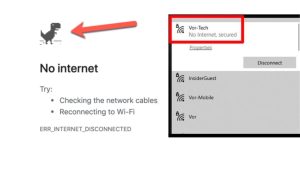
You sit down to stream a movie or join a video conference, only to be met with the dreaded “No Internet Connection” globe icon in your system tray. Network issues can be uniquely frustrating because the problem could lie anywhere from your internet service provider (ISP) down to a frayed cable on your desk.
Always start with the physical connections. If you use a wired Ethernet connection, unplug the cable from both your PC and your router, inspect the clips for damage, and plug them firmly back in. If you are on Wi-Fi, the classic IT advice remains true: unplug your modem and router from their power sources, wait a full 60 seconds, and plug them back in. This clears the router’s temporary memory and forces it to establish a fresh connection with your ISP.
If the router restart does not work, it is time to troubleshoot within Windows. Right-click your network icon and select Troubleshoot problems. The Windows Network Troubleshooter is surprisingly adept at automatically resetting network adapters and fixing localized IP conflicts. For a more thorough reset, open the Command Prompt as an administrator and type ipconfig /flushdns followed by pressing Enter. This clears your computer’s cache of translated web addresses, forcing it to look up fresh, correct routing information for the websites and servers you are trying to reach.
Preventing Overheating and Random Shut Downs
Computers generate a massive amount of heat, especially when pushing heavy workloads like video rendering or 3D gaming. If your computer suddenly goes entirely black and shuts off completely without any warning or error screen, you are almost certainly dealing with a thermal event. When the processor (CPU) or graphics card (GPU) reaches a critically dangerous temperature, the motherboard simply cuts the power to prevent the silicon from literally melting.
Overheating is almost always a physical maintenance issue rather than a software bug. Look at the cooling fans on your desktop case or the exhaust vents on your laptop. Are they caked in a thick layer of grey dust? Dust acts as an insulating blanket, trapping heat inside your components and suffocating the cooling fans. Purchase a can of compressed air, take your PC to a well-ventilated area outside, and carefully blow the dust out of the heatsinks, fans, and power supply.
For laptop users, ensure you are using your device on a hard, flat surface. Resting a laptop on a bed or a plush couch completely blocks the bottom intake vents, suffocating the machine within minutes. If you have a desktop PC that is a few years old and cleaning the dust does not lower the temperatures, the thermal paste sitting between your processor and its cooler may have dried out and cracked. Cleaning off the old paste with rubbing alcohol and applying a fresh, pea-sized drop can drastically drop your operating temperatures and restore system stability.
Application Freezes and Unresponsive Programs
Sometimes your entire operating system is fine, but one specific application absolutely refuses to cooperate. It locks up, the window turns slightly white, and the cursor turns into a spinning blue circle. Repeatedly clicking the program in frustration will usually just prompt a pop-up asking if you want to wait for the program to respond or force it to close.
When this happens, avoid blindly clicking around. Press Ctrl + Shift + Esc on your keyboard to jump directly into the Task Manager. Locate the frozen application in the list, right-click it, and select End Task. This forces Windows to immediately terminate the process. If a specific program consistently freezes every time you try to use it, the software files may have become corrupted. Your best course of action is to navigate to the Settings menu, select Apps, uninstall the problematic software entirely, and download a fresh, updated installer directly from the developer’s official website.
Frequently Asked Questions (FAQs)
How often should I update my Windows PC? You should allow Windows to install updates as soon as they become available. Microsoft regularly pushes security patches, bug fixes, and system improvements through Windows Update. Delaying these updates leaves your computer vulnerable to new malware threats and software bugs. For convenience, ensure “Active Hours” are set in your update settings so your PC only restarts when you are not using it.
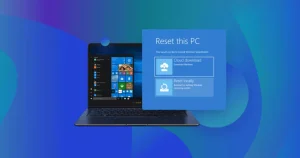
Is a factory reset safe for my computer? Yes, a factory reset is perfectly safe for the computer hardware and is often the best way to resolve deep-rooted software corruption or severe virus infections. However, it will erase your applications and settings. Windows offers an option to “Keep my files” during a reset, which preserves your personal documents and photos while reinstalling the core operating system, but it is always highly recommended to back up your important data to an external drive or cloud storage before proceeding.
Do I really need third-party antivirus software? For the vast majority of home users, no. Windows 10 and Windows 11 come with Windows Security (formerly Windows Defender) built-in. It operates seamlessly in the background, updates automatically, and routinely scores just as high in threat detection tests as expensive paid software. As long as you practice safe browsing habits—like avoiding suspicious email attachments and sketchy download sites—the built-in protection is excellent.
Why is my laptop battery draining so fast? Battery degradation happens naturally over time, but rapid draining on a newer laptop is usually caused by background processes or high screen brightness. Lower your screen brightness, turn off Bluetooth if you aren’t using it, and close heavy applications running in the background. You can also go to Settings > System > Power & Battery to see a detailed breakdown of exactly which apps are consuming the most power and adjust their permissions accordingly.
Taking control of your computer’s health does not require specialized training, just a bit of patience and a willingness to investigate the symptoms. By keeping your system clean—both digitally by managing storage and physically by removing dust—and utilizing the built-in diagnostic tools Windows provides, you can extend the lifespan of your machine by years. The next time you encounter an unexpected freeze or a sudden crash, you can approach the problem calmly, troubleshoot methodically, and get right back to what you were doing.