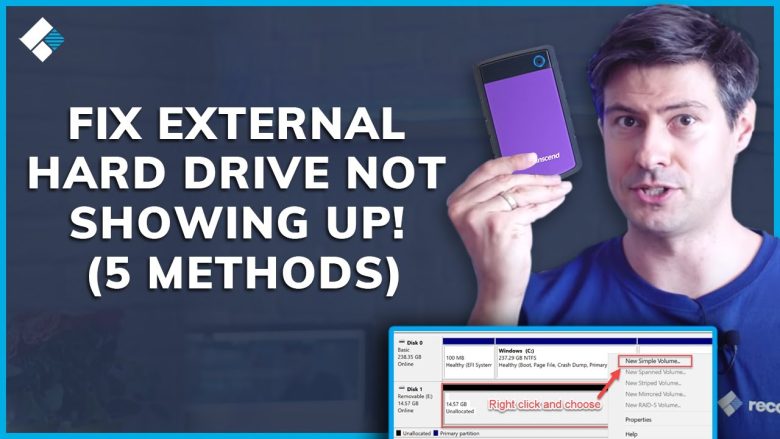
Connecting an external hard drive only to find that it does not appear in File Explorer can be alarming, especially if you have critical files, photos, or backups stored on it. When Windows prompts you with messages like “You need to format the disk before you can use it,” formatting might restore visibility, but it does so by wiping your partition table and data pointers.
Formatting should never be your first troubleshooting step. In a large majority of cases, the drive’s internal platters or flash memory are completely intact; the issue instead stems from an unassigned drive letter, a stale USB driver, insufficient power delivery, or a file system read error.
Before taking any irreversible steps, use this guide to safely diagnose why Windows is not displaying your drive and how to bring it back online without losing your files.
Phase 1: Physical Link and Power Delivery Checks
Mechanical hard drives and high-speed external SSDs require stable electrical current and uninterrupted data transmission. Eliminate physical connection faults first.
1. Listen for Mechanical Cues and Watch the Indicator LED
Plug the drive into your computer and place your hand lightly on the enclosure:
-
Normal Operation: You should feel a gentle, smooth vibration indicating the internal spindle is spinning, accompanied by a steady or blinking activity LED.
-
Repetitive Clicking or Beeping: A regular clicking sound (often called the “click of death”) or a faint rhythmic beep indicates that the drive’s read/write heads are stuck or the drive is struggling to draw enough electrical current to spin up.
-
No Vibration and No Light: The drive is receiving zero power. The issue lies with the cable, the USB port, or the drive’s internal bridge controller.
2. Bypass USB Hubs and Switch Ports
Unpowered USB hubs, keyboard passthrough ports, and loose front-panel case ports frequently fail to deliver the 5V / 0.9A required to power an external 2.5-inch hard drive.
-
Desktop PCs: Plug the drive directly into a USB port on the rear motherboard I/O shield (on the back of the computer tower).
-
Laptops: Disconnect other power-hungry USB peripherals (like external webcams or cooling pads) and plug the drive directly into a main USB port.
-
Test a Different Cable: USB 3.0 Micro-B and USB-C cables can develop internal breaks in their data lines while still supplying power to the drive’s LED. Swap the cable with a known-working replacement.
3. Test on a Second Computer or Different OS
Plug the drive into another Windows PC, a Mac, or a laptop running Linux.
-
If it opens normally on a Mac/Linux but not Windows: The drive is likely formatted in a file system that Windows does not natively support (such as Apple’s APFS/HFS+ or Linux’s ext4), or Windows has a localized driver conflict. Your data is completely safe.
-
If it fails to appear on any computer: The failure is localized to the cable, the drive enclosure, or the storage media itself.
Phase 2: Inspecting Windows Disk Management
If the drive spins up but remains absent from File Explorer (“This PC”), open the Windows Disk Management console. This utility reveals whether Windows recognizes the raw storage device even if it cannot display it as a standard folder.
To open it: Press Windows Key + X and select Disk Management (or press Windows Key + R, type diskmgmt.msc, and press Enter).
Scroll down through the bottom graphical pane and locate your external drive (typically listed as “Disk 1,” “Disk 2,” etc., matching your drive’s storage capacity). Identify which state your drive is in:
Scenario A: The Partition is Healthy, but Has No Drive Letter
If the drive shows a blue bar labeled Healthy (Basic Data Partition), but File Explorer refuses to show it, Windows simply forgot or failed to assign it a drive letter.
-
Right-click the healthy volume on the external drive.
-
Select Change Drive Letter and Paths…
-
Click Add.
-
Choose Assign the following drive letter and pick an available letter from the dropdown (such as
X:,Y:, orZ:to avoid conflicts with network drives). -
Click OK. The drive should immediately pop open in File Explorer with all files intact.
Scenario B: The Drive Status Shows “Unallocated” or “Not Initialized”
If the disk bar is black and labeled Unallocated, Windows sees the physical drive, but cannot locate a recognizable partition table.
-
Do not click “Initialize Disk” or create a “New Simple Volume”: Initializing writes a brand-new Master Boot Record (MBR) or GUID Partition Table (GPT), which overwrites the partition boundaries where your existing files reside.
-
Run a Safe Partition Recovery Scan: An unallocated state often means the partition header was corrupted by an improper unplug. Use reputable, non-destructive partition recovery software (such as TestDisk, an open-source tool) to scan the drive and rewrite the missing partition table back to disk.
Scenario C: The Drive Shows as “RAW”
A RAW file system means Windows detects the partition container, but cannot read the underlying file architecture (NTFS, exFAT, or FAT32) due to file system corruption or an unexpected disconnect while writing.
Instead of formatting, attempt to repair the file table using the built-in Windows Check Disk utility:
-
Press the Windows Key, type
cmd, right-click Command Prompt, and select Run as administrator. -
Type the following command (replace
E:with the actual letter of your RAW drive, if one is assigned):DOSchkdsk E: /f -
Press Enter. Windows will scan the Master File Table (MFT) or File Allocation Table and attempt to repair severed directory links.
(Note: If Windows reports “The type of the file system is RAW. CHKDSK is not available for RAW drives,” do not attempt to force format. Use read-only data recovery tools like Recuva, DMDE, or Photorec to extract your files to an internal drive first.)
Phase 3: Resolving Driver and Device Manager Conflicts
Corrupted USB controller caches or conflicting storage drivers can cause Windows to actively ignore a connected drive.
1. Reinstall the Disk Drive in Device Manager
-
Press Windows Key + X and select Device Manager.
-
Expand the Disk drives category.
-
Locate your external hard drive (it will typically display the drive’s brand, such as Seagate Expansion, WD My Passport, or Generic External USB Device).
-
Right-click the drive and choose Uninstall device.
-
Leave the checkbox for Delete driver software unchecked, and click Uninstall.
-
Unplug the USB cable from your computer, wait 10 seconds, and plug it back in. Windows will redetect the physical interface and reinstall a clean device driver.
2. Clear Hidden/Ghosted USB Storage Devices
Every time you plug a USB storage device into a different port, Windows retains that configuration entry. Over time, outdated registry records can cause address conflicts.
-
Open Command Prompt as administrator.
-
Type the following command and press Enter:
DOSset devmgr_show_nonpresent_devices=1 -
Type
devmgmt.mscand press Enter to open Device Manager. -
Click View in the top menu and select Show hidden devices.
-
Expand both Disk drives and Universal Serial Bus controllers.
-
Any devices that appear with translucent or grayed-out icons are stale entries. Right-click these faded entries and select Uninstall device.
-
Restart your PC and reconnect your external hard drive.
What Not to Do
-
Do not click “Format Disk” on pop-up prompts: If Windows presents a dialogue box stating that the disk must be formatted before use, click Cancel. Formatting recreates the file system framework and risks permanently overwriting file headers.
-
Do not run
chkdsk /ron a physically clicking drive: The/rparameter forces the drive to scan every sector on the disk surface for physical bad sectors. If your drive is mechanically failing, running intensive sector read operations can wear down the mechanical heads completely, causing total physical failure. -
Do not use random command-line “clean” commands in Diskpart: Running the
cleancommand in Windows Diskpart wipes all Master Boot Record and partition information instantly. Never use Diskpart unless you are intentionally wiping a disposable storage drive.
When to Consult Professional Recovery Services
If your external hard drive exhibits any of the following symptoms, software troubleshooting will not help and can permanently destroy your data:
-
The drive makes scraping, repetitive clicking, or screeching metal noises.
-
The drive does not spin up at all, but the controller casing becomes intensely hot to the touch.
-
Disk Management reports the drive as “Disk Unknown, Not Initialized” with a capacity reading of 0 MB or an I/O Device Error.
These signs indicate physical platter degradation, damaged read heads, or a failed bridge circuit. Safely disconnect the drive immediately and contact a dedicated clean-room data recovery service.
Frequently Asked Questions
Why does my external hard drive work on a Mac but not on Windows?
Apple computers often format external drives using APFS (Apple File System) or HFS+ (Mac OS Extended). Windows cannot read these formats without specialized third-party file system drivers (such as Paragon APFS for Windows). If you need cross-compatibility between both systems, back up the files and format the drive as exFAT.
Is a RAW hard drive completely dead?
No. A RAW status simply means the structural metadata pointing to your files has become unreadable by Windows. In most cases, the raw data sectors remain completely intact on the physical platters and can be extracted using raw file signature scanning software.
What should I do if the drive light blinks, but it never shows in Disk Management?
If the device does not appear in Disk Management at all (even without a drive letter), Windows is not establishing a basic hardware handshake. Test a new USB cable, connect to rear motherboard ports, or test on another computer. If it still does not appear, the drive enclosure’s USB-to-SATA bridge board or the drive itself has suffered an electrical hardware failure.
Official Sources & Documentation
-
Microsoft Support: Troubleshoot Disk Management in Windows – Official Microsoft documentation for drive states, missing drive letters, and volume troubleshooting.
-
Microsoft Learn: Assign or change a drive letter – Technical instructions for resolving volume mount conflicts.
-
Microsoft Learn: Chkdsk syntax and operational parameters – Detailed usage specifications and precautions for disk integrity verification.