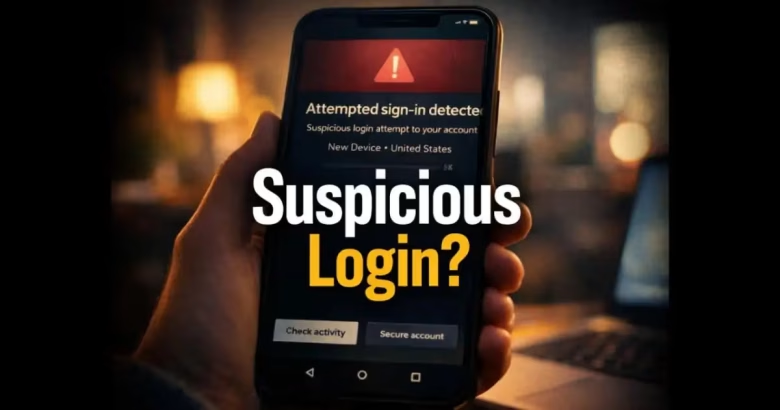
Waking up to an email or push alert stating, “New login from an unrecognized device,” is one of the most common security warnings digital users experience. In the rush to secure personal accounts, many people immediately click the “Review Activity” button provided in the message.
Unfortunately, scammers deliberately send fake security warnings that mimic companies like Google, Microsoft, Apple, and banks. Clicking those links leads directly to malicious credential-harvesting pages.
To safely determine whether your account is genuinely compromised, you need to verify the event through official system dashboards, assess your actual exposure, and systematically revoke access without locking yourself out.
Symptoms: Recognizing True Threats vs. False Alarms
Before reacting, evaluate the nature of the alert. Unrecognized alerts often fall into three distinct categories:
-
Benign False Alarms (You, Under Different Conditions): Did you recently turn on a VPN, travel to another city, switch from home Wi-Fi to mobile data, or install a major operating system update? These actions change your reported IP address or browser “fingerprint,” causing automated security filters to flag a routine sign-in as unrecognized.
-
Blocked Unsuccessful Attempts: Many security alerts explicitly state that a sign-in attempt was blocked or that two-factor authentication failed. This means an attacker may have obtained your password, but the account itself was not successfully entered.
-
Active Compromise (Successful Sign-In): The alert states that a new device successfully signed in, followed by unauthorized profile edits, password reset requests, or unexpected notifications from bank or communication services.
Possible Causes
-
Credential Stuffing from Data Breaches: If you reuse passwords across multiple services, automated botnets test leaked email/password combinations against platforms like Google, Microsoft, and Amazon.
-
Phishing Links: You may have recently entered your credentials into an unverified form or typed passwords on a shared, infected terminal.
-
Session Cookie Hijacking: Advanced malware on your computer can steal stored browser cookies, allowing an attacker to bypass standard login forms and two-factor prompts.
-
Phishing Simulation / Fake Alert: The email is entirely counterfeit, designed to create urgency so you enter your credentials on an external attacker-controlled page.
Safe Preliminary Checks
-
Do Not Click Any In-Message Links: Avoid tapping “Secure Your Account,” “Check Activity,” or “Not Me” buttons in incoming emails or text messages.
-
Inspect the Sender Address: Official alerts from major providers come strictly from designated domains (e.g.,
@accountprotection.microsoft.comorgoogle.com). However, because email headers can sometimes be spoofed, an authentic-looking address is not a 100% guarantee of safety. -
Open an Independent Session: Open a clean browser window, type the official service address manually (e.g.,
myaccount.google.comoraccount.microsoft.com), and log in directly.
Step-by-Step Diagnostic Process: Checking Official Logs
Navigate directly to your provider’s security portal to check if the flagged sign-in exists in the official system event log.
1. For Google Accounts
-
Go directly to myaccount.google.com and sign in.
-
In the left navigation, select Security.
-
Under Recent security activity, look for any entry matching the exact time and date of the alert you received.
-
Scroll down to Your devices and click Manage all devices.
-
Review the list of active sessions. If you see an unrecognized operating system, unfamiliar browser, or remote location, click that device and select Sign out.
2. For Microsoft Accounts
-
Go directly to account.microsoft.com/security.
-
Select Sign-in activity (or View my activity).
-
Check the list of successful and unsuccessful sign-ins. Microsoft categorizes entries into:
-
Session Type: Browser, IMAP/POP sync, or app login.
-
Result: “Successful sign-in” or “Unsuccessful sign-in.”
-
-
If an entry shows a successful sign-in from a location you have never visited, click Secure your account.
3. For Apple IDs / Apple Accounts
-
Go to appleid.apple.com or check Settings > [Your Name] on an iPhone/iPad.
-
Scroll to the Devices section.
-
Review every device listed. If an unknown iPhone, Mac, or PC is present, select it and click Remove from account.
Step-by-Step Recovery Solutions (If Unauthorized Access Occurred)
If the official audit log confirms an unrecognized session, take the following actions in strict chronological order:
1. Terminate All Active Remote Sessions
Before attackers can modify your account permissions, invalidate their session tokens:
-
On Google: Navigate to Security > Your devices > Manage all devices and sign out of each unfamiliar entry.
-
On Microsoft: Go to the Security dashboard, scroll to Advanced security options, and click Sign me out everywhere. This forces all browsers, apps, and mail clients to disconnect within 24 hours.
2. Change Your Master Password
-
Create a unique, complex passphrase of at least 16 characters.
-
Never reuse passwords previously entered on other websites or forum boards.
-
Use a reputable password manager or browser vault to store the credential securely.
3. Verify Account Recovery Channels
Attackers who gain temporary access often alter secondary contact details to lock out the primary owner:
-
Verify your Recovery Email Address.
-
Verify your Recovery Phone Number.
-
Ensure no unauthorized secondary emails or unfamiliar forwarders have been configured.
4. Enable Phishing-Resistant Multi-Factor Authentication (MFA)
-
If your account relies strictly on SMS verification, upgrade to an Authenticator App (such as Google Authenticator, Microsoft Authenticator, or Bitwarden) or register a FIDO2 hardware passkey.
-
SMS codes can be intercepted via SIM-swapping or forwarded messages; authenticator apps and passkeys cannot.
5. Audit Third-Party App Permissions
Malicious entities often grant API permissions to third-party tools so they can retain background access even after you change your password.
-
On Google: Check Security > Third-party apps with account access. Remove any unknown extensions, tools, or services.
-
On Microsoft: Check Privacy > Apps and services that can access your info.
Relevant Warnings: What Not to Do Prematurely
-
Do not delete your entire account: Rushing to delete an email address locks you out of linked banking, subscription, and social services permanently.
-
Do not disable two-factor authentication to “reset” it: Turning off MFA, even for a brief window, leaves the account completely unprotected while you navigate settings. Add the new authentication method first before retiring old options.
-
Do not immediately reply to suspicious SMS or verification alerts: Replying to automated phishing texts verifies that your phone number is active and monitored, increasing future targeting.
How to Verify the Solution Worked
-
Check System Security Event Banners: Revisit your account’s official Security dashboard. Google and Microsoft will display a green confirmation badge (e.g., “Account secured” or “No security actions needed”).
-
Review Connected Devices: Reopen the device inventory. The only entries remaining should be the physical smartphone, tablet, or PC currently in your hands.
-
Inspect Mail Rules: In your webmail client (Gmail, Outlook), check Settings > Filters / Forwarding. Ensure no hidden rule was created to silently forward your incoming emails to an external address.
What to Do When the Problem Persists
If you continue to see unrecognized sign-in alerts immediately after resetting your password and forcing global logouts, your local PC or smartphone may have active malware or an infostealer Trojan.
-
Download a reputable, second-opinion malware scanner (such as Malwarebytes) and run a full system scan.
-
Check your web browsers for malicious extensions by navigating to
chrome://extensionsoredge://extensionsand removing unfamiliar items. -
If compromise continues, perform a clean operating system reset to wipe any dormant keyloggers.
Prevention Advice
-
Adopt Passkeys: Whenever supported, switch from traditional passwords to biometric passkeys (Touch ID, Windows Hello, or hardware security keys). Passkeys are cryptographically tied to the exact domain and cannot be phished.
-
Monitor Leaked Credentials: Periodically check reputable breach notification services (such as Have I Been Pwned or your browser’s integrated password breach alert) to confirm your credentials are not circulating in public data dumps.
-
Avoid Free Public Wi-Fi Without Protection: Avoid logging into critical primary email or financial accounts on unsecured public Wi-Fi networks without an encrypted VPN tunnel.
Frequently Asked Questions
Why does a login alert show a city hundreds of miles away from where I am?
Cellular data networks and internet service providers (ISPs) route web traffic through regional central hubs. When your phone uses mobile data, the IP address often reflects the location of the carrier’s gateway tower or regional data center rather than your exact physical street address.
What should I do if an alert says “Sign-in attempt blocked”?
If the attempt was blocked, the platform’s security mechanisms prevented access. However, the attacker likely has your current password. Change your password immediately and ensure two-step verification is turned on.
Can someone log into my account without triggering an alert?
Yes. If an attacker extracts your session cookies directly from your computer via malware, they can clone your active web session without having to enter your username, password, or 2FA credentials, which may bypass standard new-device sign-in triggers.
Official Sources & Documentation
-
Google Account Help: Investigate suspicious activity on your account – Official guide for reviewing recent security events and unauthorized changes.
-
Google Account Help: Secure a hacked or compromised Google Account – Primary instructions for recovering access and removing unauthorized devices.
-
Microsoft Support: What is the Recent activity page? – Detailed overview of IP tracking, successful vs. unsuccessful attempts, and how to report unauthorized events.
E. Practical Troubleshooting Summary Table
| Alert Status | What It Usually Means | Immediate Action |
| “Sign-in blocked” from unknown location | Password is known, but MFA/filters held the line. | Change password immediately; verify 2FA settings. |
| “Successful sign-in” on an unknown device | Full account breach has occurred. | Sign out of all sessions; change password; audit recovery phone/email. |
| Alert received, but official dashboard shows no event | Phishing email attempting credential theft. | Do not click links; mark message as spam/phishing. |
| Alert matches your exact time, but wrong city | Cellular routing or VPN location shift. | Check if mobile data or VPN was active; verify device name. |
| Sign-in from “Unknown App” via IMAP/POP | Legacy protocol sync or third-party client attempt. | Revoke third-party app passwords; enforce modern authentication. |
F. Relevant Official Sources
-
Google Account Help: Investigate suspicious activity on your account – Verifies security review event logs and recovery procedures.
-
Microsoft Support: What is the Recent activity page? – Verifies Microsoft sign-in activity codes, IP records, and session termination procedures.