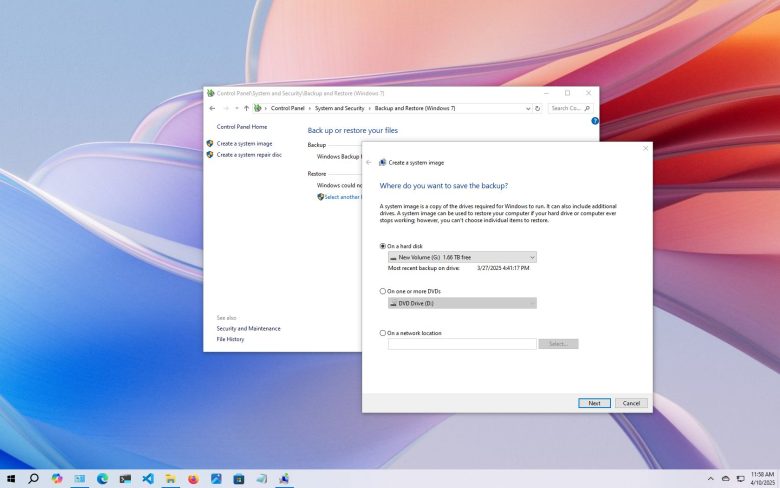
A backup strategy is only as good as your ability to restore files when a hard drive crashes, ransomware encrypts your documents, or a folder is deleted by accident. Many users set up an external drive or cloud tool once, assume it works indefinitely, and only discover months later that the drive was full, the software stopped running, or the backup archive was corrupted.
A reliable backup routine does not require expensive enterprise software or complicated network management. By following the industry-standard 3-2-1 rule and executing a 5-minute restoration drill once a month, you can ensure your critical personal files, financial records, and family photos are safe and recoverable.
Understanding the 3-2-1 Backup Strategy
The safest, simplest standard for everyday computer users is the 3-2-1 backup framework:
-
3 Copies of Your Data: One primary working copy on your computer, plus two separate backups.
-
2 Different Media Types: Store backups on two distinct storage formats (for example, one on an external USB hard drive/SSD and one in secure cloud storage).
-
1 Copy Offsite: Keep one copy outside your home or office (such as encrypted cloud storage) to protect against fire, flood, hardware theft, or physical damage.
Phase 1: Identify What Actually Needs Backing Up
Do not waste storage space or network bandwidth backing up operating system files, browser caches, or standard application binaries (like Google Chrome, Steam games, or Microsoft Office installation files). These can always be cleanly reinstalled from the web.
Focus strictly on your user data:
-
Personal Folders:
Desktop,Documents,Pictures,Videos, andMusic. -
Application Data & Exports: Browser bookmarks (exported to HTML), specialized software project files, password manager export vaults (encrypted), and local tax or accounting databases.
-
Local Email Archives: Offline
.pstor.emlarchives if you use desktop email clients rather than purely web-based mail.
Phase 2: Setting Up the Local Backup (External Drive)
A local physical backup provides the fastest possible recovery time if your computer’s internal storage fails.
For Windows Users: File History
Windows includes a built-in automated file-versioning utility called File History.
-
Connect a dedicated external USB hard drive or SSD to your computer.
-
Open the Start Menu, type
Control Panel, and open it. -
In the top-right search box of Control Panel, search for File History and click it.
-
If your external drive is detected, click Turn on.
-
Click Advanced settings in the left sidebar to configure your schedule:
-
Save copies of files: Set to Every hour (default) or Daily.
-
Keep saved versions: Set to Until space is needed so older versions are automatically cleaned up when the drive reaches capacity.
-
-
Click Save changes and then select Run now to complete the initial baseline backup.
For macOS Users: Time Machine
macOS features Time Machine, an integrated snapshot backup system.
-
Connect your external drive formatted for macOS (APFS or Mac OS Extended).
-
Open System Settings > General > Time Machine.
-
Click Add Backup Disk and select your external drive.
-
Check Encrypt Backup and assign a secure passphrase you will remember (crucial if your external drive is ever lost or stolen).
-
Set the backup frequency to Automatically Back Up (hourly or daily).
Phase 3: Setting Up the Offsite Cloud Backup
Local drives remain vulnerable to electrical power surges, physical theft, and water or fire damage. Complement your physical drive with an automated cloud sync or backup service.
-
Integrated Cloud Sync (OneDrive, Google Drive, iCloud, Dropbox): Ensure your critical
Documents,Desktop, andPicturesfolders are set to sync continuously. Check that the application icon in your system tray or menu bar displays a green checkmark or solid status. -
Dedicated Cloud Backup (e.g., Backblaze): If you prefer not to manage sync folders, install an automated whole-drive background backup service that quietly uploads all personal data volumes to an encrypted cloud repository.
Phase 4: How to Safely Test and Verify File Restores
A backup that has never been restored is not a verified backup. Run this simple drill at least once every month or after any major operating system update.
The Sandbox Restore Test
Never restore test files directly over your existing live folders; doing so risks overwriting recent edits with older versions. Always restore to an isolated “sandbox” folder.
-
Create a Test Destination: Right-click on your desktop, select New > Folder, and name it
Restore_Test. -
Execute a File History Restore (Windows):
-
Search for File History in the Start Menu and open it.
-
Click Restore personal files in the left sidebar.
-
Browse through your backed-up libraries to a specific document or photo.
-
Instead of clicking the green restore button directly, click the Gear icon (Options) in the top right, select Restore to…, and choose your desktop
Restore_Testfolder.
-
-
Execute a Time Machine Restore (macOS):
-
Click the Time Machine icon in the menu bar and select Browse Time Machine Backups.
-
Navigate back in the timeline to a previous date.
-
Right-click the file, select Restore [Filename] to…, and choose a separate test folder.
-
-
Inspect the Restored File:
-
Open the restored document, image, or spreadsheet.
-
Confirm that the file opens cleanly without corruption errors.
-
Check that the file size and internal data match expectations.
-
-
Clean Up: Once verified, delete the temporary
Restore_Testfolder.
What Not to Do
-
Do not rely on a single USB thumb drive for critical backups: Small USB flash drives use lower-grade flash storage chips that are prone to sudden controller burnout, and their small physical size makes them easy to lose. Use reputable external solid-state drives (SSDs) or external mechanical hard drives.
-
Do not leave your local backup drive connected 24/7 if ransomware is a concern: Ransomware often scans all mounted drive letters and network shares, encrypting connected backup drives alongside internal drives. For maximum protection, connect your backup drive, allow the scheduled backup to complete, and safely eject and disconnect it.
-
Do not assume “cloud sync” is the same as a “versioned backup”: If you accidentally delete a file or a document becomes corrupted, cloud sync tools instantly replicate that deletion or corruption to the cloud. Always confirm that your cloud provider retains a 30-day version history and trash bin.
Maintenance and Routine Schedule
To keep your backup routine functional without ongoing hassle, use this recurring maintenance schedule:
| Frequency | Action | Verification |
| Weekly | Plug in your external drive (if keeping it disconnected). | Confirm the backup completes without storage warning alerts. |
| Monthly | Perform the “Sandbox Restore Test.” | Restore 2 random documents to a desktop folder and open them. |
| Quarterly | Check external drive storage capacity. | Confirm the drive has at least 15% to 20% free space remaining. |
| Annually | Audit backup inclusion lists. | Verify that any newly created project folders are included in the backup path. |
Frequently Asked Questions
What is the difference between disk cloning and file backup?
A disk clone creates an exact bit-for-bit duplicate of your entire hard drive, including the operating system, installed software, and system registries. It is ideal for swapping out an old hard drive for a new SSD. A file backup (like File History or Time Machine) tracks and copies your personal documents, saving storage space and preserving older file versions over time.
How much storage capacity should my backup drive have?
Your external backup drive should ideally have at least twice the capacity of your computer’s internal storage drive. If your laptop has a 512 GB SSD, choose an external drive of 1 TB or 2 TB. This provides ample headroom for multi-version history snapshots without quickly running out of space.
Can I back up multiple computers to one external drive?
Yes. You can partition the external drive into separate volumes for each computer or create dedicated destination folders for each device. On macOS, Time Machine can manage backups from multiple Macs on a single drive automatically.
Official Sources & Documentation
-
Microsoft Support: Backup and Restore in Windows – Official procedures for setting up File History and managing restore points.
-
Apple Support: Back up your Mac with Time Machine – Detailed guidance on selecting disks, encrypting backups, and recovering files.
E. Practical Troubleshooting Summary Table
| Issue / Alert | Probable Cause | Corrective Action |
| “Backup drive is full” error | Old versions are retained indefinitely | Adjust File History or Time Machine retention settings to delete versions when space is needed. |
| External drive not recognized | Drive letter conflict or missing mount point | Open Disk Management (Windows) or Disk Utility (Mac) to check partition health and assign a letter. |
| Restored file appears corrupted or empty | File was in active use during backup | Ensure open programs are closed during backup runs; restore from an earlier version snapshot. |
| Cloud sync icon shows red exclamation mark | Account quota exceeded or path length too long | Log into cloud web dashboard to verify available storage capacity; shorten lengthy subfolder names. |
F. Relevant Official Sources
-
Microsoft Support: Backup and Restore in Windows – Primary authority on Windows built-in file-level backup tools.
-
Apple Support: Back up your Mac with Time Machine – Authoritative instructions for macOS snapshot management.