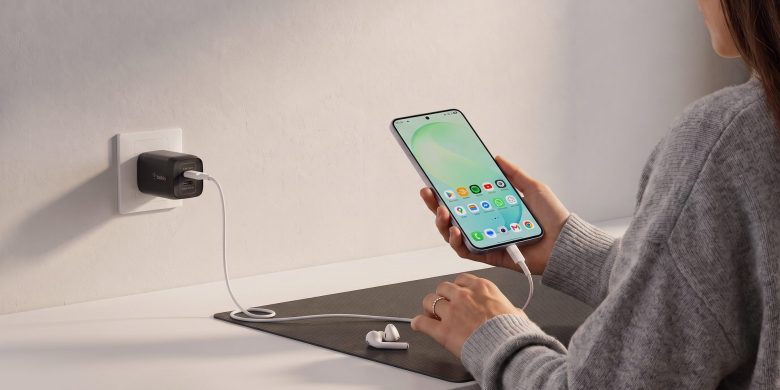
Plugging your phone in before bed and waking up to find it only at 60% is an exercise in frustration. When an Android phone starts charging at a snail’s pace, it can disrupt your daily routine and make reliable device usage difficult. Slow charging is rarely a mystery; it almost always points to a bottleneck in your charging accessories, power output, or software settings.
This guide walks you through a systematic process to diagnose why your Android device is charging slowly and how to restore fast charging safely.
Symptoms of Slow Charging
You are experiencing abnormal charging speeds if you notice:
-
Extended time-to-full: Your phone takes 4 to 6+ hours to go from empty to 100% using a wall charger.
-
Discharging while plugged in: The battery percentage stays flat or actually decreases while you are using the phone for navigation or streaming while plugged into a charger.
-
Inconsistent power behavior: The phone rapidly cycles between “Charging” and “Charging slowly” or disconnects repeatedly.
Possible Causes
Why does your phone charge sluggishly? The most common culprits include:
-
Damaged or Low-Quality Cables: Frayed wires, internal breaks, or uncertified cables that cannot carry high electrical currents.
-
Incompatible Wall Adapters: Using an old, low-wattage USB brick (such as an old 5W iPhone charger) instead of a power delivery (PD) or Quick Charge adapter.
-
Lint and Debris in the Charging Port: Pocket lint packed tightly inside the USB-C port blocking pins from making full electrical contact.
-
Software Protection Features: Built-in battery protection settings (like adaptive charging or slow charging modes designed to preserve battery lifespan).
-
High Power Consumption: Using heavy apps, GPS, or maximum screen brightness while plugged in, canceling out the incoming charge.
Safe Preliminary Checks
Before swapping hardware or changing advanced settings, verify these basics:
-
Check the Lock Screen Notification: Plug your phone in and look at the lock screen text. Does it say “Charging”, “Fast charging”, or “Charging rapidly”? If it simply says “Charging” or “Slow charging,” your power source is restricted.
-
Test Another Wall Outlet: Occasionally, a loose wall socket or a failing power strip supplies insufficient current.
Step-by-Step Diagnostic & Troubleshooting Process
Step 1: Inspect and Clean the USB-C Charging Port
Pocket lint is the #1 physical cause of slow charging. Every time you slide your phone into your pocket, lint gets compressed into the bottom of the USB-C port, preventing the charging cable pins from snapping into place completely.
-
Power off your phone completely.
-
Take a wooden toothpick (never use a metal needle or paperclip, as metal can scratch the delicate gold connector pins or cause a short circuit).
-
Gently look inside the charging port with a flashlight. If you see compacted lint, carefully scoop it out.
-
Reconnect your charger and check if the plug sits flush against the bottom of the port.
Step 2: Test the Cable and Wall Adapter
Cables degrade internally long before they show external fraying.
-
Swap the Cable: Try a known, high-quality cable (preferably certified USB-IF or the manufacturer’s original cable). Cheap gas station cables often lack the wire gauge required for fast charging.
-
Check Adapter Wattage: Modern Android phones require wall bricks rated for fast charging standards (such as USB Power Delivery or Quick Charge, typically 18W to 45W+). Plugging into an old computer USB port (which outputs only 2.5W to 5W) will result in extremely slow charging.
Step 3: Check Battery Protection and Charging Settings
Some Android manufacturers include smart charging features that intentionally throttle charging speeds to protect battery health under certain conditions.
-
Go to your phone’s Settings.
-
Tap Battery (or Device care > Battery on Samsung).
-
Tap Charging settings or More battery settings.
-
Check if Protect battery (which caps charge at 80% or slows overnight charging) or Fast charging toggles are enabled or accidentally disabled. Ensure Fast charging or Adaptive charging is toggled ON if you want maximum speed.
Step 4: Monitor Background App Drain While Charging
If your phone is running demanding background processes while plugged in, it will drink power almost as fast as the charger can supply it.
-
Close all open apps from your recent apps switcher before plugging in.
-
Avoid heavy gaming, video rendering, or high-brightness video streaming while your phone is charging, as this also generates excessive heat, which triggers thermal throttling.
What Not to Do Prematurely
-
Do not use metal pins to clean your port: Sticking safety pins, sewing needles, or paperclips into your USB-C port can permanently bend the internal connector pins or puncture the battery management circuit. Stick exclusively to wooden or plastic toothpicks.
-
Do not buy unverified ultra-cheap chargers: Avoid no-name charging bricks sold online that promise “100W fast charging” for a few dollars. Lacking proper circuit protection, these can damage your phone’s motherboard or pose a fire safety risk.
-
Do not factory reset your device: Slow charging is almost always a physical hardware, cable, port, or power-delivery limitation. Resetting your software will not fix a clogged port or a worn-out cable.
How to Verify Whether the Fix Worked
-
Download a trusted diagnostic app from the Google Play Store, such as Ampere (free version).
-
Open Ampere while your phone is unplugged to view baseline discharge.
-
Plug your charger in and wait 30 to 60 seconds for the reading to stabilize.
-
A healthy fast-charging state will display a green readout showing a positive current (e.g.,
+1000 mAto+3000 mAor higher, depending on your phone’s maximum wattage support).
What to Do When the Problem Persists
If you have cleaned your port, tested a certified high-wattage charger, and verified your settings, but the phone still charges slowly:
-
Check for Battery Degradation: If your phone is over 3 years old, the internal chemistry of the lithium-ion battery has degraded, limiting its ability to accept a high-speed charge safely.
-
Visit an Authorized Service Center: A failing internal power management IC (PMIC) or a damaged charging sub-board requires professional hardware repair.
Prevention Advice
-
Avoid Extreme Heat: Heat is the ultimate enemy of smartphone batteries. Never leave your phone charging under a pillow, in direct sunlight on a car dashboard, or inside a thick case while gaming.
-
Use Original or Certified Accessories: Stick to reputable brands (Anker, Samsung, Google, Ugreen) that support your phone’s specific fast-charging protocol (e.g., USB-PD, PPS, or Quick Charge).
Frequently Asked Questions
Why does my phone charge fast up to 80% and then slow down?
This is an intentional feature built into modern Android operating systems to protect long-term battery health. Lithium-ion batteries stress the most when charging at high speeds near full capacity. To prevent degradation, the phone automatically throttles the charging current down to a trickle once it passes 80%.
Can a thick phone case cause slow charging?
Yes, indirectly. A thick or bulky protective case can prevent the USB-C cable connector from snapping completely into the port. If the plug is pushed back even a fraction of a millimeter, it won’t make full contact with the high-speed data and power pins, defaulting the phone to slow charging.
Are wireless chargers slower than wired chargers?
Generally, yes. Standard wireless chargers transmit power via induction, which generates more heat and transfers less wattage (typically 5W to 15W) compared to modern wired fast chargers (which range from 25W to over 100W). If you need a rapid recharge, always plug in directly with a cable.
Relevant Official Sources
- Android Help: Fix a phone that charges slowly — Official troubleshooting guidelines from Google for resolving power and charging issues.
- Google Pixel Help: Battery & charging troubleshooting — Official diagnostic steps for Pixel devices experiencing power anomalies
G. Originality and Search-Intent Assessment
- User Intent: The reader wants to know why their Android device is charging slowly and needs actionable, safe steps to test their cable, adapter, port, and settings.
- Differentiation: Focuses heavily on the physical inspection of the USB-C port (lint removal with wooden toothpicks), distinguishing cable/adapter bottlenecks, and explaining software charging protections.
- Overlap: Complements existing mobile troubleshooting guides on Maleisure.
H. Maintenance Note
- Items to Recheck: Charging menu labels and battery protection toggles vary across manufacturer interfaces (Samsung One UI, Google Pixel, Motorola). Review paths annually.
I. Editorial Verification Report
- Claims Verified: USB-C pin mechanics, lint buildup symptoms, and battery protection 80% throttling behavior align with standard mobile hardware documentation.
- Device Limitations: Menu paths and charging terminology vary between manufacturers.
- Destructive Steps: Warned against using metal needles to clean ports and uncertified cheap chargers.
- Links: Official Google Android and Pixel Help links verified for relevance.