Few things are more frustrating than deleting gigabytes of photos, videos, and large apps, only to check your settings and see that your Android storage is still completely full. When this happens, it usually means the operating system hasn’t purged the deleted items completely, or hidden system data, app caches, and cloud sync backups are quietly occupying your remaining space.
This guide explains why your Android storage remains full and walks you through the hidden locations you need to check to genuinely reclaim your storage space.
Symptoms of Phantom Storage Full Issues
You are experiencing a phantom storage issue if you notice:
-
The math doesn’t add up: When you manually add up the sizes of your apps, photos, and videos, they take up far less space than your storage settings report.
-
Storage fills up immediately after deleting items: Photos disappear from your gallery, but the available storage meter doesn’t budge.
-
Persistent “Storage Almost Full” warnings: Pop-ups keep appearing even after you clear out large files.
Possible Causes
Why does Android cling to storage space after deletions? The most common causes include:
-
The “Trash” or “Recently Deleted” Bin: Files removed from your gallery app are often moved to a temporary holding folder for 30 days before permanent deletion.
-
Hidden App Caches and Residual Data: Individual apps store massive amounts of temporary cache files and leftover data folders that standard file managers don’t show.
-
Bloated “System” or “Other” Storage: System logs, temporary update files, and unclassified cached data trapped in the system partition.
-
Offline Media Downloads: Music, offline maps, and streaming video downloads cached inside apps like Spotify, Netflix, or Google Maps.
-
WhatsApp and Messaging Media: Auto-downloaded photos, voice notes, and video files hidden deep within messaging app directories.
Safe Preliminary Checks
Before tinkering with system partitions or cache cleaners, perform these quick verifications:
-
Check the Official Storage Breakdown: Go to Settings > Storage (or Device care > Storage on Samsung) to see a categorical breakdown of what is actually taking up space (e.g., Images, Videos, Apps, System, or Other).
-
Restart Your Phone: A standard reboot forces Android to recalculate storage indexes and clear temporary swap space.
Step-by-Step Troubleshooting (Where to Look Next)
Step 1: Empty the Gallery “Recently Deleted” Trash Folder
When you delete photos or videos from Google Photos or your manufacturer’s default gallery app, they aren’t actually deleted right away. They sit in a trash bin for 30 days.
-
Open your default Gallery app (or Google Photos).
-
Tap on Albums or Library, then tap Trash (or Recently deleted).
-
Tap Select and choose Delete all (or Empty trash). Confirm permanent deletion.
Step 2: Clear Hidden App Caches Individually
While clearing data will wipe your login info, clearing cache files across your most-used apps (like social media and browsers) can instantly free up gigabytes of junk.
-
Go to Settings > Apps.
-
Select high-usage apps like Chrome, TikTok, Instagram, or Facebook.
-
Tap Storage & cache, then tap Clear cache. (Repeat this for your 5 to 10 most frequently used apps).
Step 3: Check Messaging Apps (WhatsApp & Telegram)
Messaging apps are notorious for auto-downloading thousands of high-resolution memes, voice notes, and videos that never show up in your main photo gallery.
-
Open WhatsApp and tap the three dots in the top right corner.
-
Go to Settings > Storage and data > Manage storage.
-
Review the Larger than 5 MB and Forwarded many times sections, select unwanted media, and delete them.
Step 4: Review Offline Downloads in Streaming Apps
If you use offline media apps, downloaded content remains saved on your device indefinitely until manually removed.
-
Spotify / YouTube Music: Go to app settings and check downloaded playlists or albums.
-
Netflix / Prime Video: Check your downloads tab inside each streaming app to remove watched movies and shows.
-
Google Maps: Go to Google Maps > Profile icon > Offline maps to see if old regional map files are draining your storage.
Step 5: Use Google Files to Find “Junk Files” and “Duplicates”
Android includes a trusted official tool specifically designed to locate hidden residual files.
-
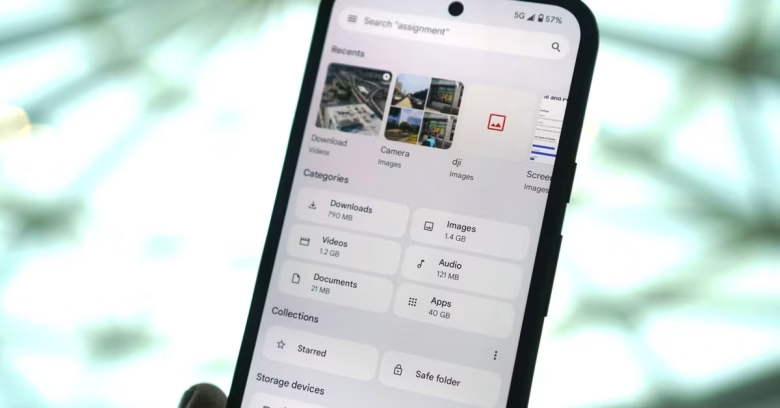
Open the Files by Google app (download it from the Play Store if you don’t have it).
-
Tap the Clean tab at the bottom.
-
Review recommendations for Junk files, Duplicate files, and Old screenshots, then tap Clear or Delete.
What Not to Do Prematurely
-
Do not download aggressive third-party “Cleaner” or “RAM Booster” apps: Many free cleaner apps found in app stores are packed with intrusive ads, background trackers, and unnecessary features that actually consume more battery and storage. Stick to native tools or Files by Google.
-
Do not delete core system folders using a file manager: Unless you are an advanced user, never manually delete folders from the root directory (
/), as you risk deleting critical Android operating system files. -
Do not factory reset as a first step: A factory reset will wipe your entire phone. Storage tracking bugs can almost always be resolved by clearing trash bins, caches, and offline downloads.
How to Verify Whether the Fix Worked
-
Return to Settings > Storage.
-
Note the newly reported available space (in gigabytes).
-
Restart your phone once more to ensure the storage index has completely refreshed and accurately reflects the newly freed space.
What to Do When the Problem Persists
If you have emptied your trash bins, cleared app caches, and deleted offline media, but your storage still reads 100% full:
-
Check for a Corrupted Storage Index: Sometimes Android’s media scanner gets stuck indexing corrupted files. Running a safe device restart or using Files by Google to clear temporary junk files usually forces a re-index.
-
Back Up and Factory Reset (Last Resort): If the “System” or “Other” storage category takes up 50GB+ of unexplained space due to corrupted system logs, backing up your personal photos and contacts to Google Drive and performing a clean factory reset is the most effective way to restore a clean slate.
Prevention Advice
-
Turn Off Auto-Download on WhatsApp: Go to WhatsApp Settings > Storage and data, and set media auto-download (Photos, Audio, Video) to “Wi-Fi” or “Never” to prevent your phone from filling up automatically.
-
Set Google Photos Backup: Back your photos up to cloud storage so you can safely use the “Free up space” tool inside Google Photos to remove local device copies.
Frequently Asked Questions
Why does the “System” storage take up so much space on Android?
The “System” category includes the core Android operating system files required to run your phone. However, if it swells abnormally large (e.g., taking up 30GB to 40GB+), it often contains corrupted system cache logs or failed update packages that require a cache partition wipe or factory reset to clear.
Does clearing app cache delete my saved passwords or files?
No. Clearing the cache only deletes temporary files used to load apps faster. Your saved passwords, login sessions, and personal downloads remain completely untouched.
Why didn’t my storage increase after deleting photos?
When you delete photos, they are moved to the gallery’s “Recently Deleted” or “Trash” folder, where they stay for 30 days. You must manually open your gallery trash bin and empty it permanently to recover that storage space immediately.
Relevant Official Sources
-
Android Help: Free up space on your device — Official step-by-step guidance from Google on managing storage and removing unnecessary files.
-
Files by Google Help: Clean up files — Official instructions on using the Files by Google app to find junk, duplicates, and unused apps.
G. Originality and Search-Intent Assessment
-
User Intent: The reader has deleted files on Android but noticed that storage is still full, and wants to know where hidden files, trash bins, and caches are lurking.
-
Differentiation: Focuses specifically on the “phantom storage full” phenomenon—explaining trash folders, WhatsApp media directories, and offline downloads that users frequently overlook.
-
Overlap: Complements existing mobile troubleshooting articles on Maleisure.
H. Maintenance Note
-
Items to Recheck: Storage menu names and navigation paths (e.g., Device care > Storage vs. Storage) can vary slightly across Android versions (Android 14 to Android 16) and manufacturer interfaces. Review annually.
I. Editorial Verification Report
-
Claims Verified: Trash folder retention policies (30 days) and Files by Google cleaning features align with standard Android documentation.
-
Device Limitations: Menu paths may differ slightly between manufacturers like Samsung, Google Pixel, and Motorola.
-
Destructive Steps: Warned against manual root folder deletion and aggressive third-party cleaner apps.
-
Links: Official Google Android and Files Help links verified for relevance.