There is nothing quite as disruptive as getting halfway through a phone call, video, or song only for your Bluetooth headphones to suddenly disconnect and route audio out loud through your phone or laptop speakers. Bluetooth dropouts can stem from a variety of sources, ranging from temporary software glitches and physical interference to outdated drivers and low battery levels.
This guide provides a structured troubleshooting process to help you isolate whether the issue lies with your headphones, your connected device (phone or PC), or environmental interference, and how to fix it.
Symptoms of Bluetooth Disconnection Issues
You are likely experiencing an environmental or software Bluetooth conflict if you notice:
- Random audio cutouts: Audio stutters or drops out entirely for a few seconds before reconnecting on its own.
- One-sided disconnections: On true wireless earbuds, one earbud drops its connection to the other or to the host device.
- Failure to auto-reconnect: Once disconnected, the headphones refuse to pair back automatically and require manual intervention in your Bluetooth settings.
- Multi-device confusion: The headphones constantly bounce back and forth between your phone and laptop because multipoint pairing is misbehaving.
Possible Causes
Why do Bluetooth connections fail? The most frequent causes include:
- 2.4 GHz Wi-Fi and Radio Interference: Bluetooth operates on the crowded 2.4 GHz frequency band, which is shared by Wi-Fi routers, microwaves, and USB 3.0 ports.
- Outdated or Corrupted Bluetooth Drivers (PC): Windows or macOS lacking stable Bluetooth adapter drivers.
- Low Battery Voltage: When battery levels drop on either the headphones or the host device, power output to the Bluetooth radio can become unstable.
- Multipoint Connection Conflicts: Being simultaneously connected to two devices (like a phone and a laptop) causes the headphones to stutter when switching audio streams.
- Corrupted Pairing Cache: Stored configuration data from previous pairings has become corrupted, leading to handshake failures.
Safe Preliminary Checks
Before reinstalling drivers or resetting hardware, perform these quick checks:
- Check the Battery Level: Place your headphones in their charging case or plug them in to ensure they are fully charged. Low power severely weakens wireless signal range.
- Test with Another Device: Connect your headphones to a secondary device (like a friend’s phone or a different computer). If they stay connected, the issue is with your original device’s settings, not your headphones.
- Clear Physical Obstructions: Ensure there are no solid metal barriers or thick walls between you and your connected device. Bluetooth has a standard line-of-sight range of about 30 feet (10 meters).
Step-by-Step Diagnostic & Troubleshooting Process
Step 1: Unpair and Re-Pair the Headphones (Clear Cache)
Corrupted handshakes are a primary cause of frequent drops. Forcing your device to establish a completely fresh connection often resolves the problem.
- On Android / iPhone: Go to Settings > Connected devices (or Bluetooth), tap the gear icon next to your headphones, and select Forget or Unpair. Turn Bluetooth off for 10 seconds, turn it back on, and put your headphones back into pairing mode to reconnect.
- On Windows PC: Go to Settings > Bluetooth & devices, find your headphones under devices, click the three dots, and select Remove device. Then click Add device to pair them fresh.
Step 2: Minimize 2.4 GHz Wireless Interference
If your headphones disconnect whenever you sit near your Wi-Fi router or microwave, environmental interference is likely overloading the Bluetooth receiver.
- Move away from active microwave ovens, cordless phones, and thick concrete walls.
- If your PC or laptop has an external Wi-Fi/Bluetooth antenna, ensure it is securely screwed into the back of the motherboard.
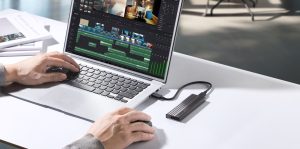
- If you are using a USB 3.0 external hard drive or flash drive plugged into a port right next to your Bluetooth USB adapter, it can emit radio frequency noise that jams Bluetooth signals. Move USB 3.0 devices further away or use a USB extension cable.
Step 3: Update or Reinstall Bluetooth Drivers (Windows PC)
If you are experiencing drops on a Windows laptop or desktop, outdated drivers are frequently to blame.
- Right-click the Windows Start button and select Device Manager.
- Expand the Bluetooth category (look for adapters like Intel Wireless Bluetooth or Realtek Bluetooth Adapter).
- Right-click your main Bluetooth adapter, select Update driver, and choose Search automatically for drivers.
- If that fails, right-click the adapter, select Uninstall device, and restart your PC. Windows will automatically reinstall a fresh driver upon reboot.
Step 4: Disable Multipoint Pairing (If Applicable)
If your headphones support connecting to two devices at once, this feature can sometimes cause erratic behavior when both devices attempt to send notification sounds simultaneously.
- Open your headphone manufacturer’s companion app (e.g., Sony Headphones Connect, Bose Music, JBL Headphones).
- Locate Multipoint Connection or Connect to 2 devices simultaneously in the settings menu and toggle it OFF to lock the headphones to a single device.
What Not to Do Prematurely
- Do not throw away your headphones assuming they are broken: Intermittent disconnections are software or interference-related 80% of the time.
- Do not factory reset your phone or PC: Resetting your entire operating system for a Bluetooth dropout is an unnecessary overreaction.
- Do not use unverified registry cleaners: Avoid running aggressive Windows registry scripts promising to “fix Bluetooth latency,” as these can destabilize your system.
How to Verify Whether the Fix Worked
- Reconnect your headphones after completing the steps above.
- Play a continuous audio stream (music or video) while walking around your room or office within a 10-foot radius.
- Toggle your computer or phone’s Wi-Fi on and off to verify that local network traffic no longer causes the audio stream to drop.
What Do Do When the Problem Persists
If you have unpaired the device, cleared interference, and updated your drivers, but disconnections persist:
- Check for Firmware Updates: Use your headphone’s official mobile app to check if a firmware update is available. Manufacturers frequently push patches to improve Bluetooth stability.
- Replace a Faulty USB Bluetooth Dongle: If you are using a cheap, generic Bluetooth USB adapter on an older desktop PC, upgrade to a modern Bluetooth 5.0 or 5.3 PCIe card or branded USB adapter (such as TP-Link or Asus).
Prevention Advice
- Keep Software Updated: Regularly check for Windows updates or phone system patches, as they frequently include Bluetooth stack stability improvements.
- Store Headphones Properly: Keep your true wireless earbuds clean and dry inside their charging contacts so they power off completely and disconnect from your phone when stored away.
Frequently Asked Questions
Why do my Bluetooth headphones disconnect only when my Wi-Fi is active?
Wi-Fi and Bluetooth both operate on the congested 2.4 GHz frequency spectrum. If your Wi-Fi router is broadcasting heavily on a channel that overlaps with your Bluetooth signal (especially on older 2.4 GHz Wi-Fi bands rather than the 5 GHz band), it can drown out your headphone signal, causing drops. Connecting your PC or phone to a 5 GHz Wi-Fi network usually eliminates this interference.
Can a weak computer power supply cause Bluetooth to drop?
Yes, on desktop PCs. If your motherboard’s integrated Bluetooth module or PCIe Wi-Fi/Bluetooth card is not receiving stable power, or if the antennas aren’t attached, the Bluetooth signal strength will drop dramatically, causing constant disconnections.
What is the difference between Bluetooth pairing and connecting?
Pairing is the initial cryptographic handshake where two devices exchange security keys so they recognize each other. Connecting is the active session where data (such as audio streams) is transmitted. If your headphones are paired but refuse to connect, clearing the pairing cache (Step 1) is usually necessary.
Relevant Official Sources
- Microsoft Support: Fix Bluetooth problems in Windows — Official troubleshooting guide from Microsoft for resolving Bluetooth connectivity and driver issues on Windows PCs.
- Apple Support: If you can’t connect a Bluetooth accessory to your iPhone or iPad — Official Apple guidance for troubleshooting iOS and iPadOS Bluetooth pairing drops.
G. Originality and Search-Intent Assessment
- User Intent: The reader needs to diagnose and fix frequent Bluetooth headphone disconnections across either mobile phones or desktop computers.
- Differentiation: Covers both mobile and PC environments, addressing specific technical root causes like 2.4 GHz frequency interference, USB 3.0 radio noise, and Windows driver management.
- Overlap: Complements existing connectivity troubleshooting guides on Maleisure.
H. Maintenance Note
- Items to Recheck: Windows Bluetooth settings menus and driver update paths may shift across major Windows feature updates. Review menu instructions annually.
I. Editorial Verification Report
- Claims Verified: 2.4 GHz interference overlap between Wi-Fi and Bluetooth, and Windows Device Manager Bluetooth driver reinstallation steps align with standard technical documentation.
- Device Limitations: Steps differentiate between mobile operating systems (iOS/Android) and Windows PCs.
- Destructive Steps: None; all troubleshooting steps are non-destructive.
- Links: Official Microsoft and Apple support links verified for relevance and accessibility.