When you click “Remember Me” or “Stay Signed In” on a website, the platform creates a small encrypted file called a session cookie and stores it in your browser’s local folder. The next time you visit that website, your browser presents that cookie as proof of your identity so you do not have to type your password and two-factor authentication code again.
If your browser constantly signs you out of Gmail, Microsoft 365, social media, or work dashboards every time you close the window or restart your PC, something is deleting or blocking those session cookies.
Instead of resetting your entire browser and losing your saved configurations, use this diagnostic guide to find out whether an internal browser rule, a privacy extension, or an external Windows utility is wiping your login sessions.
Symptoms
- You are forced to re-enter your username, password, and two-factor authentication codes every time you close and reopen your web browser.
- Your browser Sync feature (such as Chrome Profile Sync or Firefox Account Sync) frequently pauses or shows an “Account Action Required” error.
- Websites forget your local preferences, such as dark mode toggles, site language, or shopping cart items, immediately after closing a tab.
- You get logged out of all accounts simultaneously after restarting your computer.
Possible Causes
- Exit-Clear Rules Enabled: Your browser is configured to automatically purge all local site data and cookies the moment the browser window closes.
- Aggressive Third-Party Privacy Extensions: Browser extensions designed to auto-delete tracking cookies are mistakenly deleting legitimate authentication cookies.
- External System Cleaner Software: Background PC maintenance programs (such as CCleaner, Avast Cleanup, or Norton Utilities) are scheduled to wipe browser cache directories during startup or shutdown.
- Strict Tracking Prevention: High-security browser modes are blocking federated login tokens (such as “Sign in with Google” or “Sign in with Apple” on third-party sites).
- Corrupted Local Cookie Database: The internal SQLite database file where your browser stores cookies has become locked or corrupted, preventing new sessions from saving to your hard drive.
Safe Preliminary Checks
Before altering deep privacy configurations, rule out these common operational habits:
- Check for Incognito or Private Mode: Verify you are not launching your browser via a shortcut configured to open in Private, Incognito, or InPrivate mode. Private windows are designed to destroy all session cookies the instant the last private window closes.
- Distinguish High-Security Sites from Standard Sites: Online banking portals, government tax websites, and healthcare dashboards enforce server-side session timeouts (usually 10 to 15 minutes). These sites will always log you out regardless of your browser settings. Test your issue using a persistent platform like Google, YouTube, or Reddit.
- Check Your System Clock: Security tokens and cookies have strict expiration timestamps. Look at the bottom-right corner of your Windows taskbar and ensure your date, time, and time zone are accurate.
Logical Diagnostic Process & Step-by-Step Solutions
Work through these steps in order, starting with the most common setting misconfigurations inside your specific browser.
Step 1: Disable “Delete Data on Exit” Rules
Modern browsers include a privacy toggle that wipes all local site data whenever you quit the application. If this is turned on, no login session can survive a browser restart.
For Google Chrome:
- Click the three-dot menu in the top-right corner and select Settings.
- In the left sidebar, click Privacy and security.
- Scroll down and select Third-party cookies, then return to Privacy and security and click Site settings.
- Scroll to the very bottom, expand Additional content settings, and click On-device site data.
- Select Allow sites to save data on your device (instead of Delete data sites have saved to your device when you close all windows).
- Check the Customized behaviors list at the bottom of that page and remove any favourite websites accidentally listed under Not allowed to save data on your device.
For Microsoft Edge:
- Click the three-dot menu in the top-right corner and select Settings.
- Select Privacy, search, and services from the left menu.
- Scroll down to the Clear browsing data section and click Choose what to clear every time you close the browser.
- Ensure the toggle for Cookies and other site data is switched Off.
- If you want most cookies cleared but want to stay logged into specific accounts, click Add next to Don’t clear and enter the main domain (for example,
[*.]google.com).
For Mozilla Firefox:
- Click the three-line menu in the top-right corner and select Settings.
- Select Privacy & Security on the left.
- Scroll down to the Cookies and Site Data section.
- Uncheck the box labeled Delete cookies and site data when Firefox is closed.
- Scroll slightly further down to the History section. If it is set to Use custom settings for history, ensure Clear history when Firefox closes does not have Cookies or Active Logins checked inside its Settings… button.
Step 2: Audit Cookie-Deleting and Privacy Extensions
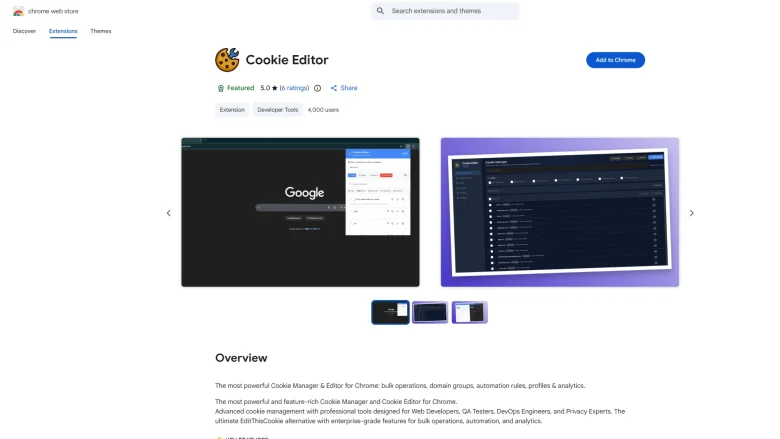
While standard ad blockers (like uBlock Origin) generally leave login cookies alone, dedicated cookie managers and anti-tracking extensions (such as Cookie AutoDelete, I Don’t Care About Cookies, Privacy Badger, or Ghostery) frequently purge session tokens when you close a tab.
- Open your browser’s extension manager (
chrome://extensionsin Chrome,edge://extensionsin Edge, orabout:addonsin Firefox). - Look for any extension related to cookies, privacy, anti-tracking, or script blocking.
- Temporarily toggle Off those extensions.
- Log into a test website, close the browser completely, wait 10 seconds, and reopen it.
- The Fix: If you stay logged in, turn your extensions back on one by one until you identify the culprit. Open that specific extension’s dashboard and add your trusted websites to its Whitelist / Keep List.
Step 3: Check Third-Party PC Cleaners and Antivirus Suites
If you stay logged in when closing and reopening the browser during the day, but get logged out every time you restart your computer, an external Windows program is wiping your browser folder.
- System Cleaners (CCleaner, BleachBit, Glary Utilities): Open the application, check the Smart Cleaning or Scheduled Cleaning tab, and uncheck Cookies and Session under your browser’s name.
- Antivirus Suites (Norton, McAfee, Avast, Bitdefender): Many security suites include a “Browser Cleanup” or “Track Sweep” feature that runs automatically on boot. Open your antivirus settings, locate the Privacy or Cleanup module, and disable automatic browser data purging.
Step 4: Fix Single Sign-On (SSO) and Third-Party Cookie Blocks
If you stay logged into google.com directly, but get repeatedly signed out of other websites where you clicked “Continue with Google” or “Sign in with Microsoft,” your browser is blocking cross-site authentication tokens.
- Open the website that keeps logging you out.
- Click the Tune / Site Information icon (or Padlock icon) on the far left of the address bar.
- Select Cookies and site data (or Tracking Prevention in Edge).
- Enable Allow third-party cookies specifically for that individual site, rather than lowering your privacy settings globally across the entire web.
Relevant Warnings: What Not to Do Prematurely
WARNING: Do not click “Reset Browser to Default Settings” or delete your entire Windows User Profile folder (
AppData\Local\Google\Chrome\User Data) before checking your sync status. Deleting a user profile directory without an active cloud backup permanently destroys all local saved passwords, bookmarks, open tab groups, and authenticator extensions.
- Do not globally enable all third-party cookies across the web: Turning off all tracking protections globally exposes your browser to invasive cross-site ad tracking. Instead, use site-specific exceptions for the specific dashboards you trust.
- Do not install “Cookie Keeper” extensions to fight another extension: Adding more extensions to manage conflicts only increases memory usage and browser instability. Configure your existing privacy tools instead.
How to Verify the Solution Worked
Perform a clean two-stage persistence test:
- The Browser Restart Test: Log into a non-banking website (such as YouTube or your email). Close all open browser windows completely. Wait 15 seconds for background browser processes to finish writing to your hard drive, then reopen the browser and visit the site. You should remain signed in.
- The System Reboot Test: Restart your Windows PC completely. Once back on the desktop, open your browser and check the same website. If you are still signed in, neither your browser nor any background Windows software is interfering with your session storage.
What to Do When the Problem Persists
If all settings and extensions are configured properly, your browser’s local Cookies database file may have corrupted permissions on your hard drive, preventing the browser from saving new changes.
Instead of wiping your entire profile, test with a fresh browser profile:
- Click your Profile Icon in the top-right corner of Chrome or Edge (next to the address bar).
- Click Add new profile (or Manage profiles > Add).
- Choose Continue without an account to create a clean local test profile.
- Log into a website in the new profile, close the browser, and reopen it. If the new profile holds the login while your main profile drops it, your main profile’s internal database is corrupted. Sync your bookmarks and passwords to your cloud account, then migrate to the new profile.
Prevention Advice
- Use Built-In Browser Controls Over Third-Party Cleaners: Modern browsers manage cache sizes and expired cookies automatically. Avoid giving third-party Windows “optimizer” utilities permission to modify browser directories, as updates to Chrome or Edge often change database structures and cause external cleaners to corrupt the files.
- Review Extension Permissions Before Installing: When installing a new browser extension, read the permission prompt. If a simple productivity tool asks for permission to “Read and change all your data on all websites” and “Modify privacy settings,” verify why it needs access to your site data.
Frequently Asked Questions
Why does Google Chrome keep pausing my browser sync?
Chrome pauses profile sync when its core Google authentication cookie is deleted. If you have Chrome set to clear google.com cookies on exit, or if you clear your browsing history with the “Cookies and other site data” box checked, Chrome immediately severs the sync connection until you sign back in.
Can a VPN cause websites to log me out?
Yes. While a VPN does not delete cookies from your hard drive, switching VPN servers rapidly (for example, jumping from a server in New York to one in London) triggers fraud detection on platforms like Google, Microsoft, and social networks. The server invalidates your session cookie from its end to protect your account from perceived hijacking.
How do I clear a broken website’s cache without logging out of everything else?
Instead of using the global “Clear Browsing Data” menu, visit the specific broken website, click the Site Information icon on the left side of the address bar, select Cookies and site data > Manage on-device site data, and click the Trash icon next to that site only. This refreshes the broken website while leaving all your other logins untouched.
Relevant Official Sources
- Google Chrome Help: Delete, allow and manage cookies in Chrome – Official instructions for configuring on-device site data and managing site exceptions.
- Mozilla Support: Websites say cookies are blocked – Unblock them – Official Firefox documentation for resolving cookie storage and history clearance conflicts.
- Microsoft Support: Manage cookies in Microsoft Edge: View, allow, block, delete and use – Official guidance for Edge exit-clearing rules and site-level tracking prevention.
Practical Troubleshooting Summary Table
| Symptom | Probable Cause | Recommended Fix |
| Signed out every time browser window closes | Browser “Clear on exit” setting enabled | Enable Allow sites to save data on your device in Privacy Settings. |
| Signed out only when restarting the PC | Third-party PC cleaner running at startup/shutdown | Disable browser cookie cleaning inside CCleaner or your Antivirus suite. |
| Signed out minutes after closing a single tab | Aggressive cookie-deleting browser extension | Whitelist the website inside extensions like Cookie AutoDelete or Ghostery. |
| Chrome/Edge profile shows “Sync Paused” | Core google.com or live.com cookie was wiped |
Add [*.]google.com or [*.]microsoft.com to your browser’s “Always allow” cookie list. |
| “Sign in with Google/Apple” fails on other sites | Strict third-party cookie blocking | Click the address bar site icon and allow third-party cookies for that specific site. |
Relevant Official Sources
Google Chrome Help: Delete, allow and manage cookies in Chrome – Verifies the current “On-device site data” menu terminology in Chrome.
Mozilla Support: Websites say cookies are blocked – Verifies Firefox’s custom history settings and cookie persistence rules.
Microsoft Support: Manage cookies in Microsoft Edge – Verifies Edge’s “Choose what to clear every time you close the browser” controls.